 FieldCamp
Arrival Windows with Manual Capacity | FieldCamp
Configure arrival windows with manual capacity limits in FieldCamp's online booking. Control exactly how many jobs each time slot accepts per day for scheduling.
Manual capacity lets you set exact booking limits for each arrival window, giving you complete control over how many customers can book a given time slot. This is ideal for businesses that want predictable workloads without relying on automatic calculations.
Manual capacity is one of three scheduling formats available in FieldCamp. If you prefer the system to calculate capacity automatically based on your team size, see Arrival Windows with Provider-Based Capacity. For exact appointment times instead of windows, try Fixed Time Scheduling.
What Is Manual Capacity?
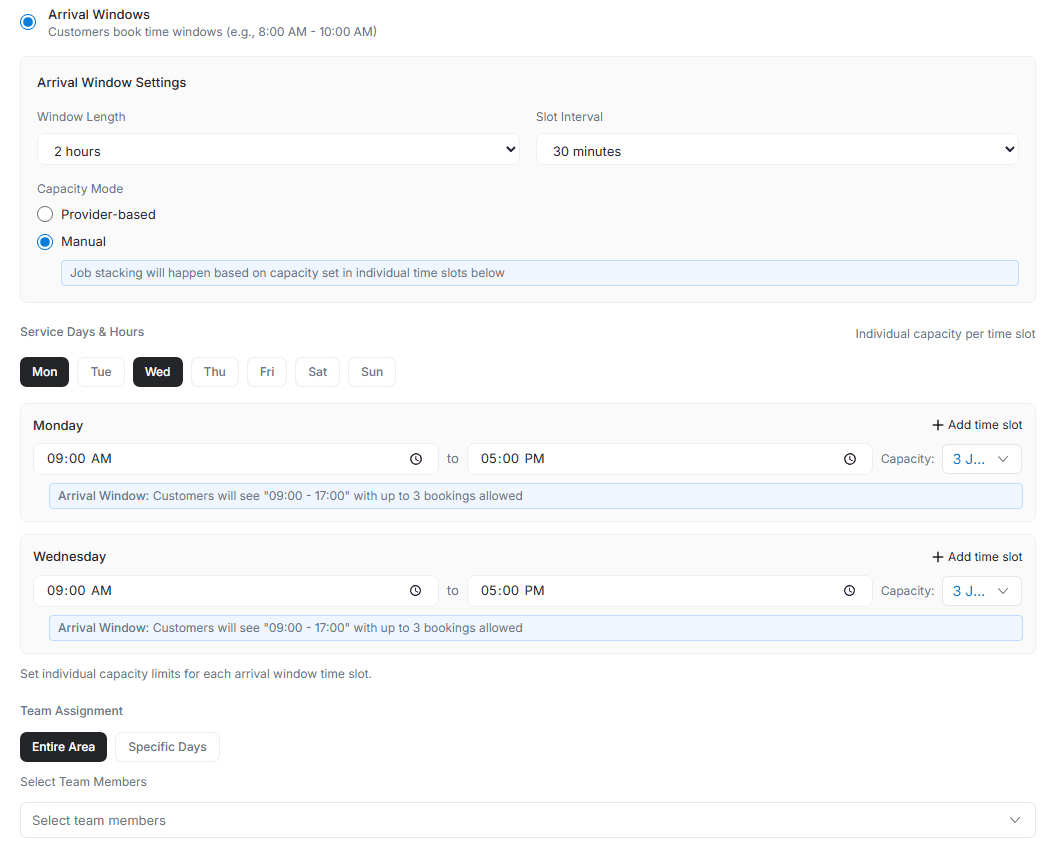
Manual capacity gives you complete control over how many customers can book each time window. Instead of automatic calculations, you set exact limits for each time slot based on your business needs.
Example: Set morning windows (8 AM - 12 PM) to accept 4 bookings and afternoon windows (12 PM - 4 PM) to accept 3 bookings.
How It Works
For Your Business
You define exact capacity for each time window. Set different limits for different times of day. Adjust capacity based on team size, service complexity, or seasonal demand.
For Customers
Customers see available time windows with clear capacity status. They select their preferred window and get instant confirmation. Your team arrives anytime within the chosen window.
Configuration Steps
Before you begin, make sure you have set up online booking and created at least one service area.
Step 1: Set Up Arrival Windows
Navigate to Service Area Settings to begin configuration.
- Choose your window length (2, 3, or 4 hours)
- Define when windows start throughout the day
- Select "Arrival Windows" as scheduling format
- Choose "Manual" for capacity mode
Step 2: Configure Window Schedule
Set up your daily time windows based on business hours.
Common Window Configurations:
- Morning: 8:00 AM - 12:00 PM
- Afternoon: 12:00 PM - 4:00 PM
- Evening: 4:00 PM - 8:00 PM
Step 3: Set Capacity Limits
Define maximum bookings for each window.
- Enter the number of jobs each window can accept
- Set different limits for different windows if needed
- Consider your team size and service duration
- Account for travel time between customers
Step 4: Save and Activate
Review your settings and save the configuration. Test the booking system to verify capacity limits work correctly. You can also control which steps customers see during booking through Booking Steps Configuration.
Configuration Examples
Example 1: HVAC Repair Service
Window Setup:
- Morning Window: 8:00 AM - 12:00 PM → Capacity: 3 jobs
- Afternoon Window: 12:00 PM - 4:00 PM → Capacity: 3 jobs
- Evening Window: 4:00 PM - 7:00 PM → Capacity: 2 jobs
Why this works: Morning and afternoon allow more jobs when full team is available. Evening has reduced capacity for limited staff. Each technician can handle complex repairs without rushing.
Example 2: Delivery Service
Window Setup:
- Early Morning: 7:00 AM - 11:00 AM → Capacity: 8 deliveries
- Late Morning: 11:00 AM - 2:00 PM → Capacity: 6 deliveries
- Afternoon: 2:00 PM - 6:00 PM → Capacity: 6 deliveries
Why this works: Early morning has highest capacity for optimal route efficiency. Midday capacity reduced for lunch schedules. Consistent afternoon capacity for predictable service.
Setting Capacity Limits
Factors to Consider
- Team Size — How many technicians work each shift
- Service Duration — Average time to complete each job
- Travel Time — Driving between customer locations
- Service Complexity — Some jobs need more time
- Buffer Time — Allow for unexpected delays
Capacity Planning Tips
Start conservative with lower capacity limits and monitor completion rates. It is much easier to increase capacity after a few weeks of data than to deal with overbooked schedules and unhappy customers.
- Monitor completion rates and adjust upward if needed
- Consider different limits for different days of the week
- Account for seasonal variations in demand
Advanced Settings
Variable Capacity by Day
Set different limits for different days of the week.
- Monday-Friday: Higher capacity for regular business operations
- Saturday: Reduced capacity for smaller weekend crew
- Sunday: Minimal capacity or closed
Seasonal Adjustments
Modify capacity based on busy seasons.
- Peak Season: Increase capacity limits to meet demand
- Off Season: Reduce capacity for smaller team
- Holidays: Adjust for staff availability
Related Articles
- Arrival Windows with Provider-Based Capacity — let FieldCamp calculate capacity automatically
- Fixed Time Scheduling — offer exact appointment times instead of windows
- Setting Up Online Booking — initial setup before configuring scheduling
- Booking Steps Configuration — customize what customers see during booking
Fixed Time Scheduling for Online Booking | FieldCamp
Set up fixed time scheduling in FieldCamp to let customers book exact appointment slots online. Configure service durations, team schedules, and smart routing.
Arrival Windows with Provider-Based Capacity | FieldCamp
Set up arrival windows with automatic provider-based capacity in FieldCamp. The system calculates available slots from service duration, travel time, and team size.