 FieldCamp
Service Areas for Online Booking | FieldCamp
Define service areas in FieldCamp using radius, polygon, or zip code zones to control where customers can book online. Optimize dispatching and team coverage.
Service Areas define exactly where your business operates, making it simple to assign jobs, manage teams, and deliver prompt service to the right locations. Whether you cover a single city or multiple regions, service areas give you the flexibility to map your operations, optimize dispatching, and keep your fieldwork running smoothly.
Service Areas are a required part of setting up online booking. You must have at least one active service area before customers can book through your widget or booking page.
What Are Service Areas?
Service Areas in FieldCamp let you map and manage the regions where you provide services. You can set up radius-based, polygon-based, or zip code/city-based areas to match your business needs.
Service Areas are essential for:
- Efficient Dispatching — Assign jobs to the nearest available team members and reduce travel time
- Team Coordination — Ensure your crew only receives jobs in their designated zones
- Clear Coverage — Visualize your operational reach and avoid service gaps or overlaps
- Optimized Resource Allocation — Allocate your workforce based on real geographic demand
How to Install and Access Service Areas
- Go to Settings: From your FieldCamp dashboard, click on your profile or the main menu and select Settings.
- Click on Add-Ons: In the Settings menu, find and click on the Add-Ons section.
- Install Service Areas: Locate the Service Areas add-on in the list. Click Install.
- Access from the Dashboard: Once installed, the Service Areas option will appear in your left-hand dashboard menu.
Coverage Zone Options
After installing Service Areas, you will see four main options at the top of the module:
- My Service Areas — View and manage all your existing zones
- Add Radius Area — Define a circular area by center point and radius
- Add Polygon Area — Draw custom-shaped areas on the map for complex boundaries
- Add Zip Code / City Area — Specify coverage by zip codes or cities for granular control
These options make it easy to tailor your service coverage to your exact operating territory.
How to Create and Manage Service Areas
1. View and Manage Your Service Areas
- Click My Service Areas to see a list of all active and inactive zones
- Toggle service areas on/off or delete them as needed
- Each area displays its type, radius or boundaries, and assigned team members
- Easily update or reassign zones as your business grows

2. Add a Radius-Based Service Area
- Click Add Radius Area
- Enter an area name (e.g., "Downtown Area")
- Assign team members responsible for this zone
- Search for a location or enter latitude/longitude coordinates
- Set the radius in kilometers
- The interactive map will display your area as a blue circle
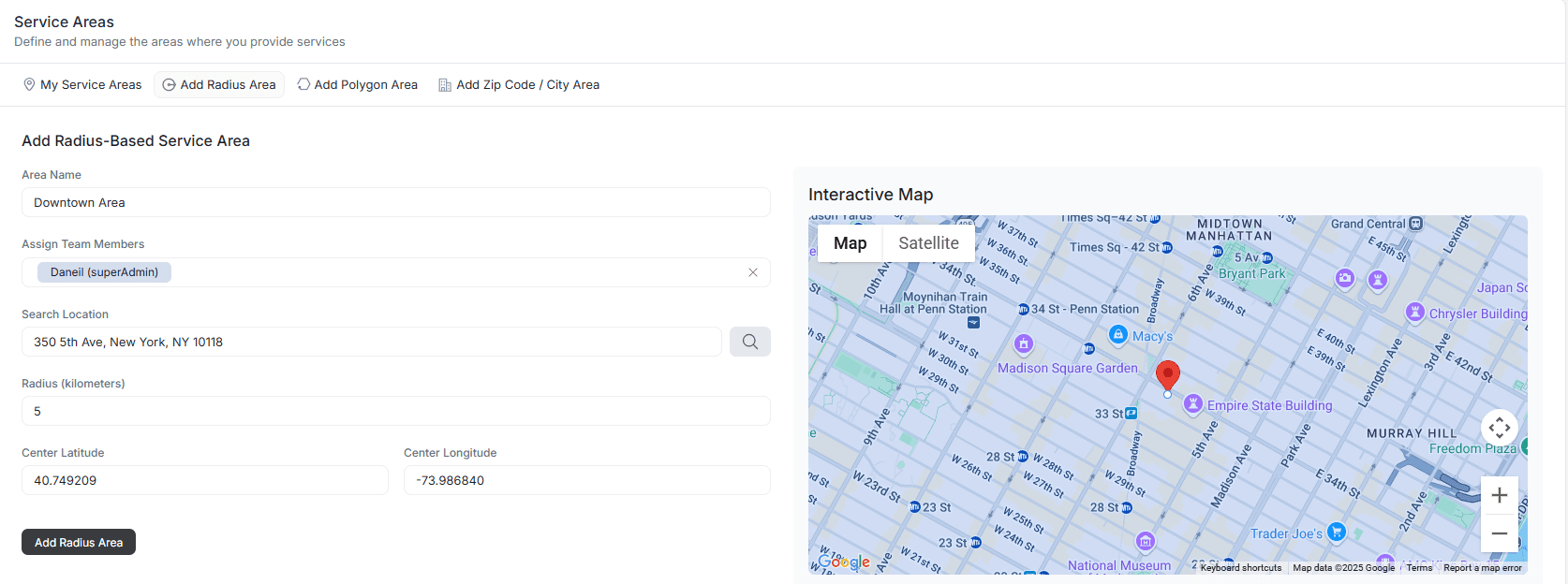
This method is ideal for businesses serving a central hub and its immediate surroundings.
3. Add a Polygon-Based Service Area
- Click Add Polygon Area
- Enter an area name and assign team members
- Use the interactive map to click and draw points, outlining your custom area
- Edit points as needed for precision — perfect for irregular or non-circular territories
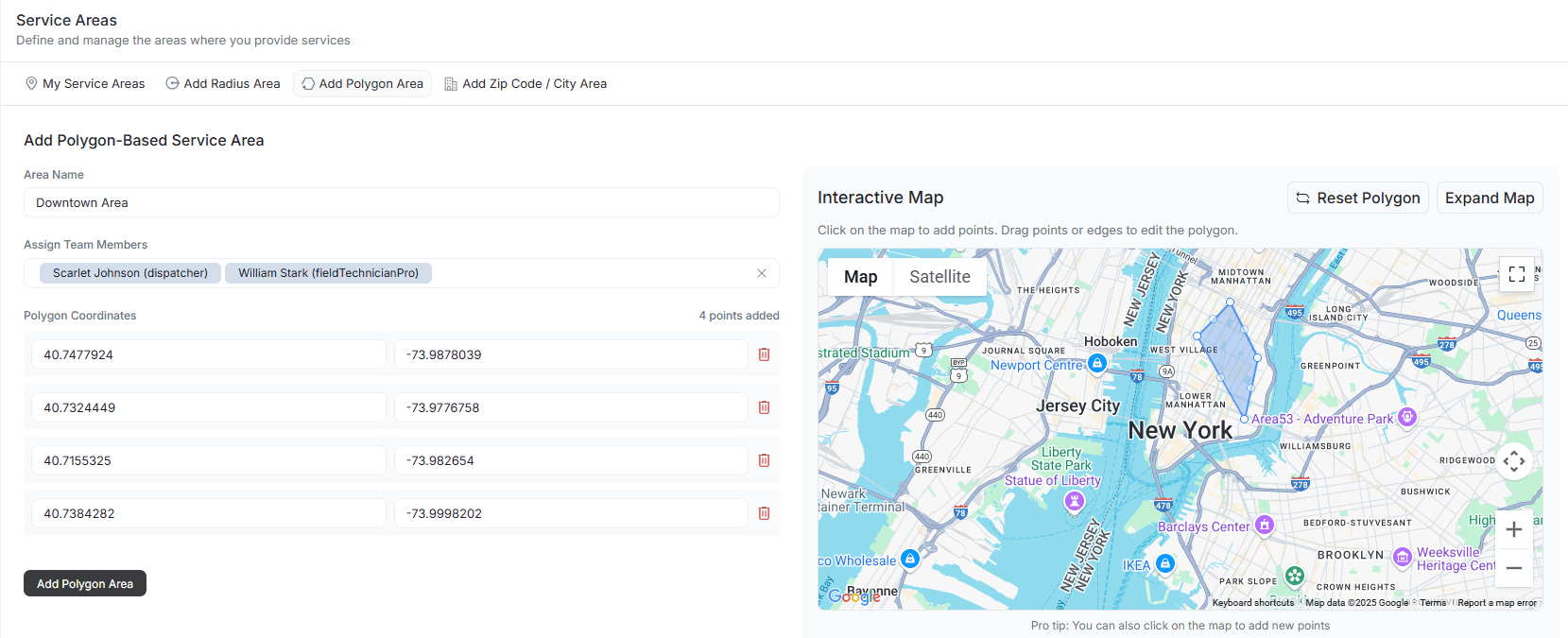
Polygon areas are best for covering neighborhoods, districts, or other uniquely shaped service zones.
4. Add a Zip Code or City-Based Service Area
- Click Add Zip Code / City Area
- Enter an area name and assign team members
- Type in the relevant zip codes (comma-separated)
- Add cities if needed (comma-separated)
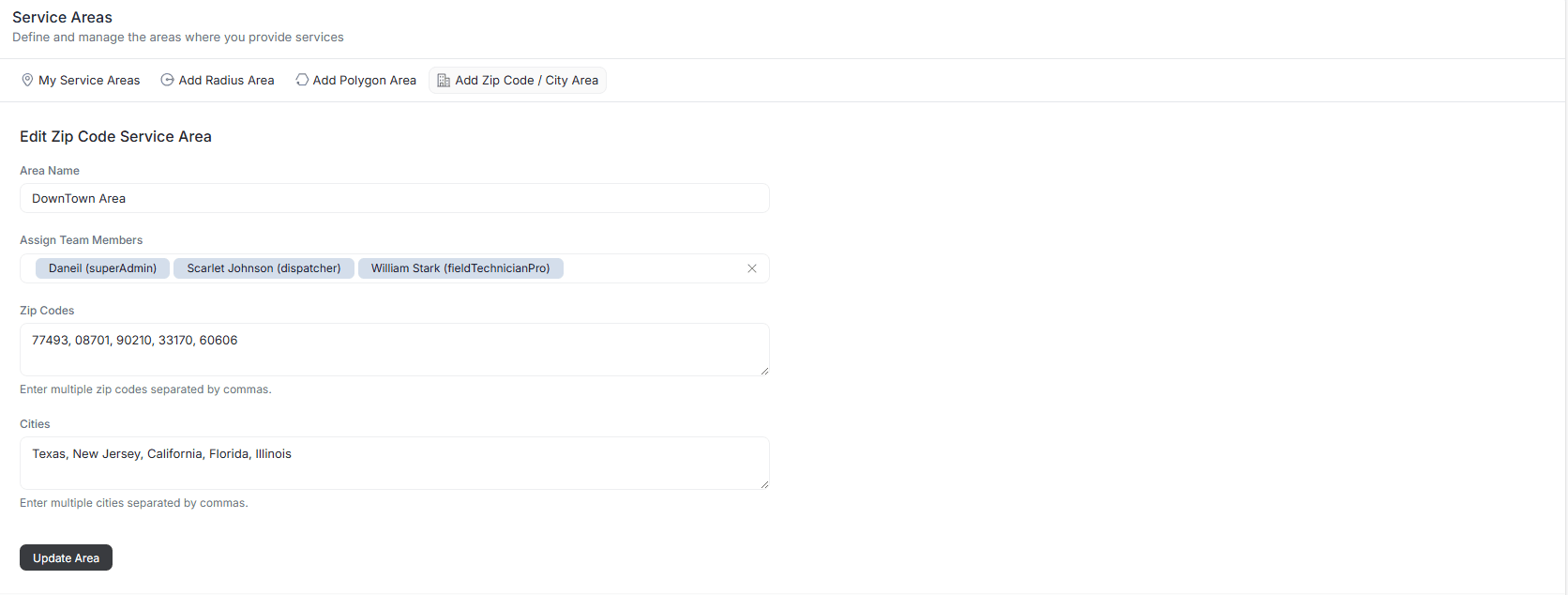
This approach is especially useful for businesses that organize service by postal codes or operate across multiple cities.
Connecting Service Areas to Scheduling
Each service area can have its own scheduling format. After creating a service area, you choose one of three scheduling modes:
- Fixed Time Slots — Customers book exact appointment times. See Fixed Time Scheduling for setup details.
- Arrival Windows (Manual Capacity) — Customers pick a time range and you control how many bookings each window accepts. See Arrival Windows with Manual Capacity.
- Arrival Windows (Provider-Based) — The system automatically calculates available slots based on team size and service duration. See Arrival Windows with Provider-Based Capacity.
You can also customize what customers see during booking through Booking Steps Configuration.
You can use different scheduling formats for different service areas. For example, use fixed time slots in your primary coverage zone and arrival windows in extended areas where travel times vary more.
Best Practices for Service Areas
- Assign Team Members — Ensure every area has dedicated staff for faster response times and accountability
- Combine Area Types — Use a mix of radius, polygon, and zip/city areas for precise and flexible coverage
- Review Regularly — Update your service areas as your business expands or as service demand shifts
- Monitor Performance — Use analytics to see which areas generate the most jobs and adjust your strategy
- Communicate Clearly — Make sure your team knows their assigned zones to avoid confusion and overlaps
With FieldCamp's Service Areas feature, you have full control over how you define, visualize, and manage your business's coverage zones. This flexibility helps you optimize dispatching, improve response times, and ensure every job goes to the right place.
Related Articles
- Setting Up Online Booking — complete initial configuration for accepting bookings
- Fixed Time Scheduling — configure exact appointment time slots
- Arrival Windows with Manual Capacity — set custom booking limits per time window
- Booking Steps Configuration — customize the steps customers see during booking
Adding the Booking Widget to Your Website | FieldCamp
Embed the FieldCamp online booking widget on your website with four deploy modes, preview the layout, and let customers book services 24/7.
Customer Portal for Self-Service Scheduling | FieldCamp
Set up FieldCamp's customer portal so clients can view appointments, approve estimates, download invoices, and reschedule visits 24/7 with passwordless login.