 FieldCamp
Online Booking Content & Text Customization | FieldCamp
Customize headings, subtitles, and button labels on every step of your FieldCamp online booking widget to match your brand voice and improve conversions.
The Content tab lets you customize the text customers see at every step of your booking flow. Change headings, subtitles, and button labels to match your brand voice instead of relying on generic defaults. A live preview updates in real time as you type.
To get started, go to Settings → Online Booking → Content.
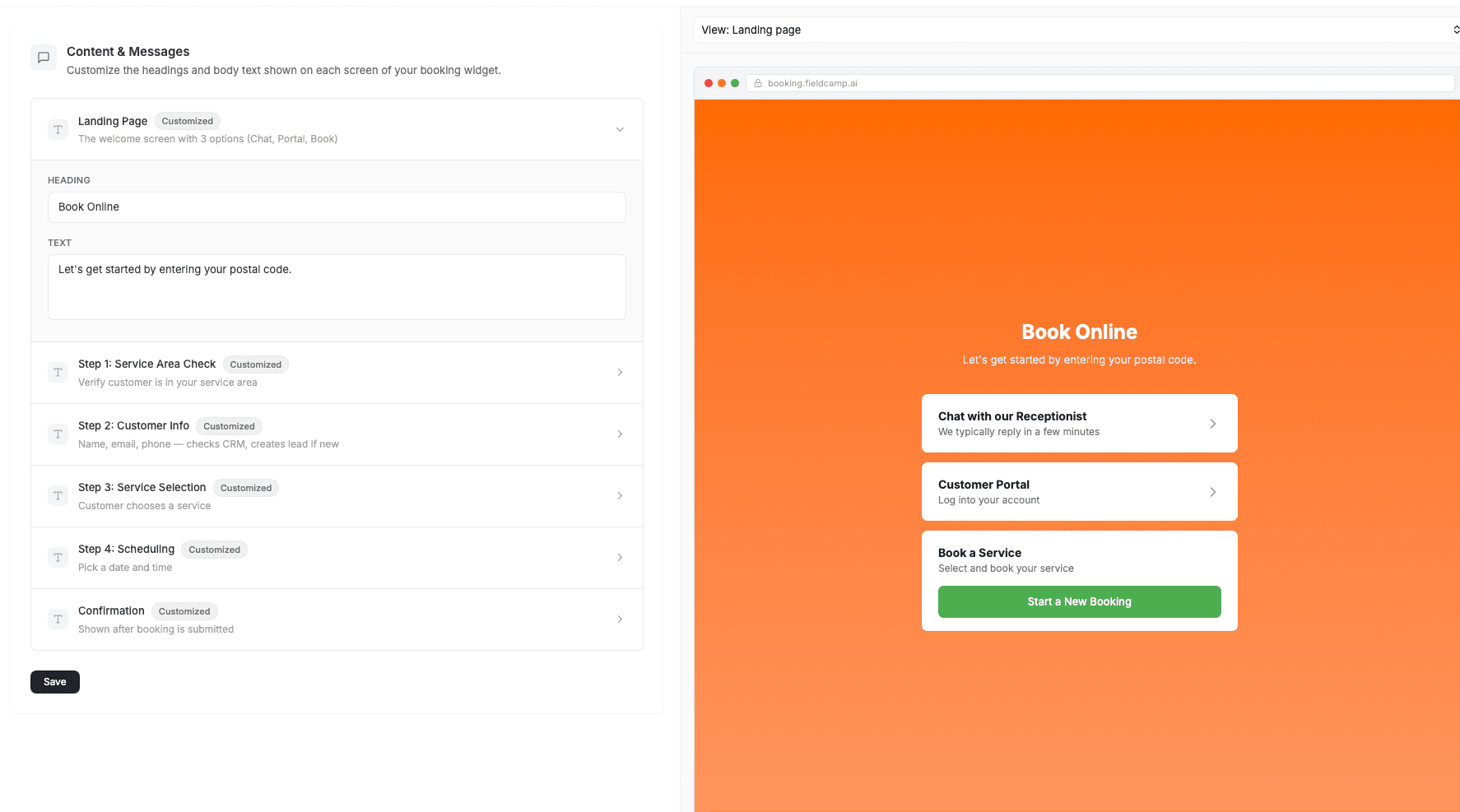
How Content Customization Works
Each booking screen appears as a card in the Content & Messages panel. Click Edit on any card to open a modal where you can override the default text.
Every screen supports these fields:
- Heading — the bold title customers see at the top of that step.
- Text / Subtitle — the supporting copy displayed below the heading.
- Button Label — the call-to-action text on some screens (e.g., "Continue", "Book Now").
When you leave a field empty, FieldCamp displays its built-in default as a placeholder. A Customized badge appears on any card where you have overridden the default text.
Customizable Screens
Start Page
The first screen customers see when your booking widget opens. It presents options such as Chat, Portal, and Book.
- Heading — main title at the top (e.g., "Schedule Your Cleaning Service").
- Text — subtitle beneath the heading (e.g., "Enter your zip code to check availability in your area.").
Service Selection
Displays your available services so the customer can choose what they need.
- Heading — title above the service list (e.g., "What Can We Help You With?").
- Text — guidance text (e.g., "Browse our services below and pick the one that fits.").
Scheduling
Lets the customer pick a date and time for their appointment.
- Heading — title of the scheduling step (e.g., "Pick a Date & Time").
- Text — instructional text (e.g., "Choose a slot that works for you.").
Contact Info
Collects the customer's name, email, and phone number.
- Heading — title of the contact form (e.g., "Tell Us About Yourself").
- Text — helper text above the form fields (e.g., "We'll use this info to send your confirmation.").
Summary / Confirmation
Shown after the booking is submitted. Reassure the customer and set expectations.
- Heading — title of the confirmation screen (e.g., "You're All Set!").
- Text — follow-up message (e.g., "Check your email for a confirmation with all the details.").
Keep headings to 3-7 words and subtitles to one sentence. Use action-oriented language that matches your brand tone — casual ("Let's find a time!") or professional ("Select your preferred appointment window.").
Related Articles
- Setting Up Online Booking — get your booking widget configured from scratch.
- Appearance & Branding — customize colors, logos, and visual styling.
- Booking Steps Configuration — control which steps appear in your booking flow and their order.
Online Booking Appearance & Branding Settings in FieldCamp
Customize your booking page colors, logo, favicon, and hero image to match your brand identity. Make your FieldCamp online booking page look professional.
Booking Steps Configuration | FieldCamp
Configure which steps appear in your FieldCamp online booking flow, reorder them with drag-and-drop, and set your service area validation method for customers.