 FieldCamp
Connect FieldCamp and FieldCamp Voice | FieldCamp
If you use FieldCamp, connect it to FieldCamp Voice so voice agents can use your customer data, answer in call flows, and send results to the Inbox.
FieldCamp Voice (voice.fieldcamp.ai) works on its own. You can build voice agents, connect a phone number and take calls without FieldCamp; see the quickstart. If you use FieldCamp, your field service software, you can connect the two so your voice agents work with your customer records. An owner or admin connects them once from Settings → Apps & Integrations → FieldCamp Voice.
What you gain by connecting
- FieldCamp sees your voice agents. Your published agents appear in FieldCamp under Front Office AI → Voice Agents, and you can use one in the AI step of a call flow. FieldCamp then hands calls on your FieldCamp number to that agent.
- Voice agents can use your FieldCamp data. Through the FieldCamp App tools in Voice, an agent can look up clients, jobs, estimates, invoices and the calendar during a call, and create a request. Templates marked FieldCamp App, such as Customer check-in, need this connection.
- Call results come back to FieldCamp. When a call ends, the outcome, recording and transcript link land on the customer's thread in the Inbox.
- You can open Voice from FieldCamp with Open in Voice, without signing in again.
For the full call path, see How AI voice agents work with FieldCamp.
What works without connecting
Everything you need to run a voice agent is in Voice: building and testing agents, publishing, connecting a phone number from your telephony provider, outbound campaigns, and reviewing calls under Calls, Dashboard and Reports. You can send call events to your own systems with Event webhooks, and connect AI Dispatcher to book jobs during a call with or without FieldCamp.
Before you connect
- You're an owner or admin of the FieldCamp workspace. Other roles can't connect FieldCamp Voice. See FieldCamp roles and permissions.
- You have a FieldCamp Voice account. You sign in to Voice during the connection. If you don't have one, click Create an account at voice.fieldcamp.ai.
- Pop-ups are allowed for FieldCamp in your browser. The connection happens in a separate window.
Connect FieldCamp Voice
Open Apps & Integrations
In FieldCamp, go to Settings → Apps & Integrations.
Find FieldCamp Voice
Search for "voice", or look in the COMMUNICATION category, and click FieldCamp Voice. The page shows "No managed connections" and a Connect FieldCamp Voice card.
Click Connect
Click Connect. A window opens where you sign in to FieldCamp Voice and approve access. While the window is open, the button reads "Waiting for the connection window…". Nothing is saved in FieldCamp until you finish.
Sign in and approve access
Sign in to Voice in the new window and approve access. If you're already signed in to Voice in the same browser, the window can finish on its own in a few seconds.
Confirm the connection
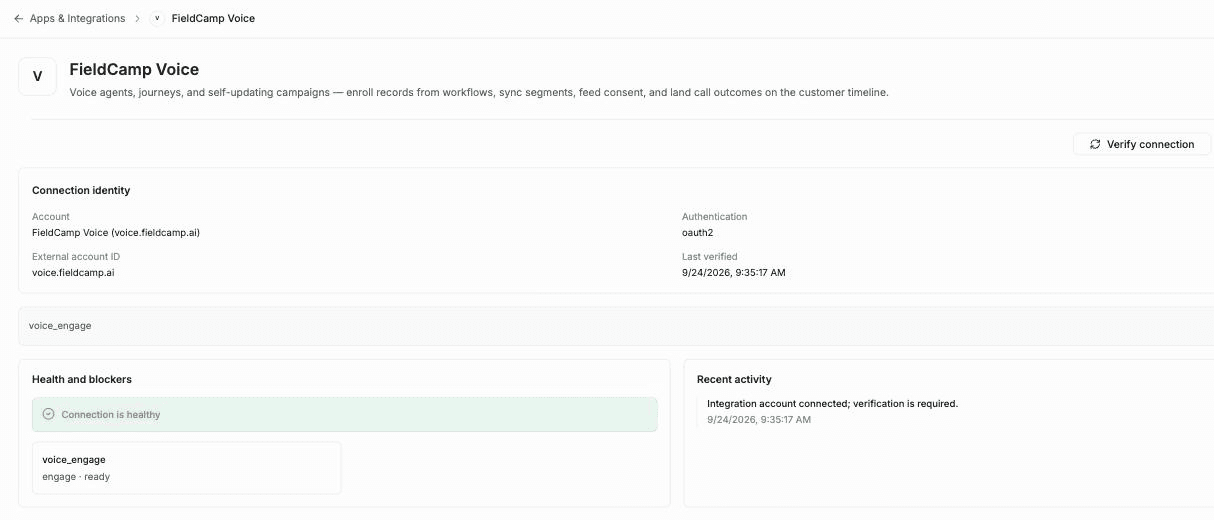
After you connect, FieldCamp Voice appears under INSTALLED at the top of Apps & Integrations. Open it to check the connection:
- Connection identity shows the Account "FieldCamp Voice (voice.fieldcamp.ai)", the Authentication method, the External account ID and when the connection was Last verified.
- Health and blockers reads "Connection is healthy".
- Recent activity lists the connection event.
- Verify connection checks the connection again.
Next, check that your agents show up:
- In the FieldCamp sidebar, click Front Office AI, then open the Voice Agents tab.
- Click the Agents tab. Each published agent has a card with its name, version (such as v1 or v2), a published badge, the call flow that uses it, and an Open in Voice button. An agent that no call flow uses yet reads "Not used by any published call flow yet."
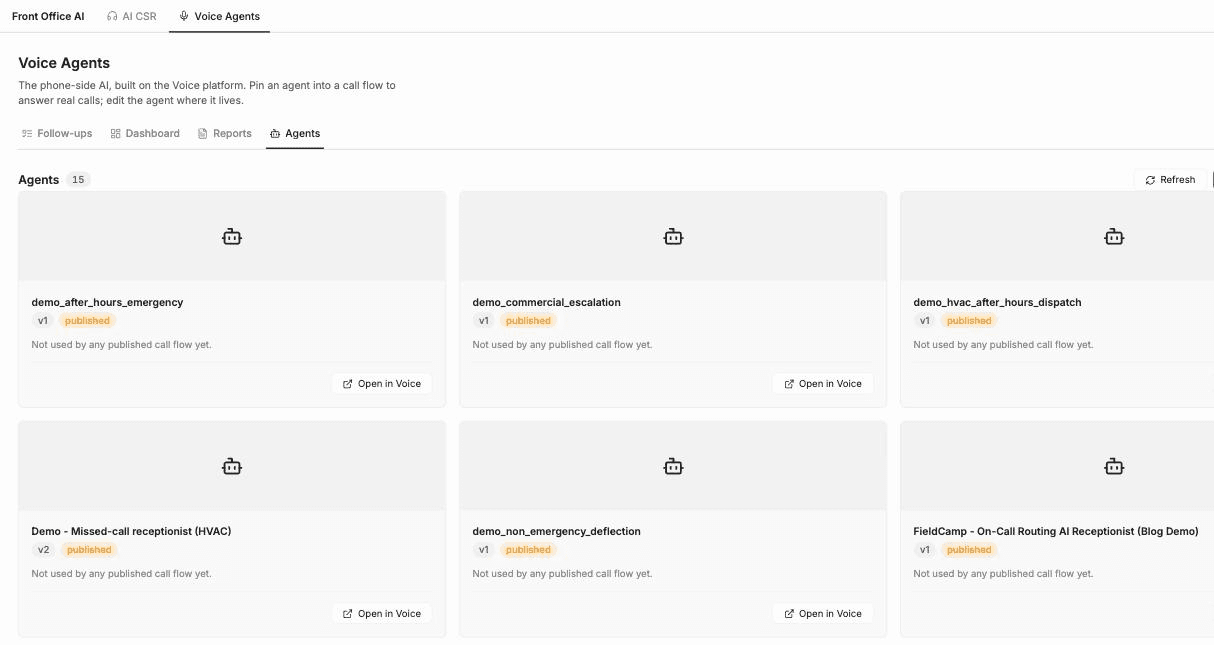
Only published agents appear here. If an agent is missing, open it in Voice, click Publish, then click Refresh on the Agents tab. See Create an AI voice agent for how publishing works.
Open Voice from FieldCamp
Once FieldCamp is connected, click Open in Voice on an agent's card to go to Voice and edit the agent there. You make every change to an agent in Voice; FieldCamp shows the published versions.
Troubleshooting
The connection window doesn't open
Your browser is probably blocking pop-ups. Allow pop-ups for FieldCamp, then click Connect again.
An agent is missing from the Agents tab
Only published agents appear. Publish the agent in Voice, then click Refresh on the Agents tab. If you just edited the agent, remember that edits create a draft; FieldCamp keeps showing the last published version until you publish the draft.
You see "Voice is not connected"
On the Follow-ups tab, the banner "Voice is not connected, so only calls already recorded in FieldCamp are shown" means the workspace isn't connected yet. Your published agents also won't appear on the Agents tab until the workspace is connected. Ask an owner or admin to connect FieldCamp Voice.
The connection shows a problem
If Health and blockers doesn't read "Connection is healthy", open FieldCamp Voice in Apps & Integrations and click Verify connection.
Frequently asked questions
Do I need to connect FieldCamp to use voice agents?
No. Voice agents work on their own in FieldCamp Voice, on numbers from your own telephony provider. Connect FieldCamp only if you use it and want agents to use your customer data, answer through FieldCamp call flows, or send results to the Inbox.
How do I connect an AI receptionist to my field service software?
In FieldCamp, an owner or admin goes to Settings → Apps & Integrations, opens FieldCamp Voice, clicks Connect, and signs in to Voice in the window that opens. Your published voice agents then appear under Front Office AI → Voice Agents.
Do I need a separate login for FieldCamp Voice?
You need a FieldCamp Voice account, and you sign in to Voice in the connection window. FieldCamp users can sign in to Voice with their FieldCamp login. After the connection is set up, Open in Voice on an agent's card under Front Office AI → Voice Agents takes you to Voice without signing in again.
Who can connect FieldCamp Voice?
Only an owner or admin of the FieldCamp workspace can connect FieldCamp Voice.
Why don't I see my voice agent in FieldCamp?
FieldCamp lists published agents only. Publish the agent in Voice, then click Refresh on the Agents tab.
Related articles
How AI voice agents work with FieldCamp | FieldCamp
See what changes when you connect FieldCamp to FieldCamp Voice: two ways calls reach your AI voice agent, mid-call tools, handoffs, and where results appear.
Create an AI voice agent | FieldCamp
Create an AI voice agent in FieldCamp Voice. Describe what it should do or start from a blank canvas, then choose whether it answers or places phone calls.