 FieldCamp
Use API trigger, webhook, and QA steps | FieldCamp
Start calls from your own systems with the API trigger, send call data out with a webhook step, and review call quality with the QA analysis step.
Most steps in a voice agent shape the conversation. The steps on this page work around it:
- API Trigger starts the agent from your own systems.
- Webhook sends call data to another system after the call.
- QA Analysis reviews the call transcript for quality problems.
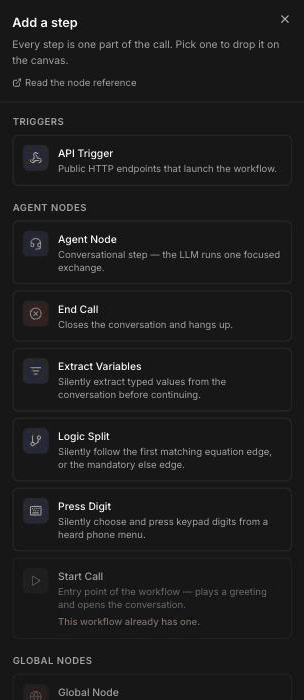
You add all of them from the + button at the top right of the builder canvas. API Trigger is under TRIGGERS; Webhook and QA Analysis are under INTEGRATIONS. None of them take part in the conversation, and Webhook and QA Analysis aren't connected to other steps.
API trigger
API Trigger is described as "Public HTTP endpoints that launch the workflow." Use it when another system should start the agent, for example your own software starting the agent when a job is marked complete.
An agent can have one API Trigger. Its card gives you two addresses:
- Test URL runs the latest draft, so you can check changes before you publish.
- Production URL runs the published agent.
Both need an API key sent in the X-API-Key header. Create a key in Voice under MCP & API with New API key (see Tour the FieldCamp Voice app). The card has copy buttons for the address and for an example curl command; start from that example when you set up the request in your own system.
In the step's settings:
- Enabled is on by default. When it's off, the trigger address stops working and returns a not-found error.
- Trigger Path is the last part of the address. You can change it to something readable, up to 36 characters, using letters, numbers, hyphens and underscores. Each path can only be used once.
Keep your API key out of shared documents and browser code. Anyone with the key and the address can start the agent.
Webhook step
A Webhook step sends an HTTP request after the call ends, so another system can act on what happened. For example, it can post the captured service address to your office software. The card describes it as "Send HTTP request after the workflow completes."
Set it up
Add the step
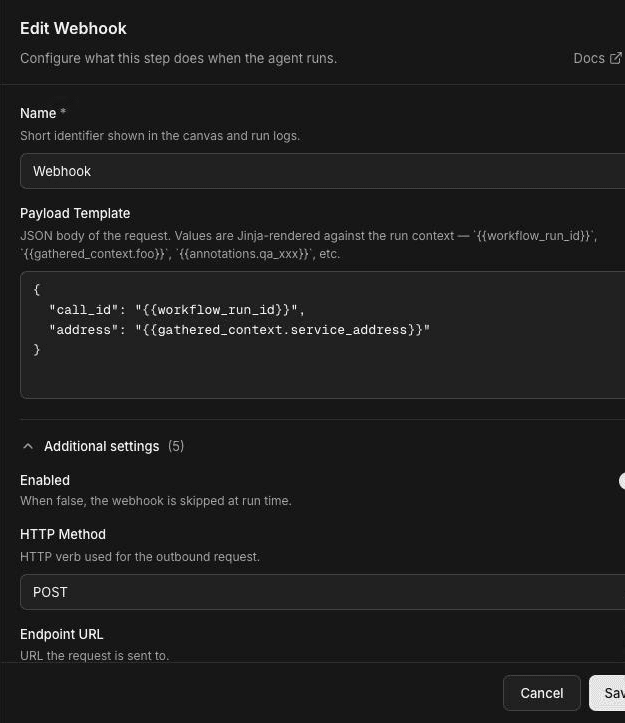
Click + and choose Webhook under INTEGRATIONS. You don't connect it to other steps.
Write the payload
In Payload Template, write the JSON body you want to send. Use {{path}} to fill in call values, such as "address": "{{gathered_context.service_address}}".
Set the destination
Open Additional settings and fill in Endpoint URL. Until it's filled in, the card shows Needs setup. Choose the HTTP Method: GET, POST (the default), PUT, PATCH or DELETE.
Add authentication and headers if needed
Under Authentication, pick a saved credential to send as the Authorization header, or leave No authentication. Use Custom Headers to add other headers as Header Name and Header Value pairs. Header values can use {{path}} too.
Save
Click Save. To pause a webhook without deleting it, turn off Enabled. It's then skipped when calls end.
You can add more than one Webhook step, for example one per system you send data to.
What data the webhook sends
The webhook sends only what you put in the Payload Template. Values you can use include:
| Value | What it holds |
|---|---|
{{workflow_run_id}} | The ID of this call |
{{workflow_name}} | The agent's name |
{{call_time}} | When the call happened |
{{campaign_id}} | The campaign, for campaign calls |
{{initial_context.name}} | A value the call started with, such as caller_number on inbound calls |
{{gathered_context.name}} | A value captured during the call, such as service_address from an Extract Variables step |
{{cost_info.call_duration_seconds}} | The call length in seconds |
{{recording_url}}, {{transcript_url}} | Links to the recording and transcript (see call recordings) |
{{annotations.name}} | Results added after the call, such as QA analysis |
Values are filled in by simple {{path}} substitution. The panel's help text mentions Jinja, but don't rely on Jinja features such as filters, conditions or loops. A value that doesn't exist becomes empty text; add a fallback with {{name | fallback}}. See Variables.
The Webhook step is different from Event webhooks in the agent's Settings, which send signed call and transfer lifecycle events.
QA analysis step
A QA Analysis step runs "LLM quality analysis on the call transcript". It reviews each call and tags common problems, so you can find calls worth listening to.
Set it up
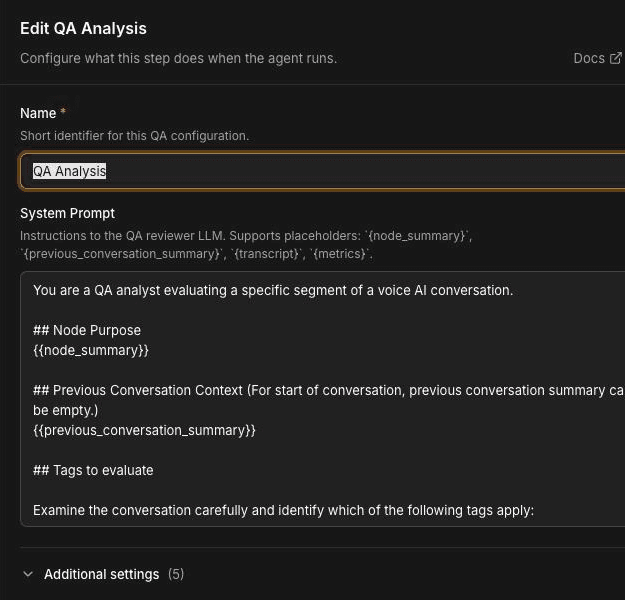
- Click + and choose QA Analysis under INTEGRATIONS. You don't connect it to other steps.
- Give it a Name, such as "Weekly QA".
- Review the System Prompt. It comes pre-filled with a QA reviewer prompt that you can use as is.
- Open Additional settings to decide which calls to review, then click Save.
What it checks
The default prompt asks the reviewer to look for issues such as an unclear conversation, the agent going in a loop, improper replies, a frustrated caller, a caller who doesn't understand, hearing problems, dead air, a caller asking for something the agent can't do, a lack of empathy, and a caller noticing they're talking to an AI.
You can edit the prompt to check for your own standards, for example whether the agent read back the service address. Keep the placeholders that are already in the default prompt. The help text lists them as {node_summary}, {previous_conversation_summary}, {transcript} and {metrics}. They're replaced with the step's purpose, the earlier conversation, the transcript and call metrics.
Additional settings
| Setting | Default | What it does |
|---|---|---|
| Minimum Call Duration (seconds) | 15 | Calls shorter than this are skipped. |
| Include Voicemail Calls | Off | Turn on to review calls that reached voicemail. |
| Sample Rate (%) | 100 | Review a random share of calls, from 1% to 100%. |
| Use Workflow's LLM | On | Uses the agent's own model. Turn off to pick a separate provider and model for QA. |
The card shows a "Workflow LLM" chip while the step uses the agent's model.
Where results appear
QA results are added to the call's annotations. To send them to another system, include them in a Webhook payload with {{annotations.name}}.
Other integration steps
- Paygent sends per-call cost and billing events to Paygent. An agent can have one.
- Tuner exports completed calls to Tuner for call observability. An agent can have one.
Frequently asked questions
How do I start the agent from my own system?
Add an API Trigger step, create an API key under MCP & API, and send a request to the trigger's Production URL with the key in the X-API-Key header. Use the Test URL first to try the latest draft, and copy the example curl command from the card to see the request format.
What data does the webhook send?
It sends only the JSON you write in the Payload Template. You can include call details such as the call ID, captured values from gathered_context, the call length, and links to the recording and transcript.
When does the webhook run?
After the call ends. It doesn't run during the conversation, so the agent can't use its response. To call another system while the caller is still on the line, use a custom HTTP tool or a custom MCP server instead.
What does QA analysis check?
By default it looks for problems such as dead air, loops, improper replies, frustrated or confused callers, hearing issues, a lack of empathy, and callers noticing they're talking to an AI. You can edit its prompt to add your own checks.
Where do QA results appear?
QA results are stored with the call as annotations. You can send them to another system by including them in a Webhook step's payload.
Related articles
End a call with the End Call step | FieldCamp
Close voice agent calls cleanly with the End Call step: write a closing prompt, confirm what happens next, and learn when to use the End call tool instead.
Set up transitions and conditions | FieldCamp
Connect steps with transitions, write the conditions that move a call forward, add transition speech, and plan a path for when a call transfer fails.