 FieldCamp
Configure an Agent step in your voice agent | FieldCamp
Configure an Agent step: write its prompt, override the model, voice, or interruption settings, attach tools and knowledge, and extract caller details.
An Agent step is one focused part of the conversation. The Add a step panel calls it Agent Node: "Conversational step — the LLM runs one focused exchange." Most of a voice agent is made of Agent steps, such as "Is it urgent?" and "Take the details" in the Missed-call receptionist template.
Each Agent step has its own prompt, tools, knowledge and settings, and connections to the next steps. For how connections decide when the call moves on, see Set up transitions and conditions.
Write the step prompt
Double-click the step on the canvas, or select it and click the pencil icon, to open Edit Agent Node.
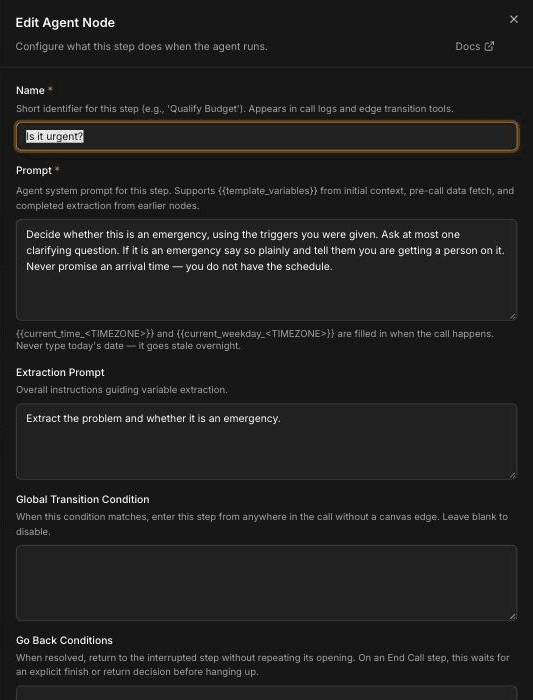
- Name: "Short identifier for this step (e.g., 'Qualify Budget'). Appears in call logs and edge transition tools." Use a name that says what the step does, such as "Take the details".
- Prompt (required): the instructions for this step only. It supports
{{variables}}from the call's starting data, pre-call data fetch, and values extracted in earlier steps.
A good step prompt gives the agent one job and tells it what not to do. From the Missed-call receptionist template:
Decide whether this is an emergency, using the triggers you were given.
Ask at most one clarifying question. If it is an emergency say so plainly
and tell them you are getting a person on it. Never promise an arrival
time — you do not have the schedule.
Persona, tone and company-wide rules belong in the Global step, not in every Agent step. Leave Add Global Prompt on (in Additional settings) so this step receives them. See Use the Global step and global routing.
The panel also has Global Transition Condition and Go Back Conditions. Leave them blank for a normal step. Fill them in only when callers should be able to reach this step from anywhere in the call, such as an emergency handoff. The global routing page explains both, along with the positive and negative example transcripts and the cooldown in Additional settings.
Override settings
Additional settings holds the fields that change how this one step behaves. For the voice-tuning fields, "Blank inherits the agent setting", so leave a field blank unless this step needs to differ from the rest of the agent. The agent-wide values, and how step overrides relate to them, are covered in Tune turn-taking and interruptions.
Interruptions
| Field | What it does | Default or limit |
|---|---|---|
| Allow Interruption | "When true, the user can interrupt the agent mid-utterance. Set false for non-interruptible disclosures." | On for Agent steps |
| Interruption Sensitivity | How readily the caller's speech interrupts the agent | 0–1; 0 turns interruption off |
Turn Allow Interruption off only for something the caller must hear in full, such as a required disclosure. While it's off, the caller can't cut in until the agent finishes speaking.
Timing and silence
| Field | What it does | Default or limit |
|---|---|---|
| Response Wait (ms) | "Wait after speech stops before responding" | Up to 30,000 ms |
| Adapt Wait to Caller | Adjusts the response wait to the caller | On or off |
| Idle Reminder (ms) | How long the caller can stay silent before the agent prompts them | Up to 3,600,000 ms; 0 turns reminders off |
| Maximum Idle Reminders | How many times the agent prompts a silent caller | Up to 20 |
| End After Silence (ms) | Ends the call after this much silence | Up to 3,600,000 ms; 0 turns it off |
| Voice Speed Override | Speaking speed for this step | 0.6–1.5, depending on the voice provider |
A slightly longer response wait helps in a step where callers read out an address or account number and pause between parts.
Acknowledgments (backchannel)
| Field | What it does | Default or limit |
|---|---|---|
| Backchannel | "Speak short listening acknowledgments during caller speech" | On or off |
| Backchannel Frequency | How often the agent acknowledges | 0–1, from one every 12 seconds to one every 2 seconds; 0.5 by default |
| Backchannel Words | The phrases it uses, such as "Mm-hmm" or "I see" | Up to 10 phrases, 1–60 characters each |
Backchannel helps in steps where the caller describes a problem at length, such as a plumbing leak or a breaker that keeps tripping.
Model overrides
| Field | What it does | Default or limit |
|---|---|---|
| LLM Model Override | Uses a different language model for this step | Chained calls only; blank restores the call default |
| Temperature Override | How varied the step's wording is | 0–1 |
"Chained calls" are calls where speech is transcribed, answered by the language model and then spoken, the Model and voice option on the Voice Models page (see Choose a model and voice). The override doesn't apply to speech-to-speech calls. Consider a different model for a step with a hard decision, such as deciding whether a call meets your emergency rules, and keep the default for simple steps. A lower temperature keeps wording consistent for steps that read back details.
Add tools and knowledge
Tools
The Tools field lists "Tools the agent can invoke during this step." It has two tabs:
- HTTP & Tools: tools you built on the Tools page, such as a transfer, an end call or an external HTTP API tool.
- MCP: tools from connected MCP servers, such as the FieldCamp App server's Search, Fetch and Create request (see Look up clients and jobs during a call). To add your own server, see Connect a custom MCP server.
Tick only the tools this step needs. Only the tools a step has selected are available to that step, so a "Take the details" step can create a request while an earlier triage step can only transfer. Use Manage Tools to open the Tools page. See Add tools to your AI voice agent.
Knowledge
Knowledge Base Documents lists "Documents the agent can reference during this step." Pick sources you've added in Business Knowledge, such as a service-area list or a price sheet, so the agent can answer from them in this step. See Add business knowledge.
Extract variables
An Agent step can save what the caller said into variables while it talks.
- In Additional settings, turn on Enable Variable Extraction. The help text reads "When true, runs an LLM extraction pass for this node."
- In Extraction Prompt, give overall instructions, such as "Extract the problem and whether it is an emergency."
- Under Variables to Extract, add each value:
- Variable Name: a snake_case name, such as
service_address. - Type: String, Number, Boolean or Enum.
- Extraction Hint: what to look for, such as "The street address where the work is needed, including unit number."
- Variable Name: a snake_case name, such as
Later steps, tools and Logic Split rules can use the values, for example {{service_address}} in a prompt or gathered_context.is_emergency in a Logic Split rule. The step card shows a chip such as "3 variables" when extraction is on.
If you want to capture details silently between two steps instead, use the Extract Variables step.
Tips for short, focused steps
- One job per step. "Find out the problem" and "Take the address and callback number" work better as two steps than one long prompt.
- Name steps for what they do. Names show in call logs, so "Confirm address" is easier to trace than "Agent 3".
- Write clear exit conditions. Each outgoing connection needs a condition the agent can recognize, such as "The caller has given their name, address and callback number."
- Keep company rules in the Global step. Emergency triggers, what not to promise and escalation contacts are your rules; write them once.
- Give each step only its own tools. A step that can't see a tool can't use it by mistake.
Frequently asked questions
When should one step use a different model?
Use LLM Model Override when one step makes a harder decision than the rest of the call, such as triage against your emergency rules. The override applies only to chained calls (Model and voice), and leaving it blank restores the call default.
How sensitive should interruptions be?
Leave Interruption Sensitivity blank so the step inherits the agent setting, and change it only if callers are cutting the agent off by accident or can't get a word in. Setting it to 0 turns interruption off, which suits only disclosures the caller must hear in full.
Can a step use only some tools?
Yes. In the step's Tools field, tick only the tools that step needs. Only the tools a step has selected are available to that step.
How do I save what the caller said into a variable?
Turn on Enable Variable Extraction in Additional settings, write an Extraction Prompt, and add each value under Variables to Extract with a name, type and hint. Later steps can use it as {{variable_name}}.
Where do persona and tone go?
Put them in the Global step's Global Prompt and leave Add Global Prompt on in each Agent step. The step prompt then only needs the instructions for its own job.
Related articles
Set the greeting with the Start Call step | FieldCamp
Set up the Start Call step in FieldCamp Voice: write the greeting, play a recorded greeting, delay the start, and load caller data before the call begins.
Use the Global step and global routing | FieldCamp
Give every step the same persona with the Global step, and add global routes so callers can jump to emergencies or go back from anywhere in the call.