 FieldCamp
Add business knowledge to a voice agent | FieldCamp
Add business knowledge to FieldCamp Voice from documents, web pages, or text so your voice agent can answer questions about services and service areas.
Business knowledge is what your voice agent reads from when a caller asks a question: prices, service areas, opening hours and policies. You add a document, a page from your website or pasted text, and the agent answers from it instead of taking a message.
What it is
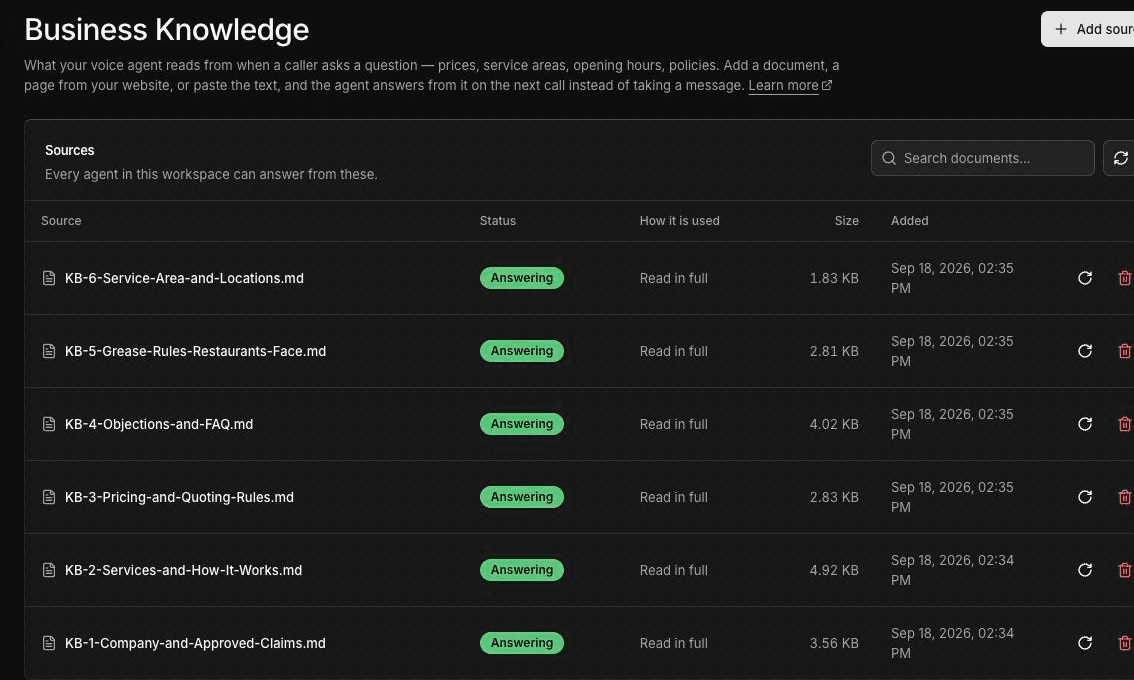
Open Business Knowledge in the FieldCamp Voice sidebar (under CONFIGURATION). The Sources table lists everything you've added. Every agent in the workspace can answer from these sources, but a step only uses the sources you attach to it (see Attach knowledge to a step).
The table has these columns:
- Source: the file, page or text name.
- Status: whether the source is ready (see Check the status).
- How it is used: for example "Read in full".
- Size and Added.
Each row has a refresh icon and a delete icon, and a search box sits above the table.
Good things to add for a field service business:
- Service areas: the towns, ZIP codes or counties you cover, and what you tell callers outside them.
- Pricing rules: call-out fees, what you'll quote on the phone and what always needs a site visit. Only include prices you're happy for the agent to say out loud.
- Opening hours: office hours, after-hours cover, and holiday closures.
- Service rules: for a grease trap or used cooking oil route, for example, pump-out frequency, access requirements, and what the driver needs on site.
- Common questions: what a maintenance plan includes, how to prepare for a visit, or which brands you service.
Add a source
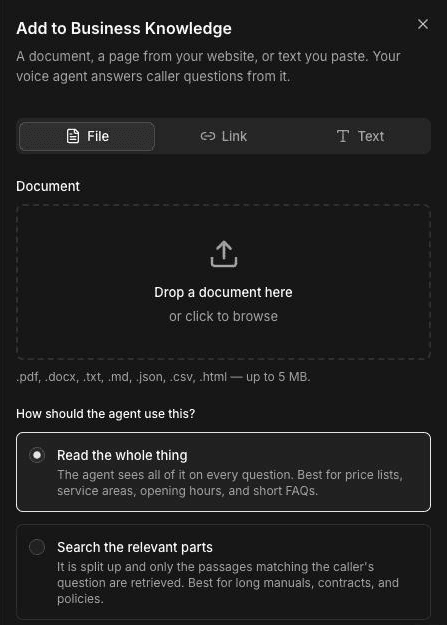
Click Add source. The Add to Business Knowledge panel opens: "A document, a page from your website, or text you paste. Your voice agent answers caller questions from it." Choose one of three tabs: File, Link or Text.
Add a document
Select the File tab.
Drop a file on "Drop a document here or click to browse", or click to pick one. You can upload .pdf, .docx, .txt, .md, .json, .csv or .html files up to 5 MB.
Under How should the agent use this?, choose Read the whole thing or Search the relevant parts (see Choose how the agent uses it).
Click Upload and process.
Add a web page
Select the Link tab.
Enter the Page address and click Check page.
Enter a Name. It's shown in your list and used to tell the agent where an answer came from.
Choose how the agent should use it, then click Add source.
Voice reads one page at a time. Pages that build themselves in the browser can't be read. For those, copy the text and add it on the Text tab instead.
Add text
Select the Text tab.
Paste or type your text and click Check text. Markdown headings help: the agent uses them to find the right passage.
Enter a Name, choose how the agent should use it, then click Add source.
Give each topic its own heading, for example ## Service area and ## Emergency call-out fee. Short, clearly labelled sections are easier for the agent to find and quote correctly.
Choose how the agent uses it
Every source has one of two settings under How should the agent use this?:
| Option | What the agent does | Use it for |
|---|---|---|
| Read the whole thing | Sees all of the source on every question. | Price lists, service areas, opening hours and short FAQs. |
| Search the relevant parts | The source is split up, and only the passages that match the caller's question are retrieved. | Long manuals, contracts and policies. |
Read the whole thing is selected by default. Keep it for short sources where the answer has to be exact, such as a list of the ZIP codes you serve. Choose Search the relevant parts when a source is long and a caller only ever needs one section of it, such as a 40-page equipment warranty.
Check the status
The Status column shows where each source is:
- Queued: waiting to be processed. While it's being processed, the list shows the stage, such as "Reading and splitting the content".
- Answering: ready, and agents can answer from it.
- Failed: it couldn't be processed. If the same content is already in your business knowledge, the row also says "Duplicate of another source". The content is already there, so you don't need to add it again.
Attach knowledge to a step
Agents look things up in business knowledge from the steps you attach it to.
Open your agent in the builder and double-click the step that answers questions, such as an Agent step.
Open Additional settings and find Knowledge Base Documents ("Documents the agent can reference during this step.").
Select the sources this step needs, then click Save.
Test the agent, then publish your changes.
Attach only what the step needs. A step that takes the caller's address doesn't need your full warranty manual, but a step that answers "Do you cover my area?" needs your service area source.
When a step has documents attached, the agent is told to look the answer up rather than guess. If your sources don't cover a question, the agent says so plainly and moves on. Decide in the step's prompt what it should do next, for example offer to take a message or transfer the caller to a person. For help wording those instructions, see Write voice agent prompts for field service.
Keep it current
Your agent answers from what the source says, so an outdated price list gives callers outdated prices. Update business knowledge whenever something changes:
- Prices or fees change: replace the pricing source. Delete the old version so the agent doesn't find two different prices.
- Hours change: update the source before the change takes effect, including holiday closures.
- Your service area changes: update the list of areas you cover and what to tell callers outside it.
- A web page changes: click the refresh icon on its row to fetch the page again. If the page hasn't changed, nothing is re-indexed.
To remove a source, click its delete icon. Your agents stop answering caller questions from it.
After any change, test a few of the questions callers ask most, such as "How much is a service call?" or "Do you come out to Springfield?". If your agent answers in more than one language, ask them in each one; see Set your voice agent's language.
FieldCamp's online booking assistant uses its own knowledge base, which you set up in FieldCamp under Settings → Online Booking. See Booking AI knowledge base and personas in the Online Booking docs.
Frequently asked questions
What should I put in business knowledge?
Add the facts callers ask about most: services, prices you're happy to quote, service areas, opening hours and policies. Leave out anything you don't want the agent to say out loud, such as internal notes or customer details.
Which file types can I upload?
You can upload .pdf, .docx, .txt, .md, .json, .csv and .html files up to 5 MB each. You can also add a web page by its address, or paste text.
How do I update knowledge when prices or hours change?
Replace the source that holds the old details and delete the outdated version, so the agent can't find two different answers. For a web page source, click the refresh icon on its row to read the page again.
What if the answer isn't in business knowledge?
The agent is told not to guess. It says plainly that it doesn't have that information and moves on. Tell the step's prompt what to do next, such as take a message or transfer the call to your team.
Can different agents use different documents?
Yes. Every agent in the workspace can use any source, but each step only answers from the sources selected in its Knowledge Base Documents list. Attach different sources to different agents or steps.
Related articles
Connect a custom MCP server | FieldCamp
Connect your own MCP server to FieldCamp Voice, choose which of its tools your voice agents may use, and check the connection before a real call.
Play pre-recorded audio clips on calls | FieldCamp
Upload or record audio clips in FieldCamp Voice and play them word for word on calls, from a prompt with @, as a greeting, or before a step change or transfer.