 FieldCamp
Play pre-recorded audio clips on calls | FieldCamp
Upload or record audio clips in FieldCamp Voice and play them word for word on calls, from a prompt with @, as a greeting, or before a step change or transfer.
Audio clips are recordings your voice agents play back word for word. Use them for messages that must sound exactly the same on every call, such as a recorded greeting, an out-of-hours notice or a call recording disclosure.
Clips live on the Audio Clips page in the FieldCamp Voice sidebar (under CONFIGURATION). They're shared across every agent in your organization, so you record a message once and reuse it anywhere.
When to use audio clips
The voice agent normally writes and speaks each reply as the call goes. A clip is better when the words, voice or tone must not vary:
- A recorded greeting in the voice of the owner or your office manager.
- An out-of-hours notice, for example: "Our office is closed. If you have no heat or a water leak, stay on the line and we'll take your details for the on-call technician." Which problems count as urgent, and who handles them, is your decision; word the notice to match your own rules.
- A call recording disclosure, worded by your company. FieldCamp doesn't write this wording for you.
- A hold message played before a transfer to your team.
For anything that changes with the caller, such as their name or address, let the agent speak normally, and use the pronunciation dictionary for words the voice says wrong. To leave a message when an outbound call reaches voicemail, use the settings in Detect voicemail and phone menus.
Upload or record a clip
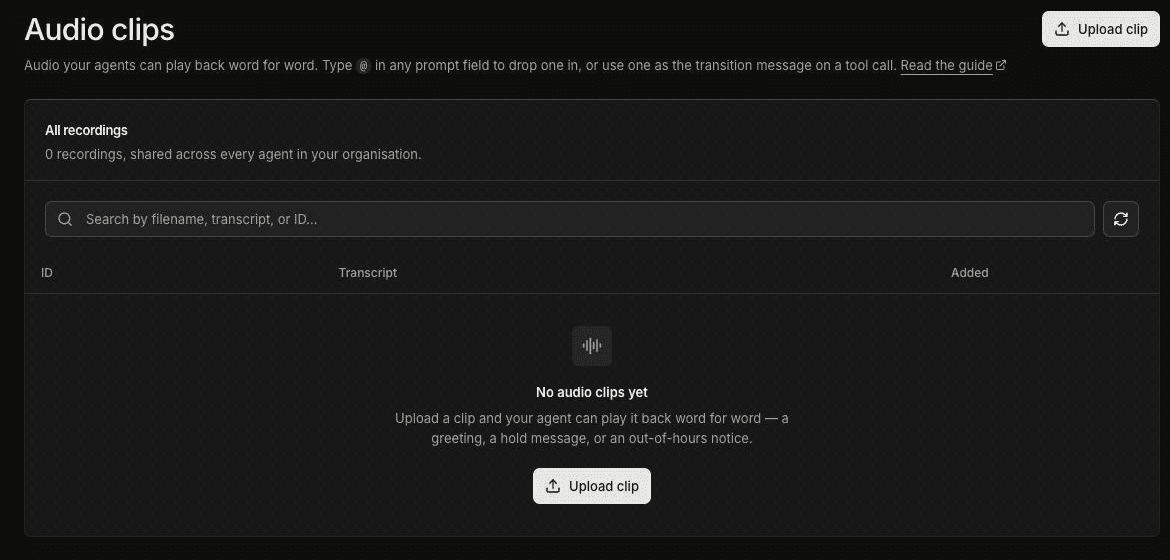
On the Audio Clips page, click Upload clip. The Upload recordings panel opens.
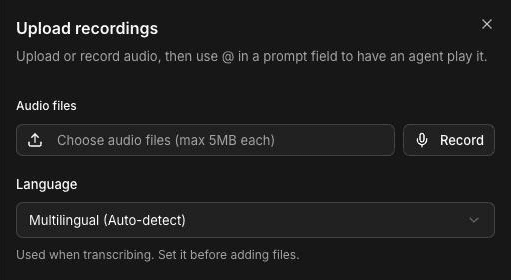
Set the Language first. It's used when transcribing, so set it before you add files. The default is Multilingual (Auto-detect).
Under Audio files, click "Choose audio files (max 5MB each)" and pick one or more files. To record in the browser instead, click Record, name the recording, and allow microphone access when your browser asks.
Check each transcript. Voice transcribes every clip automatically, and you can correct the text. A clip needs a transcript before it can be uploaded.
Click Upload N recordings (N is the number of clips).
Each clip gets an ID, shown in the ID column. You can edit the ID using letters, numbers, hyphens and underscores. When you rename it, every agent that uses the clip is updated. Use clear IDs such as after_hours_notice so they're easy to find later.
To find a clip, search by filename, transcript or ID.
Use a clip
There are two ways to use a clip: mention it in a prompt, or pick it in a field that plays audio.
Mention a clip in a prompt with @
Type @ in a prompt field, such as an Agent step prompt or the Global step prompt, and choose a clip. Then tell the agent when to play it. The agent decides from your prompt when to play the clip instead of speaking.
For example, in an HVAC after-hours step you might write: "If the caller asks whether someone can come out tonight, play the after-hours notice, then collect their name, address and callback number." Type @ where the clip belongs and pick your after_hours_notice clip, so the agent knows exactly which recording to play.
Pick a clip in an audio field
Some fields play a message instead of taking a prompt. Choose the audio option in the field, then pick a clip from the list:
- Greeting: on the Start Call step, set Greeting Type to Pre-recorded Audio (under Additional settings), then pick the clip to play when the call is answered.
- Transition speech: on a connection between steps, set Transition Speech to Audio to play a clip right before the agent moves to the next step. See Set up transitions and conditions.
- Pre-transfer message: on a transfer tool, choose Pre-recorded audio to play a clip before the caller is put through. See Transfer a call to a person.
- Tool messages: the End call tool's Goodbye message and an HTTP tool's custom message can also play a clip.
When transition speech is set to Text, Voice shows this warning: "Realtime (speech-to-speech) models can't play static text." If your agent runs on a speech-to-speech model, test any transition speech before you publish.
Best practices
- Keep clips short. A greeting or notice of a few seconds keeps the caller engaged. Put details the caller needs to act on, such as a callback number, near the end.
- Record in a quiet room and at a steady volume, so the clip sounds like the rest of the call.
- Match your agent's language. If your agent answers in Spanish, record a Spanish version of each clip and set the Language before you upload it.
- Don't let callers talk over a disclosure. For a step that plays a message callers must hear in full, turn off Allow Interruption on that step.
- Update clips when things change. New opening hours or an on-call arrangement means a new out-of-hours notice. Test the agent after any change.
Frequently asked questions
When should I use a recording instead of the AI voice?
Use a recording when the words must be exactly the same on every call, such as a greeting, an out-of-hours notice or a recording disclosure your company has written. Use the AI voice for anything that depends on the caller.
Which audio files can I upload?
You can upload audio files of up to 5 MB each, and you can add several at once. Each clip needs a transcript, which Voice creates automatically and you can edit.
How do I use a clip in a prompt?
Type @ in a prompt field and choose the clip, then tell the agent when to play it. For greetings, transition speech and tool messages, choose the pre-recorded audio option and pick the clip instead.
Can I record a clip in the browser?
Yes. In the Upload recordings panel, click Record, name the recording and allow microphone access. Set the language before you record so the transcript is accurate.
Are audio clips shared between agents?
Yes. Every clip is shared across all the agents in your organization. If you rename a clip's ID, every agent that uses it is updated.
Related articles
Add business knowledge to a voice agent | FieldCamp
Add business knowledge to FieldCamp Voice from documents, web pages, or text so your voice agent can answer questions about services and service areas.
Choose a model and voice for your voice agent | FieldCamp
Choose how your FieldCamp voice agents run calls, pick the language model, voice and transcription model, set a fallback voice, and override one agent's models.