 FieldCamp
Voice agent templates for field service | FieldCamp
Compare the six FieldCamp voice agent templates, from Missed-call receptionist to Full front desk, and choose the right starting point for your phone calls.
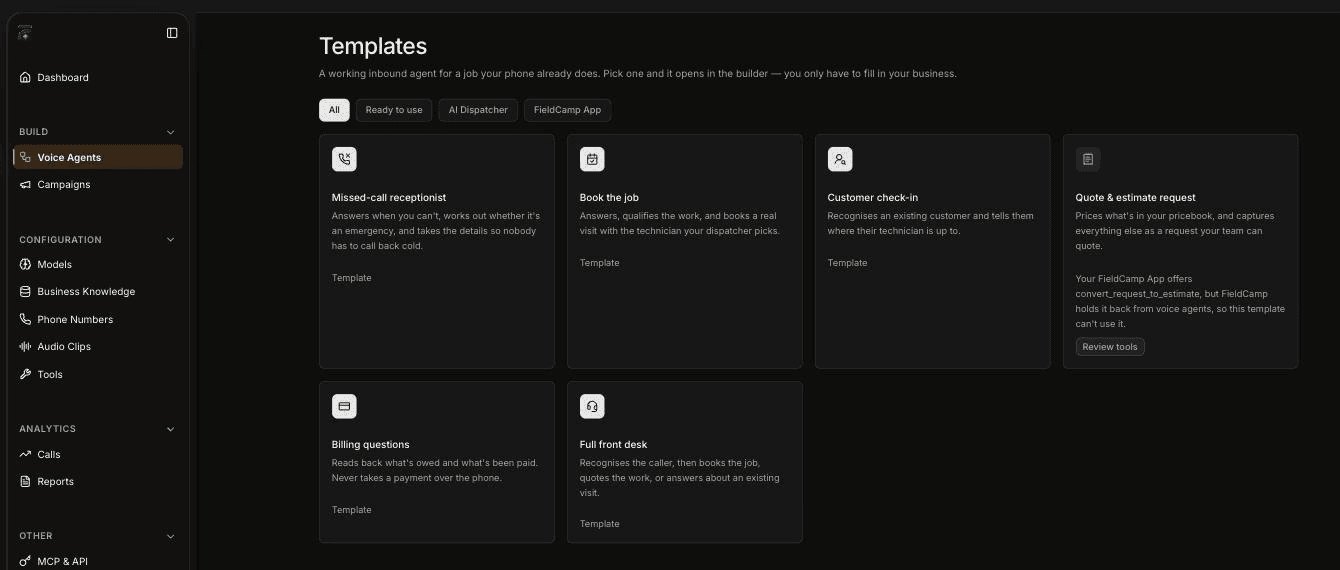
FieldCamp Voice includes six templates, each a working inbound voice agent for a job your phone already does. Pick one and it opens in the builder, so you only have to fill in your business details and rules.
Missed-call receptionist works on its own in Voice, with no other account. The other templates look up customers or book jobs, so they need a connection to the FieldCamp app, AI Dispatcher, or both.
To find them, open the Templates page in Voice (voice.fieldcamp.ai/workflow/templates). If none of the templates fits, create a voice agent from scratch instead.
Compare the templates
| Template | What it handles | Needs connection | Good first choice for |
|---|---|---|---|
| Missed-call receptionist | Answers, checks for an emergency, takes the caller's details | None: works standalone | Covering calls your team can't pick up |
| Book the job | Answers, qualifies the work, books a visit with the technician AI Dispatcher picks | AI Dispatcher | Teams that already dispatch with AI Dispatcher |
| Customer check-in | Recognizes an existing customer and gives a technician status update | FieldCamp App | Cutting "where's my technician?" calls |
| Quote & estimate request | Prices pricebook items and captures other work as a request to quote | FieldCamp App | Sales and estimate calls (currently unavailable in some workspaces) |
| Billing questions | Reads back what's owed and what's been paid; never takes a payment | FieldCamp App | Answering balance questions |
| Full front desk | Recognizes the caller, then books, quotes or answers about a visit | FieldCamp App and AI Dispatcher | One agent for every kind of inbound call |
"FieldCamp App" and "AI Dispatcher" are the tool servers listed on the Voice Tools page (see add tools to your AI voice agent). FieldCamp App needs a FieldCamp account connected to Voice; see Connect FieldCamp and FieldCamp Voice. AI Dispatcher works with or without FieldCamp; see book and dispatch jobs during a call. A template that needs a connection you haven't set up shows Connect or Review tools on its card instead of opening straight away.
Filter the list
Use the chips at the top of the page to narrow the list:
- All
- Ready to use
- AI Dispatcher
- FieldCamp App
What happens when you pick a template
Clicking a template card creates a new agent right away. There's no confirmation step.
- The agent is named after the template plus a number, for example "Missed-call receptionist 3544".
- It's already published as v1 · Published.
- It opens in the builder.
Rename the agent first: click the pencil icon next to its name. Renaming or editing a published agent creates a new draft version (for example v2 · Draft). The published version stays as it was until you click Publish, so you can work on the draft safely. Test it with the Test panel before you publish.
Missed-call receptionist
Answers when your team can't, works out whether the call is an emergency, and takes the details so nobody has to call the customer back cold.
When to use it: after hours, during busy periods, or as the fallback when your ring group doesn't pick up. Its short flow also makes it a good template to learn the builder on.
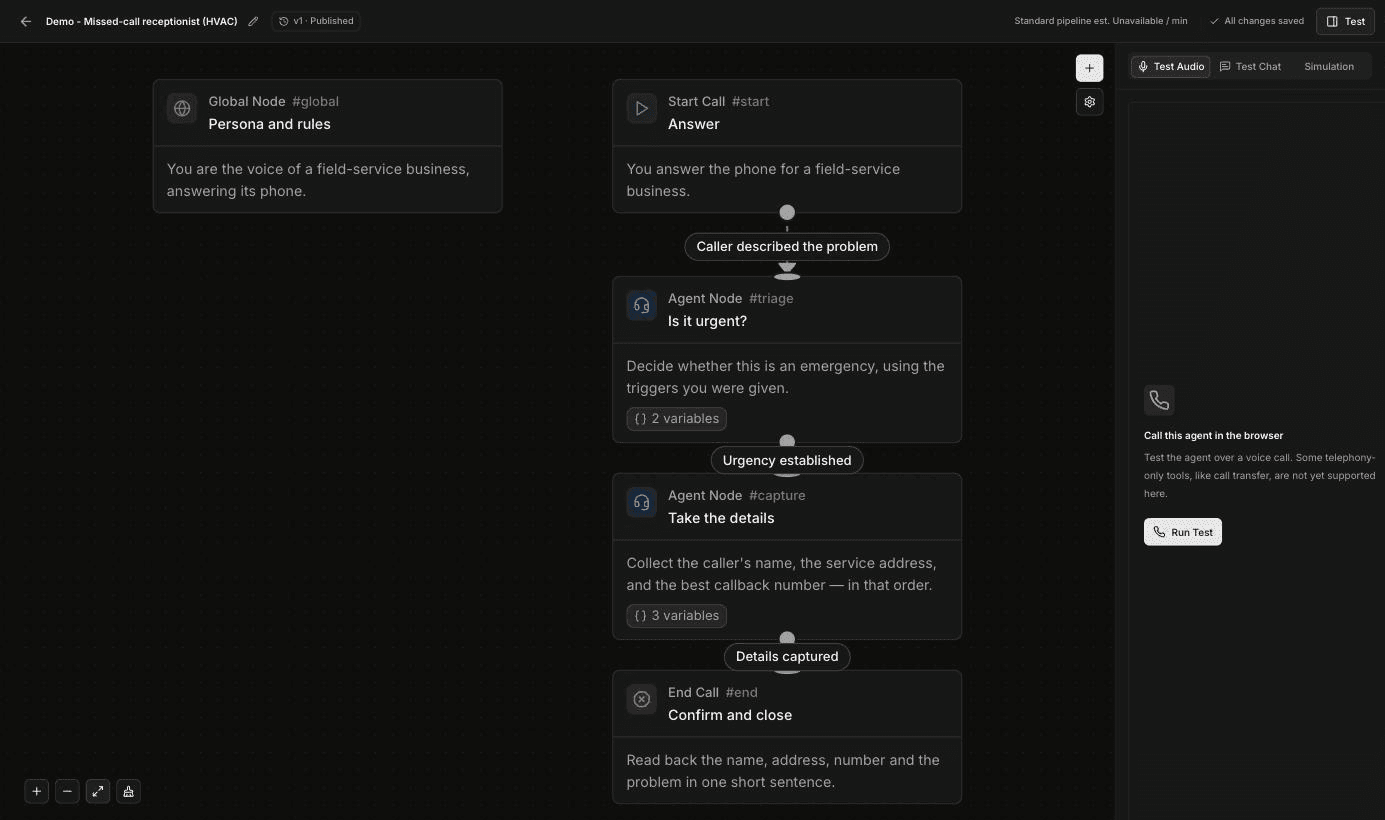
How the conversation flows:
- Persona and rules (Global Node): who the agent is and the rules it follows on every call.
- Answer (Start Call): the agent answers the phone for your business.
- When the caller has described the problem, Is it urgent? (Agent Node): the agent decides whether this is an emergency, using the triggers you give it.
- Once urgency is established, Take the details (Agent Node): the agent collects the caller's name, the service address and the best callback number, in that order.
- When the details are captured, Confirm and close (End Call): the agent reads back the name, address, number and problem in one short sentence and ends the call.
What to fill in: your business name and services, and your own emergency rules. What counts as an emergency, and who handles one, is your decision. Write your triggers in your own words.
Book the job
Answers, qualifies the work, and books a real visit with the technician your dispatcher picks.
When to use it: you use AI Dispatcher (a separate FieldCamp product) to assign technicians and want callers to leave the call with a booked visit rather than a callback.
What to fill in: the services you book, the questions that qualify the work, and your rules for which calls should be booked. This template needs the AI Dispatcher connection. To see how booking works on a call, read book and dispatch jobs during a call.
Customer check-in
Recognizes an existing customer and tells them how far along their technician is.
When to use it: your team spends time answering "when will the technician get here?" calls from customers who already have a visit booked.
What to fill in: how you want the agent to greet returning customers and what it should say about a visit. This template needs the FieldCamp App connection so the agent can look up clients and jobs.
Quote & estimate request
Prices the work that's in your pricebook, and captures everything else as a request your team can quote.
When to use it: you get a steady stream of "how much would it cost to…" calls and want standard work priced on the call while custom work goes to your team.
This template is currently unavailable in some workspaces. When a FieldCamp tool it needs isn't available to voice agents, the card shows a warning that the template can't be used yet, and a Review tools button instead of opening. Use Review tools to check the tools this template relies on.
What to fill in: which work you're happy to price over the phone and what details your team needs to quote the rest.
Billing questions
Reads back what's owed and what's been paid. It never takes a payment over the phone.
When to use it: customers call to check a balance or confirm a payment arrived, and you want those calls answered without tying up your office.
What to fill in: how the agent should confirm it's speaking to the right customer, and where to send callers who want to pay or dispute a charge. This template needs the FieldCamp App connection so the agent can read invoices and payments.
Full front desk
Recognizes the caller, then books the job, quotes the work, or answers questions about an existing visit.
When to use it: you want one agent to handle every kind of inbound call on a line, rather than a separate agent per job.
What to fill in: everything the other templates ask for. This template needs both the FieldCamp App and AI Dispatcher connections. Because this agent does the most, test each type of call before you publish.
Customize a template after you create it
A template agent is an ordinary voice agent. You can change every step, add steps with +, rename it, test it and publish it like any agent you built yourself. To learn the canvas, see Build a voice agent with the Agent Builder. See Create an AI voice agent for testing and publishing.
To put a published agent on real calls, set it as the Inbound workflow on a phone number in Voice (Phone Numbers). If you use FieldCamp, you can instead pick it in a FieldCamp call flow; How AI voice agents work with FieldCamp explains that path. The quickstart walks through both.
Frequently asked questions
Can an AI receptionist book appointments?
Yes. The Book the job and Full front desk templates can book a visit with the technician AI Dispatcher picks, so they need the AI Dispatcher connection. AI Dispatcher works with or without a FieldCamp account.
What can an AI voice agent do for a service business?
The templates cover the common jobs: answering missed calls and taking details, booking visits, giving existing customers a technician update, pricing pricebook work, and answering billing questions. You can also build an agent for your own use case from scratch.
Can a voice agent handle billing questions?
Yes. The Billing questions template reads back what a customer owes and what they've paid, using the FieldCamp App connection. It never takes a payment over the phone.
Which template should I start with?
Start with Missed-call receptionist if you're new to voice agents. It needs no connection, so it works in Voice on its own, and its flow is short and easy to follow. Choose Book the job if you already use AI Dispatcher, or Full front desk if you want one agent for every call.
Can I change a template after I create it?
Yes. Every template agent is fully editable. Your edits go into a draft version, and the published version keeps running until you click Publish.
Related articles
Create an AI voice agent | FieldCamp
Create an AI voice agent in FieldCamp Voice. Describe what it should do or start from a blank canvas, then choose whether it answers or places phone calls.
Tour the FieldCamp Voice app | FieldCamp
Find your way around FieldCamp Voice: what each section does, from Dashboard and Voice Agents to Phone Numbers, Business Knowledge, Calls, and Reports.