 FieldCamp
Branch a call with the Logic Split step | FieldCamp
Route calls with the Logic Split step: rule-based branches that check caller details such as urgency, service type or ZIP code, with one required Else path.
A Logic Split step sends the call down one of several paths based on values the agent already has, such as whether the caller reported an emergency or which ZIP code they're in. It doesn't talk to the caller and doesn't ask the AI to judge the conversation. It compares values against rules you write, and follows the first rule that matches.
The step's settings panel only has a Name field. The rules live on the connections that leave the step, and each connection is one branch.
When to use Logic Split
Use a Logic Split when the decision depends on a stored value, not on how the conversation is going.
| Use | When | Example |
|---|---|---|
| Logic Split | The value is already captured, and the rule is a plain comparison. | gathered_context.is_emergency is true, or the ZIP code is in your service area. |
| Conversation condition on a normal connection | The agent has to judge what the caller said or meant. | "Caller described the problem" or "Caller wants to speak to a person". |
Logic Split usually comes right after an Extract Variables step, which captures the values the rules check. Conversation conditions are covered in Transitions and conditions.
Add a Logic Split
Add the step
In the builder, click + at the top right of the canvas. In Add a step, under AGENT NODES, choose Logic Split: "Silently follow the first matching equation edge, or the mandatory else edge."
Connect it
Connect the step that comes before it, usually an Extract Variables step, by dragging from that step's bottom dot to the Logic Split's top dot.
Name it
Double-click the Logic Split, or select it and click the pencil icon. Give it a Name that says what it decides, such as "Route by urgency", then click Save.
Add the branches
Drag from the Logic Split's bottom dot to each step the call can go to next. The first connection you add is labelled Else. Each one after that is a rule branch.
Add rules
Double-click a branch connection to open Edit logic branch.
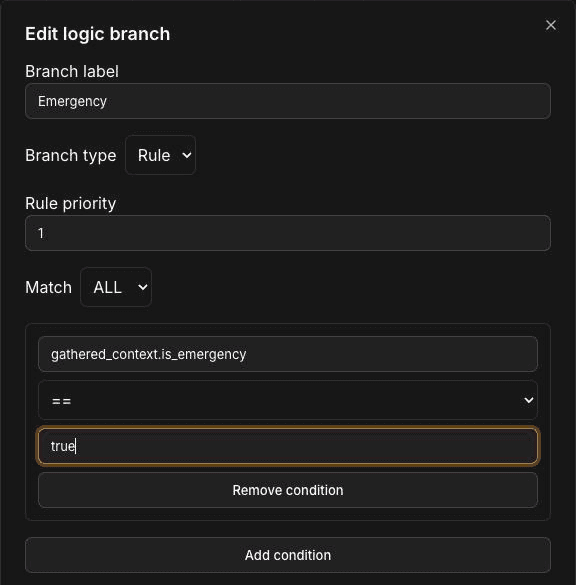
Fill in these fields:
- Branch label: a short name for the branch, such as "Emergency". You need a label to save.
- Branch type: Rule or Else.
- Rule priority: the order this rule is checked in, as a whole number. Rules run in priority order, and the first match wins.
- Match: ALL means every condition must be true. ANY means one true condition is enough.
- Conditions: each condition has a variable path, an operator and a value. Use Add condition to add another row and Remove condition to delete one.
Click Save branch when you're done.
Operators
| Operator | Matches when |
|---|---|
== | The value equals the one you enter. |
!= | The value doesn't equal the one you enter. |
>, >=, <, <= | The number is greater than, at least, less than, or at most the one you enter. These need a number. |
contains | A text value contains the text you enter, or a list contains the value you enter. |
not_contains | The opposite of contains. |
exists | The variable is present. This includes a value of null. |
not_exists | The variable isn't present. |
Write paths and values correctly
- Paths are dotted names, such as
gathered_context.is_emergencyorinitial_context.caller_number. Usegathered_contextfor values captured during the call andinitial_contextfor values the call started with. If you use a bare name, a captured value overrides a starting value with the same name. See Variables for where values come from. - Values must be plain JSON values: text in double quotes (
"no_heat"), numbers (100),true,falseornull. - Types are strict.
trueis not the same as"true", and a boolean is never equal to a number. Make sure the value's type matches the variable's type in the Extract Variables step. - Missing values never match a comparison. A rule such as
gathered_context.zip_code == "30301"fails if the ZIP code was never captured. - Watch out with
exists. Extract Variables sets a value to null when the caller didn't give it, andexistsstill matches null. To route on what the caller actually said, compare the value itself instead.
Set the Else path
Every Logic Split needs exactly one Else branch. It runs only when no rule matches, so it's where calls go when a value is missing or doesn't fit any rule. Point it at the step that handles the normal case, such as taking the caller's details.
If a split has no Else branch, or more than one, the builder header shows a red error badge. Click it to see the problem in Validation errors. Publish stays disabled until you fix it.
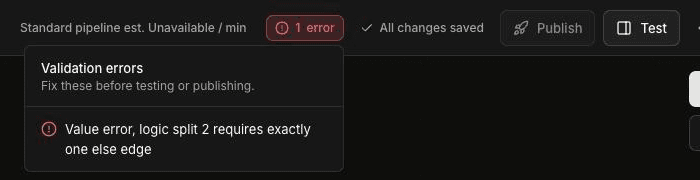
Other rules to keep in mind:
- Branches are silent. You can't add transition speech to a Logic Split connection.
- A Logic Split needs at least one connection coming in and at least one going out.
- Silent steps can't form a loop. A chain of Logic Split and Extract Variables steps that leads back to itself blocks publishing.
Example: route by emergency or service type
This example is for an HVAC company. What counts as an emergency is your decision; replace the example rules with your own.
- An Agent step asks what's wrong and where the caller is.
- An Extract Variables step named "Capture job details" captures
is_emergency(Boolean),service_type(Enum:no_heat,no_cooling,maintenance) andservice_address(String). - A Logic Split named "Route by urgency" has three branches:
| Branch label | Type | Priority | Condition | Goes to |
|---|---|---|---|---|
| Emergency | Rule | 1 | gathered_context.is_emergency == true | An Agent step that follows your emergency process, such as transferring to your on-call technician |
| No heat | Rule | 2 | gathered_context.service_type == "no_heat" | An Agent step that offers the earliest visit |
| Else | Else | – | – | An Agent step that takes the details for a callback |
Because the Emergency rule has priority 1, an emergency no-heat call takes the Emergency branch, not the No heat branch.
To route by service area instead, capture zip_code as a String and add a rule with Match set to ANY and one == condition for each ZIP code you cover, such as "30301" and "30302". Calls from other areas fall through to Else.
Before you publish, check that each branch fires when it should. Simulated tests let you run a caller persona for each case, such as an emergency caller and a routine one.
Frequently asked questions
When should I use Logic Split instead of a conversation condition?
Use Logic Split when the decision is a plain comparison on a value you've already captured, such as an emergency flag or a ZIP code. Use a conversation condition when the agent needs to judge what the caller said or meant.
Which operators can I use?
You can use ==, !=, >, >=, <, <=, contains, not_contains, exists and not_exists. The greater-than and less-than operators need a number.
What happens if no rule matches?
The call follows the Else branch. Every Logic Split must have exactly one Else branch, and the agent can't be published without it.
Can I route by ZIP code or service area?
Yes. Capture the ZIP code as a String variable, then add a rule with Match set to ANY and one equals condition for each ZIP code you serve. Callers outside those ZIP codes follow the Else branch.
Does the caller hear anything during a Logic Split?
No. Logic Split branches are silent, so the call moves straight to the next step. You can't add transition speech to them.
Related articles
Use the Global step and global routing | FieldCamp
Give every step the same persona with the Global step, and add global routes so callers can jump to emergencies or go back from anywhere in the call.
Capture caller details with Extract Variables | FieldCamp
Capture caller details such as name, address, and service issue with the Extract Variables step, then reuse those values in prompts, tools, and routing.