 FieldCamp
Navigate phone menus with the Press Digit step | FieldCamp
Use the Press Digit step so outbound voice agents can navigate another company's phone menu (IVR) by sending keypad tones to reach the right department.
When your voice agent calls another business, it often reaches a phone menu first: "Press 1 for sales, press 2 for parts." The Press Digit step lets the agent listen to that menu and press the right keys, sent as keypad tones (DTMF), so it reaches the right person.
What an IVR is
An IVR, or phone tree, is the automated menu a business uses to route incoming calls. Supply houses, parts desks, landfills and disposal sites often put one in front of their staff. A person would listen and press a key; Press Digit does the same for your agent.
When to use Press Digit
Use Press Digit on outbound calls where the agent will hear a menu before it reaches a person. For example:
- An HVAC company's agent calls a supplier's parts desk to check whether a part is in stock.
- A grease trap or used cooking oil route operator's agent calls a disposal site's line to confirm opening hours.
You don't need it for inbound calls from your customers. If you want your callers to type digits, such as an account number, use Caller keypad in the agent's Settings instead; see Capture keypad input and handle call screening.
If you'd rather the agent hang up when a phone menu answers, or leave a message when voicemail picks up, see Detect voicemail and phone menus.
Add the step
Add it to the canvas
In the builder, click + at the top right of the canvas. Under AGENT NODES, choose Press Digit: "Silently choose and press keypad digits from a heard phone menu."
Connect it
Place it where the call will reach the menu, usually right after Start Call on an outbound agent. Drag from the previous step's bottom dot to the Press Digit step's top dot.
Connect what comes next
Drag from its bottom dot to the step that should take over once the agent is through the menu, such as an Agent step that asks about the part. A Press Digit step needs at least one connection going out. Give each connection a clear condition; see Transitions and conditions.
Write the instructions
Double-click the step, or select it and click the pencil icon. Fill in Name and Instructions, then click Save.
Write the instructions
Instructions is required. Its help text reads: "When and what to select in the actual heard menu. Supports {{template_variables}}." Describe the goal and the options to pick, not a fixed key sequence, because menus change.
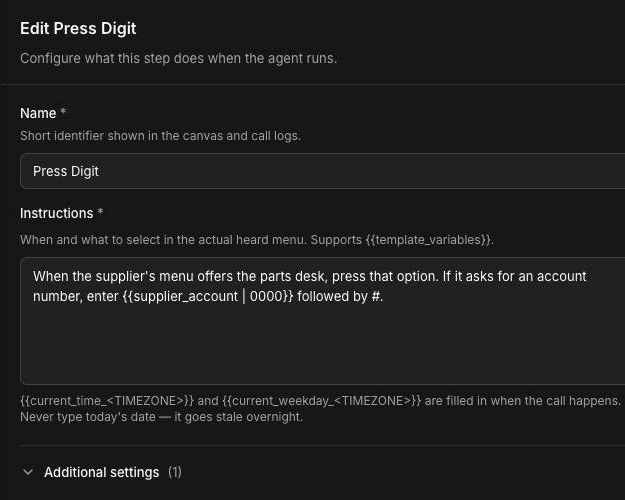
This example is for a supplier's parts desk:
When the supplier's menu offers the parts desk, press that option. If it asks for an account number, enter
{{supplier_account | 0000}}followed by #.
A few tips:
- Name the department, not the key. "Press the option for the parts desk" still works if the supplier moves it from 2 to 3.
- Use variables for account numbers.
{{supplier_account}}is filled in when the call happens. - Always add a fallback. If
supplier_accountisn't set on a real call,{{supplier_account}}becomes empty. The fallback in{{supplier_account | 0000}}is used instead. If the agent has no variable with that name and you leave out the fallback, the builder shows a warning under the field. - Test values don't reach real calls. Values in Settings → Variables are only for testing. They don't apply to real calls. See Variables.
- Keys are 0–9, * and #. The step can send up to 32 in one go.
Under Additional settings, Detection Delay (ms) sets how long the step waits after it last heard the menu before it presses anything. The default is 1000 ms. Raise it if the menu speaks slowly or pauses between options.
Handle menu changes and live answers
- The step doesn't guess. It only chooses from options it actually hears. If none of them matches your instructions, it doesn't press a random key.
- Pressing a key isn't proof. Sending tones doesn't confirm the menu accepted them. Have the next step check where the call landed, for example by asking "Is this the parts desk?"
- Plan for a person answering. Some lines skip the menu, or a person picks up partway through. Add a connection out of Press Digit with a condition such as "A person answered", leading to an Agent step that explains why you're calling.
- Keep the step silent. Press Digit doesn't speak. Put anything the agent needs to say in the Agent step that follows.
Frequently asked questions
What is an IVR or phone tree?
An IVR is the automated phone menu a business uses to route calls, such as "press 1 for sales, press 2 for service". Press Digit lets your voice agent listen to that menu and press the right keys.
When does my agent need to press digits?
Only when it calls a business that answers with a phone menu, such as a supplier, a parts desk or a disposal site. Agents that answer your own inbound calls don't need Press Digit.
What if the menu changes or a person answers?
Write instructions that name the department you want rather than a key number, so a reordered menu still works. Add a connection with a condition for a person answering, so the call moves to a step that can talk to them.
Can I enter an account number?
Yes. Put the account number in the instructions as a variable with a fallback, such as {{supplier_account | 0000}}, and say which key ends it, such as #. The step can send up to 32 keys, using 0–9, * and #.
Can my callers type digits into my agent?
That's a different setting. Use Caller keypad in the agent's Settings to collect digits that callers type. Press Digit is for your agent pressing keys on someone else's menu.
Related articles
Capture caller details with Extract Variables | FieldCamp
Capture caller details such as name, address, and service issue with the Extract Variables step, then reuse those values in prompts, tools, and routing.
End a call with the End Call step | FieldCamp
Close voice agent calls cleanly with the End Call step: write a closing prompt, confirm what happens next, and learn when to use the End call tool instead.