 FieldCamp
Set call limits and find call recordings | FieldCamp
Set a voice agent's max call duration and caller idle timeout, save timestamped transcripts, and find each call's recording with caller and agent tracks.
This page covers the settings that decide how long a voice agent's calls can run, how the transcript is saved, and where to find the recording of every call. The limits and transcript options live in the General section of the agent's settings. Recordings don't need any setup.
To open the settings, go to Voice Agents in Voice, click ⋯ on the agent's row and choose Settings.
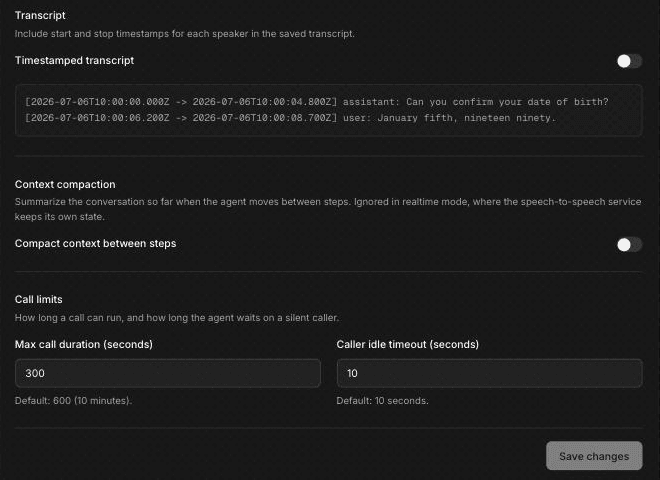
Maximum call duration
Max call duration (seconds) is the longest a call with this agent can run. When a call reaches it, the call ends.
Don't rely on a default. The value an agent starts with can differ from the one in the field's help text, so check the number on your agent and set the limit you want. The maximum is 1200 seconds (20 minutes); a higher value can't be saved.
Choose a limit that fits your longest normal call with some room to spare. A missed-call receptionist that takes a plumbing caller's name, address and problem rarely needs more than a few minutes. An agent that books an HVAC visit and checks availability may need longer, so set the limit explicitly to allow for a long booking call. Look at typical call lengths on the Voice Dashboard before you tighten the limit.
Caller idle timeout
Caller idle timeout (seconds) is how long the agent waits on a caller who has gone silent. The default is 10 seconds.
Callers on job sites, in trucks or in a restaurant kitchen often pause to check something or talk to someone nearby. If your agent moves on too quickly, raise the timeout. For finer control over silence, such as reminding the caller after a pause and ending the call after a longer one, use the silence settings in Tune turn-taking and interruptions.
Click Save changes at the bottom of the section to save the limits and transcript options.
Transcript options
- Timestamped transcript: adds a start and stop time for each speaker's turn in the saved transcript. It's off by default. Turn it on if you need to match what was said to a point in the recording.
- Compact context between steps: summarizes the conversation so far each time the agent moves to another step, so long calls carry a shorter history. It's off by default, and it's ignored with speech-to-speech (realtime) models, which keep their own state.
Call recordings
Every call is recorded automatically. There's nothing to turn on. Each recording includes the full call plus separate tracks for the caller and the agent, which makes it easier to hear one side clearly when both people talk at once.
To play a recording:
- Open the agent's call history. On the Voice agents page, click ⋯ on the agent's row and choose Call history, or choose View call history from the builder's ⋯ menu. To see every agent's calls, open Calls in the sidebar.
- Open the call you want. The recording plays from the call's page.
Playback links expire after about an hour. If a recording stops loading, refresh the page. There's no setting in the app for how long recordings are kept.
To send call events to your own systems, turn on Event webhooks in the agent's Settings. If you've connected FieldCamp and an agent answers through a FieldCamp call flow, the result also lands on the customer's thread in the FieldCamp Inbox, with the recording and a transcript link. For a tour of the Calls screen, see Tour the FieldCamp Voice app.
Test calls from the browser or Call my phone… are recorded and appear in call history alongside real calls. Recordings are also the easiest way to check outbound calls, for example what the agent did when voicemail detection picked up a voicemail greeting.
Recording disclosure
This page doesn't give legal advice about recording calls. Check the rules that apply to your business. If you want a disclosure, add it to the agent's greeting in the Start Call step, or play a pre-recorded audio clip at the start of the call. For example:
Thanks for calling Northside Heating and Air. This call may be recorded. How can I help?
Replace the wording with your own.
Not the same as Audio clips
The agent's settings also have a Recordings section. Despite its name, it isn't about call recordings. It points to Audio Clips, the pre-recorded audio files your agents can play during a call, such as a disclosure or a hold message. Audio clips are shared by every agent in the workspace, and you add one to a prompt by typing @. See Play pre-recorded audio clips on calls.
Frequently asked questions
What happens when a call reaches the maximum duration?
The call ends. Set Max call duration (seconds) explicitly, high enough for your longest normal call. The maximum is 1200 seconds (20 minutes).
What does caller idle timeout do?
It sets how long the agent waits on a caller who has gone silent. The default is 10 seconds. Raise it if your callers often pause to check details.
Where do I find and play recordings?
Open the agent's call history, or Calls in the Voice sidebar, and open the call. The recording plays from the call's page. If you've connected FieldCamp, calls that come through a FieldCamp call flow also show the recording in the FieldCamp Inbox.
Why are there separate caller and agent tracks?
Separate tracks let you hear each side on its own, which helps when the caller and the agent talk over each other or the caller is somewhere noisy. You also get a recording of the full call.
Do I need to tell callers they're being recorded?
This page can't advise on that. Check the rules that apply to your business. If you want to tell callers, add a line to the agent's greeting or play an audio clip at the start of the call.
Related articles
Capture keypad input and handle call screening | FieldCamp
Let callers enter account numbers on their keypad (DTMF), and set how your voice agent states its identity and purpose when a call screening service answers.
Test a voice agent before going live | FieldCamp
Compare the ways to test a FieldCamp voice agent before real callers hear it: browser audio, text chat, simulated test cases, and a call to your phone.