 FieldCamp
Quickstart: answer your first call with AI | FieldCamp
Build your first AI voice agent in FieldCamp Voice: start from a template, test it, publish it, and connect a phone number. FieldCamp is optional.
This quickstart takes you from nothing to a voice agent that answers calls on your own phone number. You'll build it from the Missed-call receptionist template in FieldCamp Voice (voice.fieldcamp.ai), which answers when your team can't, works out whether the call is urgent using your rules, and takes the caller's details.
You don't need a FieldCamp account. To take real calls, you'll need an account with a telephony provider such as Twilio, Telnyx, Vonage, Plivo, Vobiz, Cloudonix or Asterisk. If you use FieldCamp or AI Dispatcher, you can connect them at the end.
Build and publish your agent
Sign up or sign in to Voice
Go to voice.fieldcamp.ai and click Create an account. If you already have an account, click Sign in. FieldCamp users can sign in with their FieldCamp login.
Create an agent from the Missed-call receptionist template
In Voice, open the Templates page (voice.fieldcamp.ai/workflow/templates) and click Missed-call receptionist. This template works on its own; templates marked FieldCamp App or AI Dispatcher need that connection first.
Voice creates the agent right away, names it after the template plus a number (for example "Missed-call receptionist 3544"), and opens it in the builder. It's already published as v1 · Published.
Click the pencil icon next to the name and rename it, for example "After-hours receptionist". To compare the other templates, see Voice agent templates.
Fill in your business
Open the steps on the canvas and add your details:
- Persona and rules: who the agent is, your business name and the services you offer. The agent follows these rules on every call. To let it answer questions about your services and service area, add business knowledge.
- Is it urgent?: your own emergency rules. The agent uses the triggers you give it to decide whether a call is an emergency. What counts as an emergency for your HVAC, plumbing or electrical business is your decision, so write it in your own words.
Renaming or editing a published agent creates a new draft version, shown as v2 · Draft. The published version stays as it was until you publish the draft.
Test in the browser
Click Test, open the Test Audio tab and click Run Test. Talk to the agent as a customer would: describe a problem, answer its questions, and check that it reads back your name, address, number and problem at the end.
Try both an urgent and a routine call. Call transfer isn't supported in the browser test. To compare this with simulated tests and other options, see test a voice agent before going live.
Publish
When the agent handles your test calls the way you want, click Publish next to Test. Voice confirms with "Workflow published successfully".

Connect a phone number
To have the agent answer real calls, connect a number from your telephony provider in Voice and choose the agent that answers it.
Connect your telephony provider
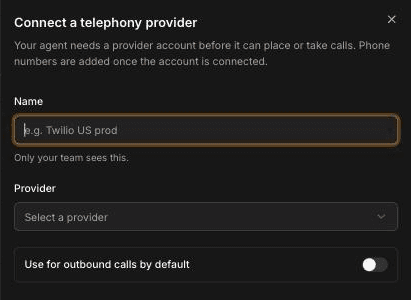
In Voice, click Phone Numbers in the sidebar. The Telephony page lists the provider accounts your agents use to make and take calls. Click Connect provider, enter a Name (for example "Twilio US prod"), choose the Provider, and click Connect provider. Tick Use for outbound calls by default if this account should place your outbound calls.
Add your phone number
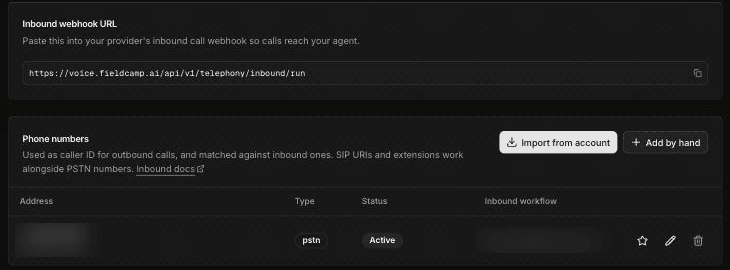
On the Telephony page, click Phone numbers on the provider you connected. Click Import from account to choose from the numbers in your provider account, or Add by hand to enter a number yourself.
Choose the agent that answers
Edit the number and set Inbound workflow to the agent you published. Calls to that number now go to that agent.
Point your provider at Voice
Your provider needs to send incoming calls to Voice. The provider page shows an Inbound webhook URL; paste it into your provider's inbound call webhook setting. If you imported the number and let Voice repoint it, this is already done.
Call the number
Call the number from your own phone and talk to the agent as a customer would.
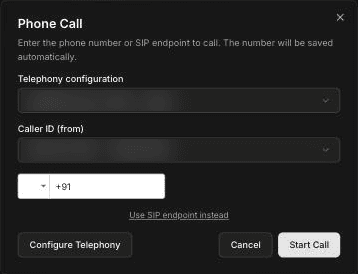
To have the agent call you instead, open the ⋯ menu in the builder and choose Call my phone…. In the Phone Call dialog, choose a Telephony configuration and a Caller ID (from), enter your number, and click Start Call. For more ways to test on a phone, see test with a phone call.
Review the call
In Voice, open the agent in the builder, open the ⋯ menu and choose View call history, or open Calls in the sidebar to see every call. The Dashboard and Reports show how your agents are answering. To find a call's recording, see call limits and recordings.
Optional: connect FieldCamp
If you use FieldCamp, an owner or admin can connect it from Settings → Apps & Integrations → FieldCamp Voice in FieldCamp. See Connect FieldCamp and FieldCamp Voice. Once connected:
- Your published agents appear in FieldCamp under Front Office AI → Voice Agents, on the Agents tab.
- Agents can look up clients and jobs in FieldCamp and create requests during a call.
- Call results land on the customer's thread in the FieldCamp Inbox, with the outcome, such as Voice agent · booked or call back requested, the recording and a transcript link.
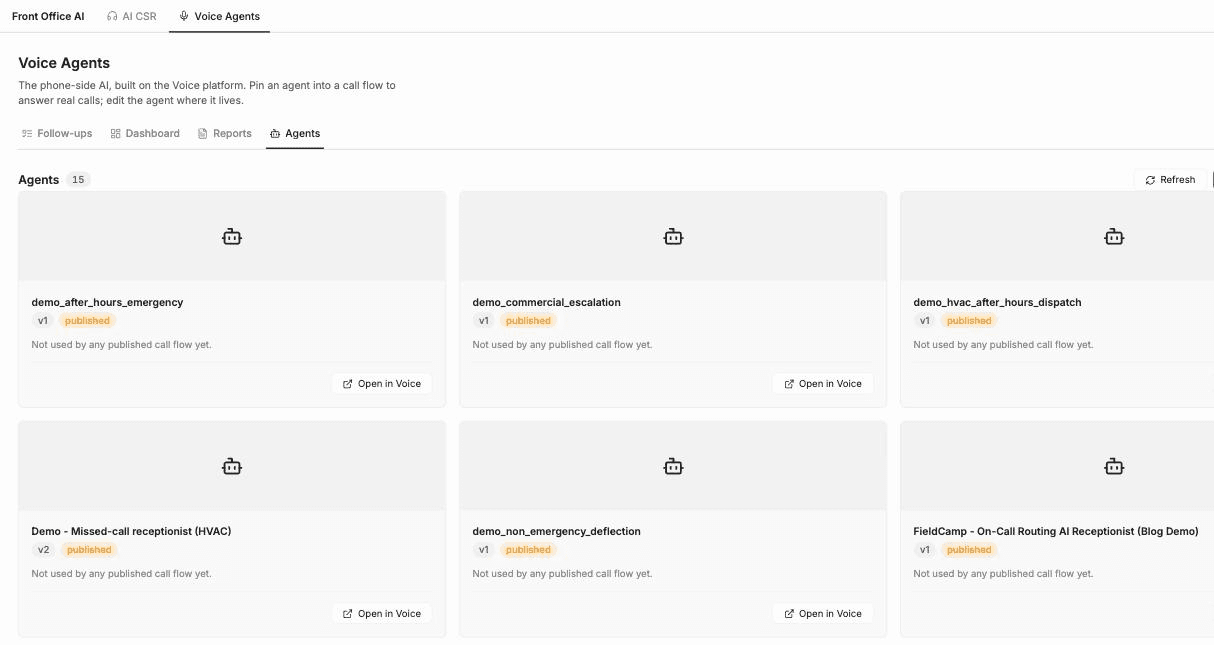
With FieldCamp connected, you can also answer calls through FieldCamp instead of a number connected in Voice. This needs the FieldCamp Calls add-on with a phone number, and a call flow whose AI step uses your agent. FieldCamp hands the live call to the agent, and the call flow continues on the outcome. See Calls setup and usage.
To learn what changes when you connect FieldCamp, read How AI voice agents work with FieldCamp.
Optional: connect AI Dispatcher
Connect AI Dispatcher if you want the agent to create a job and book the technician AI Dispatcher suggests while the caller is on the line. It works with or without FieldCamp. The Book the job template is built for this. See Book jobs with AI Dispatcher during a call.
Frequently asked questions
How do I set up an AI answering service?
Create a FieldCamp Voice account, create a voice agent from a template such as Missed-call receptionist, add your business details and rules, test it, and publish it. Then connect your telephony provider under Phone Numbers and set the agent as your number's Inbound workflow.
How do I make an AI receptionist?
The quickest way is the Missed-call receptionist template in FieldCamp Voice. It creates a working inbound agent that you fill in with your business name, services and emergency rules. You can also create a voice agent from scratch.
Do I need FieldCamp to use a voice agent?
No. You can build, test, publish and take calls entirely in FieldCamp Voice. Connecting FieldCamp or AI Dispatcher is optional and lets the agent use your customer data or book jobs.
How can I test my voice agent after building it?
Click Test in the builder and use Test Audio to talk to the agent in your browser. To hear it on a real phone, call a number you've connected in Voice, or choose Call my phone… from the ⋯ menu.
Where can I get a phone number for my voice agent?
Voice uses numbers from a telephony provider you connect under Phone Numbers, such as Twilio, Telnyx, Vonage, Plivo, Vobiz, Cloudonix or Asterisk; Voice can't buy numbers itself. If you use FieldCamp, the FieldCamp Calls add-on can buy Twilio numbers for your FieldCamp call flows.
Related articles
AI Receptionist for field service businesses | FieldCamp
Build AI voice agents that answer and make calls for HVAC, plumbing and electrical teams. Works on its own; connecting FieldCamp or AI Dispatcher is optional.
How AI voice agents work with FieldCamp | FieldCamp
See what changes when you connect FieldCamp to FieldCamp Voice: two ways calls reach your AI voice agent, mid-call tools, handoffs, and where results appear.