 FieldCamp
Call an external API during a call | FieldCamp
Create a custom HTTP tool so your voice agent can call any API during a call, send caller details, and use the response in the conversation.
An External HTTP API tool "calls one of your own systems while the caller is still on the line — to look someone up, check what is free, or book the job." Use it when the system you need isn't already available as an MCP server.
You create the tool once on the Tools page in FieldCamp Voice, then attach it to the steps that need it. Only the tools a step has selected are available to that step. For an overview of every tool type, see Add tools to your AI voice agent.
When to use it
Choose an External HTTP API tool when you have one endpoint that does one job. For example:
- An electrical contractor checks whether a caller's ZIP code is inside its service area.
- A plumbing company looks up a customer's warranty status in its own database.
- A used cooking oil collection service checks the next pickup date on a restaurant's route.
If you use FieldCamp and have connected it, use the FieldCamp tools for client, job and request records instead. See Look up clients and jobs during a call. If a system offers many actions through an MCP server, connect it as an MCP server.
Create the tool
Open Tools
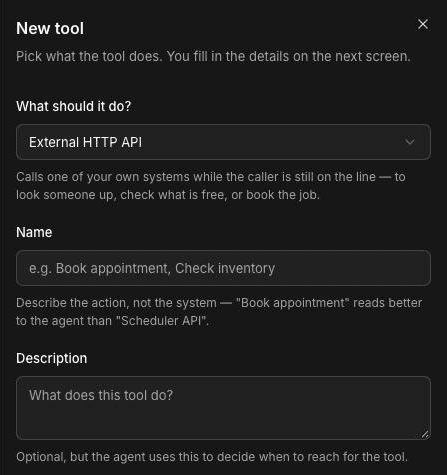
In Voice, click Tools in the sidebar, then click New tool.
Choose External HTTP API
Under What should it do?, choose External HTTP API.
Name and describe it
Enter a Name that describes the action, not the system. "Book appointment" reads better to the agent than "Scheduler API". The Description is optional here, but the agent uses it to decide when to reach for the tool.
Create the tool
Click Create tool. The tool's page opens with three tabs: Settings, Authentication and Parameters.
Settings tab
- Name and Description: the description should say when the agent should use the tool, in a sentence. For example, "Use this to check whether the caller's ZIP code is in our service area, before you collect their details."
- Method: GET, POST, PUT, PATCH or DELETE.
- Endpoint URL: the address the request goes to.
- Timeout (ms): how long the agent waits before giving up. The default is 5000 (5 seconds).
- Custom message: optional text or audio that plays while the request runs, so the caller isn't left in silence. For example, "One moment while I check that for you." You can pick a clip from Audio clips.
Authentication tab
Pick a credential, or leave it empty for no authentication. To add one, use Add credential and choose a Credential type:
- Bearer token: a token.
- API key: a header name (such as X-API-Key) and the key.
- Basic auth: a username and password.
- Custom header: a header name and value.
If the endpoint is the FieldCamp API, it accepts an fc_live key as a Bearer token or in an X-Api-Key header; see FieldCamp API authentication and scopes for the scopes the key needs.
The credential's Name is how your team picks it later. Don't put keys or passwords in the endpoint URL, parameters or headers; keep them in a credential.
Parameters and headers
The Parameters tab controls what the tool sends.
- Parameters: details the agent collects on the call and sends with the request. They go in a JSON body for POST, PUT and PATCH, or as query parameters for GET and DELETE. Each parameter has a type (string, number, boolean, object or array) and can be marked as required. Give each one a clear name and description, such as
zip_code: "The five-digit ZIP code of the service address." - Preset parameters: sent with every request and never shown to the agent. Use a fixed value or a template, such as
{{initial_context.caller_number}}to send the number an inbound call came from. See Use dynamic variables in voice agents. - Custom headers: extra headers your API expects.
Use presets for values the agent shouldn't choose or say out loud, such as an account ID or the caller's phone number. If a template variable has no value, it becomes empty, so check that the value exists on real calls.
Use the response
The agent reads what your API returns and uses it to decide what to say next. Short, plain responses work best. A response such as {"in_service_area": true, "next_available": "Thursday morning"} is easier for the agent to use than a large record.
Tell the agent in the step prompt what to do with the result. For example: "If the ZIP code is outside our service area, say so politely and offer to take a message. Don't promise a visit."
Then attach the tool to a step. Open the step, go to Tools, select the tool on the HTTP & Tools tab, and save.
Test and troubleshoot
Save the tool, then click Test tool on its page. The Test Tool dialog runs the saved configuration against the real endpoint. Fill in the parameters yourself or use Fill sample values, then run the test and check the HTTP status and response.
Test tool sends a real request with your credential. If the endpoint creates or changes records, the test does too. Use a test account or safe records.
If something goes wrong:
- The button is disabled: save the tool first. Unsaved changes can't be tested.
- The request times out: raise Timeout (ms) a little, or make the endpoint faster. Callers notice long silences, so add a Custom message.
- The agent never uses the tool: check that the step has the tool selected, and make the Description say clearly when to use it.
- The agent sends the wrong values: tighten each parameter's description, or move fixed values into Preset parameters.
Also tell the agent in the step prompt what to do if the lookup fails, such as taking a message for your team.
Frequently asked questions
What's the difference between an MCP server and an API tool?
An External HTTP API tool calls one endpoint that you configure field by field. An MCP server brings its own set of tools, and you choose which of them your agents can use.
Which HTTP methods and authentication are supported?
The tool supports GET, POST, PUT, PATCH and DELETE. For authentication you can use a bearer token, an API key header, basic auth or a custom header, or no authentication.
How do I pass caller details to the API?
Add them as Parameters, and the agent fills them in from the conversation. For values the agent shouldn't choose, such as the number the call came from, use a Preset parameter with a template like {{initial_context.caller_number}} on inbound calls.
What if the API is slow or fails?
The agent waits up to the Timeout (ms), which is 5000 by default, then gives up. Add a Custom message so the caller isn't left in silence, and tell the agent in the step prompt what to do when the lookup fails.
Can I test the tool before a real call?
Yes. Save the tool and click Test tool. The test sends a real request to your endpoint, so use safe records.
Related articles
Let your voice agent end the call | FieldCamp
Add the End call tool so your voice agent can hang up at the right moment, such as after it confirms a booking or when a caller says goodbye.
Connect a custom MCP server | FieldCamp
Connect your own MCP server to FieldCamp Voice, choose which of its tools your voice agents may use, and check the connection before a real call.