 FieldCamp
Create an AI voice agent | FieldCamp
Create an AI voice agent in FieldCamp Voice. Describe what it should do or start from a blank canvas, then choose whether it answers or places phone calls.
A voice agent is the AI that talks to your customers on the phone. You build it in FieldCamp Voice (voice.fieldcamp.ai), where you describe the calls it should handle, choose whether it answers or places calls, and publish it when it's ready.
This page covers creating an agent from scratch. If one of the ready-made agents fits a job your phone already does, such as taking details after hours or booking the job, start from a voice agent template instead.
Choose how to start
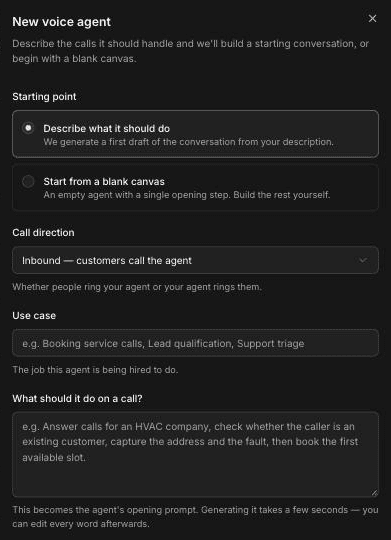
You create every new agent from the New voice agent panel. It offers two starting points:
- Describe what it should do: Voice generates a first draft of the conversation from your description.
- Start from a blank canvas: you get an empty agent with a single opening step and build the rest yourself.
You can also start a new agent from the Create Agent button on the Voice Dashboard. Its menu offers Use Agent Builder (AI generates a workflow from your description) and Blank Canvas (start from scratch with an empty workflow).
Create the agent
Open Voice agents
In Voice, click Voice Agents in the sidebar. The Voice agents page lists your active agents, with archived agents in a separate section.
Click New agent
Click New agent. The New voice agent panel opens.
Pick a starting point
Under Starting point, choose Describe what it should do or Start from a blank canvas.
Choose the call direction
Under Call direction, choose one of these:
- Inbound — customers call the agent
- Outbound — the agent calls customers
See Inbound vs outbound if you're not sure which one you need.
Name the use case
In Use case, write the job this agent is being hired to do, for example "Booking service calls", "Lead qualification" or "Support triage".
Describe what it should do on a call
In What should it do on a call?, describe the call in plain language, in the order you want things to happen. This becomes the agent's opening prompt. See Describe your agent for examples.
Click Create agent
Click Create agent. If you chose to describe the agent, generating the first draft takes a few seconds. You can edit every word afterwards.
Inbound vs outbound
The call direction decides who dials.
- Inbound agents answer calls. Connect a phone provider in Voice, add your number, and set the number's Inbound workflow to the agent (see Phone Numbers). If you use FieldCamp, a call flow on your FieldCamp number can hand the call to the agent instead.
- Outbound agents place calls. You use them in Voice campaigns, which call a list of contacts. If you've connected FieldCamp, Voice won't dial a contact who opted out in FieldCamp. To choose what the agent does when it reaches voicemail or a phone menu, see detect voicemail and phone menus.
Call results appear in Voice under Calls and in each agent's Call history. If you've connected FieldCamp, they also land in your FieldCamp Inbox; see How AI voice agents work with FieldCamp.
Describe your agent
The description works best when it reads like instructions you'd give a new CSR on their first day: who is calling, what to find out, and what should happen at the end. Keep the steps in order.
A plumbing example for an inbound agent:
Answer calls for a plumbing company. Ask whether the caller is an existing customer. Find out what the problem is and whether water is leaking right now. Take the service address and the best callback number, then read the details back before ending the call.
A route-based example for an outbound agent:
Call grease trap customers whose service is due. Confirm you're speaking to the site contact, check that the service address is still correct, and ask which day this week works for the pickup. If they don't want the visit, note the reason and end the call politely.
Emergency definitions, coverage hours and who to escalate to are your business rules. Write them into the description in your own words. The agent doesn't come with a definition of an emergency.
Start from a blank canvas
A blank-canvas agent starts with a single opening step. Use the + button at the top right of the canvas to add steps, and the gear button to open the workflow settings. For a guide to the canvas and each step type, see Build a voice agent with the Agent Builder. This option suits teams who already know exactly how they want the conversation to flow.
What happens next
After you click Create agent, the agent opens in the builder. From there:
-
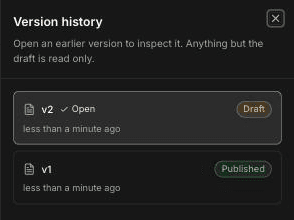
Review and edit the conversation. Click the pencil icon next to the agent name to rename it. Editing a published agent, even renaming it, creates a new draft version, shown as a badge such as v2 · Draft. The published version keeps taking calls until you publish the draft.
-
Test the agent. Click Test to open the test panel. It has three tabs:
- Test Audio: call the agent in your browser with Run Test. Some telephony-only tools, like call transfer, aren't supported in a browser test.
- Test Chat
- Simulation: see run simulated tests.
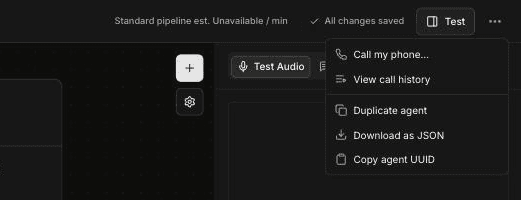
To hear the agent on a real phone, open the ⋯ menu and choose Call my phone…. You can set a test phone number in Voice Settings under Preferences. To compare the ways to test, see test a voice agent before going live.
-
Publish. When the open version is a draft, a Publish button appears next to Test. Click it to make the draft the version that takes calls. Voice confirms with "Workflow published successfully".

To look at an earlier version, open Version history. You can open any version to inspect it, but only the draft can be edited.
Once the agent is published, there are two ways to put it on real calls:
- A number in Voice: in Phone Numbers, connect your phone provider, import or add your number, and set its Inbound workflow to this agent. No FieldCamp account is needed.
- A FieldCamp call flow: if you use FieldCamp and have connected it to Voice, the agent appears on the Agents tab under Front Office AI → Voice Agents, and you can pick it in a call flow's AI step.
For a guided run from a new agent to a live call, follow the quickstart.
Other ways to create an agent
- From a template: pick one of six ready-made field service agents. See Voice agent templates.
- From a file: on the Voice agents page, click Upload agent definition and choose an agent JSON file. To export an agent, open it in the builder, open the ⋯ menu and choose Download as JSON.
- From an existing agent: open the agent in the builder, open the ⋯ menu and choose Duplicate agent.
Organize your agents
- Folders: click New Folder on the Voice agents page, then use Move to folder from an agent's row menu (⋯).
- Archive: choose Archive agent from the row menu to move an agent to the Archived section. To bring it back, choose Restore agent.
The row menu also has Edit agent, Call history and Settings.
Frequently asked questions
How do I build an AI voice agent?
In FieldCamp Voice, open Voice Agents, click New agent, choose a starting point and call direction, describe what the agent should do on a call, and click Create agent. The agent opens in the builder, where you can edit, test and publish it.
How do I create an AI receptionist for my business?
Create an inbound voice agent and describe how you want calls answered, or start from the Missed-call receptionist or Full front desk template. After you publish it, set it as the Inbound workflow on a phone number in Voice, or, if you use FieldCamp, pick it in a call flow's AI step.
What is the difference between inbound and outbound voice agents?
An inbound agent answers calls from customers. An outbound agent places calls, for example through a Voice campaign that works through a list of contacts.
How can I test my voice agent after building it?
Click Test in the builder and use Test Audio to call the agent in your browser, or use Test Chat or Simulation. To test on a real phone, choose Call my phone… from the ⋯ menu.
Can I import or export a voice agent?
Yes. Use Upload agent definition on the Voice agents page to import an agent JSON file, and Download as JSON in the builder's ⋯ menu to export one.
Related articles
Connect FieldCamp and FieldCamp Voice | FieldCamp
If you use FieldCamp, connect it to FieldCamp Voice so voice agents can use your customer data, answer in call flows, and send results to the Inbox.
Voice agent templates for field service | FieldCamp
Compare the six FieldCamp voice agent templates, from Missed-call receptionist to Full front desk, and choose the right starting point for your phone calls.