 FieldCamp
Choose a model and voice for your voice agent | FieldCamp
Choose how your FieldCamp voice agents run calls, pick the language model, voice and transcription model, set a fallback voice, and override one agent's models.
Every voice agent in FieldCamp Voice uses the models set on the Models page: a language model that decides what to say, a transcription model that turns the caller's speech into text, and a voice that speaks the reply. You set them once for the whole workspace, and you can give one agent its own setup when it needs something different.
To open the page, click Models under Configuration in the Voice sidebar.
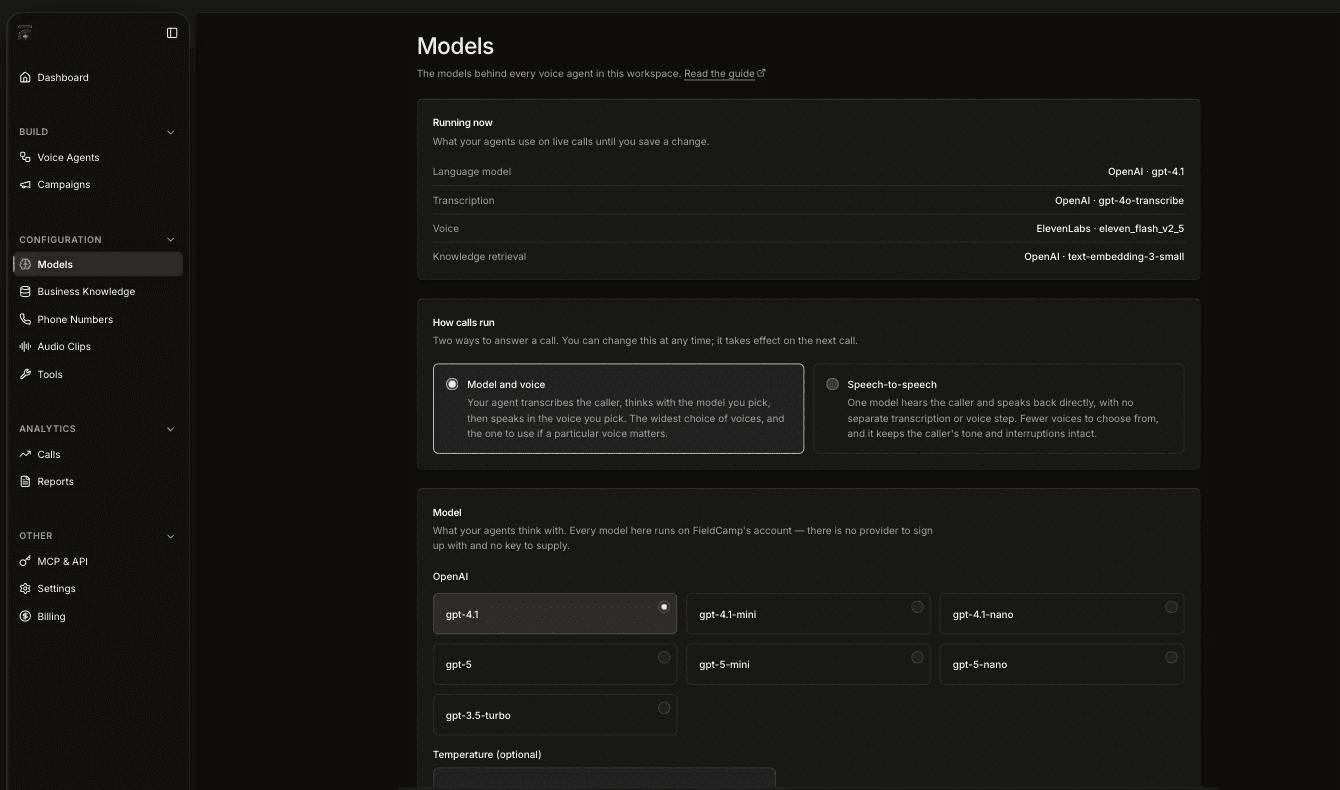
The Running now card at the top shows what your agents use on live calls until you save a change: the Language model, Transcription, Voice and Knowledge retrieval model.
FieldCamp-managed models
The models on this page run on FieldCamp's account. There is no provider to sign up with and no API key to supply, for the language model, the voice or the transcription model. The page footer notes that models run on your workspace's FieldCamp service key, which you manage on the API keys screen.
Which models and voices you can pick depends on what FieldCamp offers in your workspace. If a model you use is withdrawn, the page tells you and your agents keep running it until you pick a replacement.
Some workspaces ran their own model providers before FieldCamp began supplying them. Those workspaces see a Custom model setup section instead of the pickers. It keeps working as it is. Switch to FieldCamp models moves the workspace onto FieldCamp-managed models; your own keys aren't deleted, but they stop being used for calls.
Model and voice vs Speech-to-speech
Under How calls run, choose one of two ways to answer a call. You can change it at any time, and it takes effect on the next call.
| Model and voice | Speech-to-speech | |
|---|---|---|
| How it works | Transcribes the caller, thinks with the model you pick, then speaks in the voice you pick | One model hears the caller and speaks back directly |
| Voices | The widest choice, from several voice providers | Fewer, only the voices that model can speak in |
| What you set | Model, voice, voice settings, transcription model | The speech-to-speech model, a voice and a language |
| Best for | When a particular voice matters, or you need the features below | A natural feel that keeps the caller's tone and interruptions |
Choose Model and voice if you're not sure. Several features work only with it:
- Voicemail and phone-menu detection
- The pronunciation dictionary and the other voice controls in agent settings
- An LLM Model Override on a single Agent step
The mode also affects turn-taking and interruptions: most of those settings apply to Model and voice, while speech-to-speech models keep most of their own turn-taking controls.
If you change the mode, Voice asks you to confirm and lists the agents that inherit the workspace setup. Tick Keep existing agents on their current mode to save overrides that keep those agents on their current models and voices; new agents use the new setup.
Choose the language model
In the Model section, pick the model your agents think with. The models are grouped by provider. Which ones appear depends on what FieldCamp offers in your workspace; for example, you might see OpenAI's gpt-4.1, gpt-4.1-mini and gpt-5.
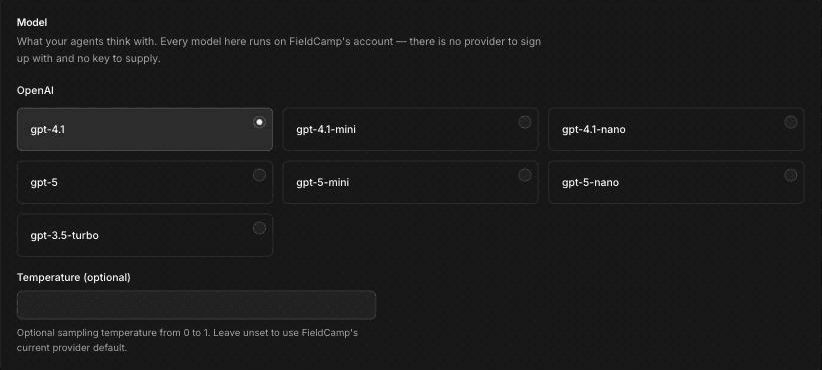
Temperature (optional) takes a value from 0 to 1. Leave it blank to use FieldCamp's current provider default. A lower value keeps wording more consistent, which helps when the agent reads back an address or a callback number. Temperature isn't available for OpenAI's GPT-5 models.
Choose a voice
The Voice section is where you choose how your agent sounds. Preview any voice before you choose it.
- Pick a provider tab. The tabs depend on what FieldCamp offers in your workspace, for example ElevenLabs, Deepgram, Openai or Cartesia.
- Search by name, accent or style, or use the Gender, Accent and Language filters.
- Play a voice to hear it, then click Select.
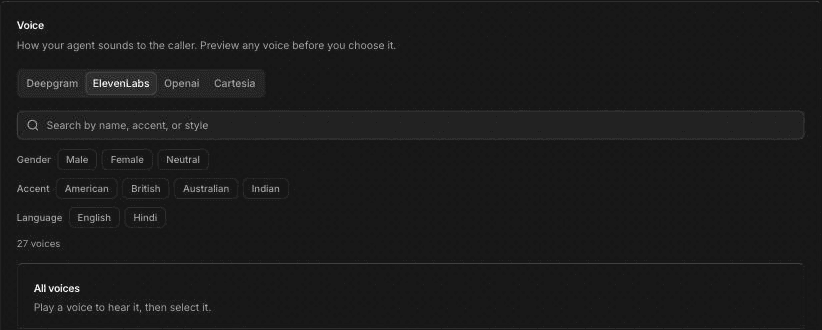
Pick a voice that suits your callers and your trade. A calm, clear voice at a normal speed usually works best for an HVAC or plumbing line, where callers may be stressed or standing next to a noisy unit. Switching the voice provider resets the voice settings below.
In Speech-to-speech mode, you pick from a plain Voice list instead. These are the voices the speech-to-speech model can speak in.
Voice settings and fallback voice
For ElevenLabs and Cartesia voices, extra settings appear under the voice list.
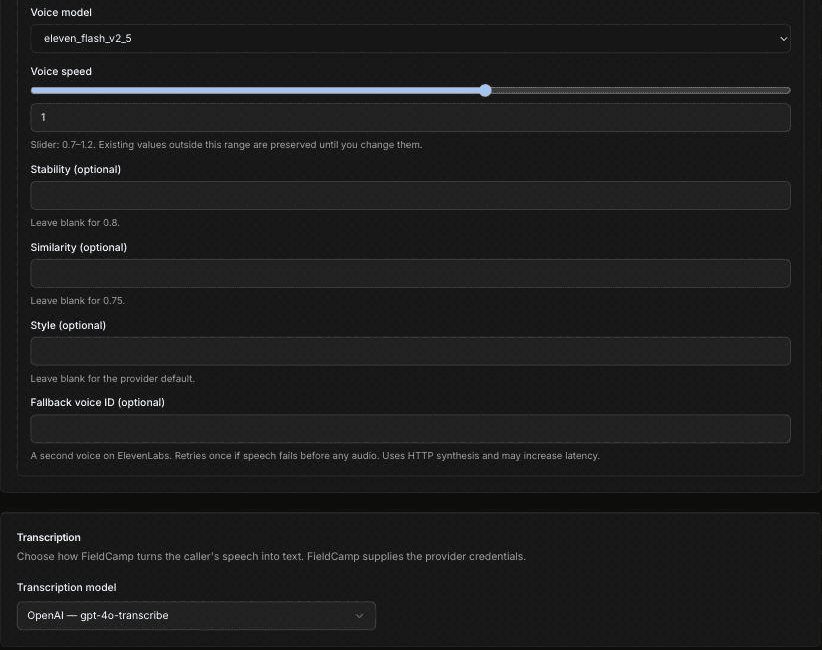
| Setting | What it does |
|---|---|
| Voice model | The provider's speech model, for example eleven_flash_v2_5 or eleven_multilingual_v2 |
| Voice speed | The slider runs from 0.7 to 1.2. Existing values outside this range are kept until you change them. |
| Stability (optional) | ElevenLabs only. Leave blank for 0.8. |
| Similarity (optional) | ElevenLabs only. Leave blank for 0.75. |
| Style (optional) | ElevenLabs only. Leave blank for the provider default. |
| Fallback voice ID (optional) | A second voice from the same provider to use if the main voice fails |
The fallback voice is used when speech fails before any audio plays: the agent retries once with the fallback voice. It uses a slower synthesis method, so it may add a little delay. Leave it blank if you don't need it.
Transcription
The Transcription section sets how FieldCamp turns the caller's speech into text. FieldCamp supplies the provider credentials. Pick an option in Transcription model, shown as provider and model, for example "OpenAI — gpt-4o-transcribe".
Some transcription models also show a Language setting. See Set your voice agent's language.
Knowledge retrieval, the model that searches your business knowledge, is managed by FieldCamp. It's shown so you can see the whole path a call takes; there's nothing to set.
When you're done, click Save changes. Agents that inherit the workspace settings use the new setup on new calls.
Override models for one agent
By default, every agent uses the workspace model configuration. To give one agent its own models, for example a different voice for an outbound grease trap reminder agent:
Open the agent's settings
On the Voice agents page, open the agent's row menu and click Settings.
Open Model overrides
Go to Model overrides. The summary reads Workspace defaults or Agent override.
Turn on the override
Turn on Override for this agent, then choose the models and voice for this agent.
Save
Click Save model override.
An agent override is a complete setup. It replaces the workspace setup for that agent, so later changes on the Models page don't reach it. To go back to the workspace setup, turn off Override for this agent, then click Save workspace configuration. The change doesn't apply until you save; turning the toggle off on its own leaves the saved override active.
To use a different language model for just one part of a call, such as the step that checks a caller's problem against your emergency rules, use the LLM Model Override on that Agent step instead.
Test before you publish
Model and voice changes are easiest to judge by ear. Use Test Audio to talk to the agent in your browser, then place a test call to your phone to hear the voice and timing on a real line. Listen for how the agent says addresses, numbers and your company name, and how quickly it replies.
Frequently asked questions
What is a speech-to-speech model?
A speech-to-speech model hears the caller and speaks back directly, with no separate transcription or voice step. It keeps the caller's tone and interruptions intact, but offers fewer voices, and features such as voicemail detection and the pronunciation dictionary don't work with it.
How do I make an AI voice sound natural?
Preview several voices and pick one that suits your callers, keep Voice speed close to 1, and keep the agent's replies short in your prompts. Then listen to a real test call, because a voice can sound different on a phone line than in the browser.
Should I use FieldCamp-managed models or my own API keys?
The Models page runs on FieldCamp-managed models, so there is no provider account or API key to set up. Workspaces that already ran their own providers keep a custom model setup, which keeps working until you switch to FieldCamp models.
When does the fallback voice play?
The fallback voice is an ElevenLabs and Cartesia setting. It plays only when speech from the main voice fails before any audio reaches the caller. The agent retries once with the fallback voice, which may add a short delay.
Which mode should I choose?
Choose Model and voice if a particular voice matters, or if you need voicemail detection, the pronunciation dictionary or a per-step model override. Choose Speech-to-speech if a natural, low-delay conversation matters more and one of its voices suits you.
Related articles
Play pre-recorded audio clips on calls | FieldCamp
Upload or record audio clips in FieldCamp Voice and play them word for word on calls, from a prompt with @, as a greeting, or before a step change or transfer.
Set your voice agent's language | FieldCamp
Set the language your FieldCamp voice agent listens for, use auto-detect when callers speak more than one language, and match voices, prompts and audio clips.