 FieldCamp
Test your voice agent in the browser | FieldCamp
Talk to your voice agent from the builder with Test Audio, or type to it with Test Chat, to check prompts, transitions, and tools before you publish.
You can test a voice agent without a phone. In the FieldCamp Voice builder, Test Audio lets you talk to the agent through your computer's microphone, and Test Chat lets you type to it and watch each step and tool call as it happens.
Both run the agent's saved draft, so you can try changes before you publish them. Check that the builder header shows All changes saved first. For how these fit with simulated tests and phone tests, see Test a voice agent before going live.
Test Audio
Test Audio is a voice call in your browser. Use it to hear the agent's voice, how long it waits before replying and how it handles being interrupted.
Open the test panel
Open the agent in the builder and click Test at the top right. The Test Audio tab opens.
Start the call
Click Run Test. Allow microphone access if your browser asks for it.
Talk as a caller would
Describe a real problem, for example "Our furnace stopped working last night and the house is freezing." Answer the agent's questions, interrupt it once, and stay quiet for a moment to hear what it does.
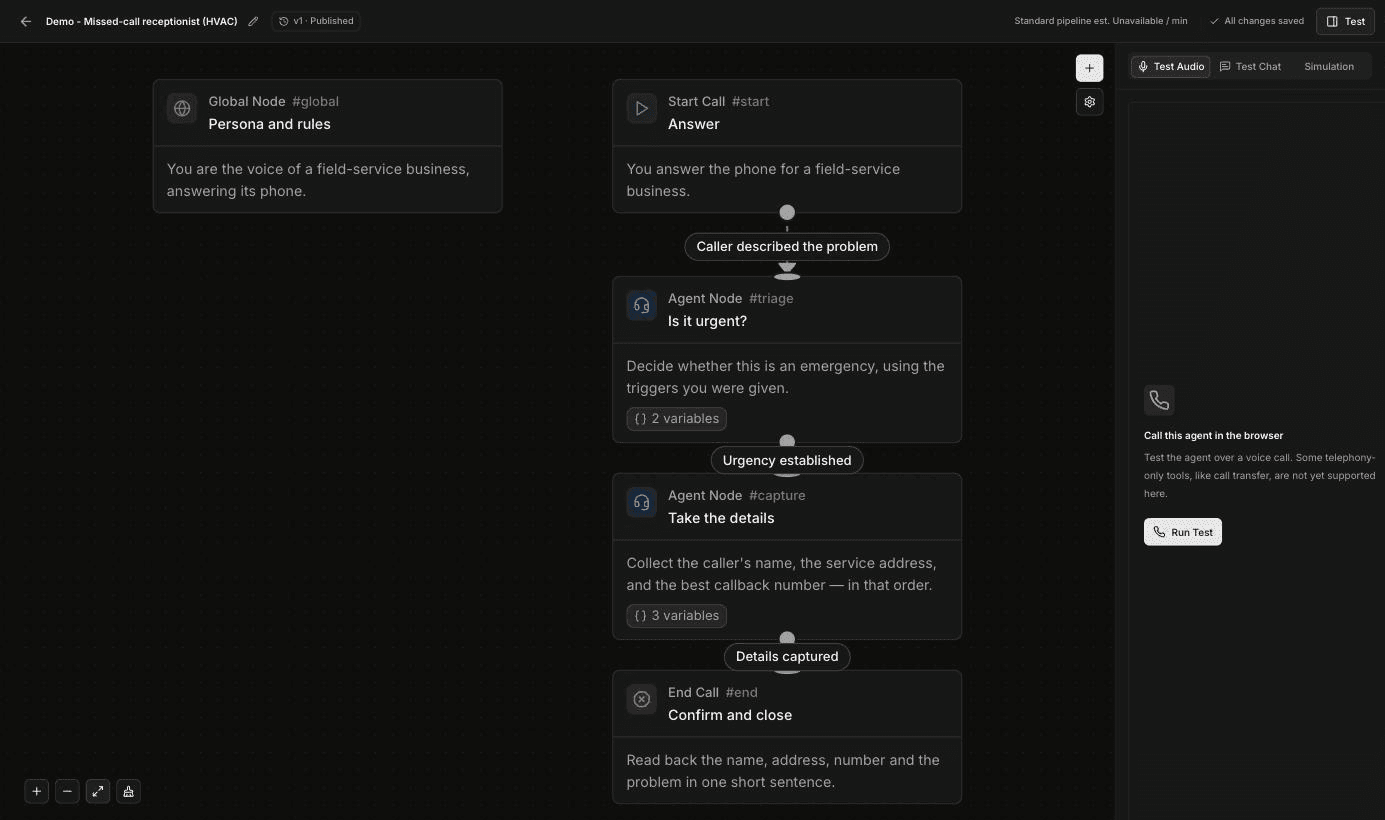
Keep these limits in mind:
- Transfers are faked. Some telephony-only tools, like call transfer, aren't supported in the browser. When the agent transfers, no number is called: the agent hears that this is a browser transfer test and carries on along the transfer's failure path. Use this to check what the agent says when a transfer fails. See Transfer a call to a person.
- Other tools act for real. If a step can create a request in FieldCamp, book a job or call your own system, a browser test does it too. Use a test customer and delete what the test creates.
- It's billed and shows in call history. Test Audio calls are billed like live calls and appear in the agent's call history alongside real calls, with no test label.
Test Chat
Test Chat is a text conversation with the agent. It's the quickest way to check the wording of each step and see which transitions fire.
Open Test Chat
Click Test, then the Test Chat tab. Make sure Manual is selected.
Start the conversation
Click Start Test. The agent sends its greeting.
Reply as the caller
Type in Send a message… and click Send. Keep going until the call would normally end.
Try another path
To change an earlier answer, use the rewind or edit icon under that message and continue from there. To start over, click Reset.
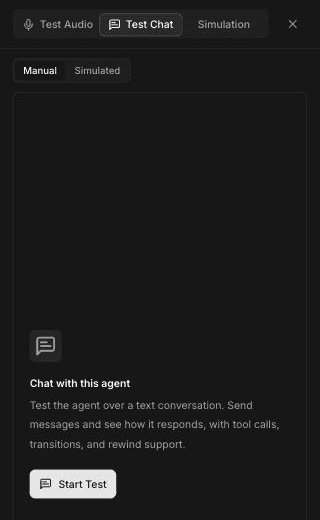
Test Chat refuses transfers: the agent replies that call transfers aren't available in text chat tests. The Simulated option on this tab opens the same screen as the Simulation tab; see Run simulated tests.
Read the conversation
As you chat, the panel shows more than the agent's replies:
- Step labels, such as "Answer" or "Is it urgent?", mark where the agent moved to a new step.
- Transitions appear as the name of the transition with a COMPLETED badge, for example
caller_described_the_problem(). Click Details to see more. - The canvas highlights the step the agent is on.
![Voice builder with the Is it urgent step highlighted on the canvas, and the Test Chat panel showing the greeting "This is [Business Name]", a caller message about a furnace that stopped working, the caller_described_the_problem transition marked COMPLETED, and the agent treating the call as an emergency and asking for a name and phone number](/_next/image?url=%2F_next%2Fstatic%2Fmedia%2Ftest-chat-with-canvas.115352oeb8gi5.png&w=3840&q=75&dpl=dpl_FnpJDKFJ5GE4gYisKzRoDdK8QBz2)
A real example
This test ran the Missed-call receptionist template. The caller wrote "Hi, our furnace stopped working last night and the house is freezing." The chat showed:
- The Answer step greeted the caller with "Thank you for calling! This is [Business Name], and I'm happy to help."
- The
caller_described_the_problem()transition completed, and the agent moved to Is it urgent?, which the canvas highlighted. - The agent treated no heat in cold weather as an emergency, said it was getting a person on it right away, and asked for the caller's name and best phone number.
Two things in this test need fixing before launch:
- The greeting said "[Business Name]". That's a placeholder in the template's prompt that hadn't been replaced. The agent reads placeholders out loud exactly as written. Replace every placeholder with your own details, then test again.
- Check what the agent promises. "I'm getting a person on this right away" is only right if your business actually does that for this kind of call. What counts as an emergency, and what happens next, are your rules. Write them into the prompt in your own words.
What to check
- The greeting uses your business name and sounds the way you want.
- The agent asks one question at a time and collects everything you need, such as the name, service address and callback number.
- Each transition fires when it should and not before. If the agent skips ahead, tighten the condition. See Set up transitions and conditions.
- The agent calls the right tool in the right step. A step can use only the tools selected on that step.
- Variables fill in. A variable with no value becomes empty. Values under Settings → Variables are test values only and don't apply to real calls, so add a fallback such as
{{customer_name | there}}. - It handles an urgent call and a routine one, for example a breaker that keeps tripping versus a request to schedule a panel inspection.
Troubleshooting
| What you see | What to do |
|---|---|
The agent reads out [Business Name] or similar | Replace the placeholder in the step prompt with your own text. |
| The test doesn't reflect your latest edit | Wait until the header shows All changes saved, then start a new test. |
| Test Audio doesn't hear you | Allow microphone access for the site in your browser and try Run Test again. |
| The agent says it will do something, but no tool runs | Select the tool on that step. Only the tools a step has selected are available to it. |
| A transfer doesn't happen | Expected. Test Audio fakes transfers and follows the failure path, and Test Chat refuses them. |
| A name or date comes out blank | The variable has no value on this call. Add a fallback to the variable, as described in What to check. |
Frequently asked questions
What's the difference between Test Audio and Test Chat?
Test Audio is a voice call in your browser, so you hear the voice and timing. Test Chat is a typed conversation that shows each step, transition and tool call, which makes it faster for fixing the flow.
Does Test Audio need microphone access?
Yes. Test Audio uses your computer's microphone, so allow access when your browser asks.
Can I test unpublished changes?
Yes. Browser tests run the saved draft, not the published version. The published version keeps taking real calls until you publish the draft.
How do I see which step and tool ran?
Use Test Chat. It shows step labels, completed transitions with Details, and tool calls in the conversation, and it highlights the current step on the canvas.
Do browser tests show up in call history?
Yes. Test Audio and Test Chat conversations appear in the agent's call history alongside real calls. Test Audio calls are billed like live calls.
Related articles
Test a voice agent before going live | FieldCamp
Compare the ways to test a FieldCamp voice agent before real callers hear it: browser audio, text chat, simulated test cases, and a call to your phone.
Run simulated tests for a voice agent | FieldCamp
Create simulated test cases with a caller persona, success criteria, and tool mocks, then run them in batches to catch voice agent regressions before launch.