 FieldCamp
Use dynamic variables in voice agents | FieldCamp
Use dynamic variables in FieldCamp Voice to personalize calls with pre-call data, details the caller gives, built-in dates and times, and fallbacks.
A dynamic variable is a placeholder that Voice fills in during a call. Write {{customer_name}} in a prompt, and the agent sees the customer's actual name instead. Variables let one agent greet a returning customer by name, read back the address it just collected, or tell a caller what day it is without you editing the prompt.
Variables can come from data you fetch before the call, from details the agent extracts during the call, or from built-in values such as the current time.
Types of variables
| Type | Example | Where the value comes from |
|---|---|---|
| Initial context | {{initial_context.account_number}} | Data that exists when the call starts, such as a pre-call data fetch |
| Gathered context | {{gathered_context.service_address}} | Values extracted from the conversation by an earlier step |
| Built-in date and time | {{current_time_America/Chicago}} | Filled in by Voice when the call happens |
| Short name | {{service_address}} | Either of the first two, without the namespace |
You can write a variable with its namespace, initial_context. or gathered_context., or with its short name alone. If an extracted value and an initial value have the same short name, the extracted value wins. Use the namespace when you need to be sure which one you get.
Insert variables
Type the variable name between double curly braces: {{variable_name}}. You can use variables in these places:
- Step prompts on Start Call, Agent Node and End Call steps.
- Greeting Text on the Start Call step, for example "Hi
{{first_name}}, thanks for calling Northside Heating and Air." - Global Prompt on the Global step.
- Instructions on a Press Digit step, for example to enter
{{supplier_account}}in a supplier's phone menu. - Payload Template on a Webhook step, for example
{{workflow_run_id}}or{{gathered_context.service_address}}. Values are filled in by simple substitution. - Transfer destination on a transfer tool, for example
{{initial_context.transfer_destination}}.
Built-in date and time
Never type today's date into a prompt. It goes stale overnight. Use these instead, with your time zone in place of <TIMEZONE>:
{{current_time_<TIMEZONE>}}: today's date and time where your callers are, for example{{current_time_America/New_York}}.{{current_weekday_<TIMEZONE>}}: the day of the week, for example{{current_weekday_America/Denver}}.
The time zone must be a valid IANA time zone name, such as America/Chicago or Australia/Sydney. An invalid name is a validation error, and you can't publish until you fix it. A good use is an after-hours plumbing agent that needs to know whether it's a weekday before offering a same-day visit.
Pre-call data
A pre-call data fetch looks up information before the conversation starts. It's set on the Start Call step, under Additional settings. Voice sends a request to your endpoint when the call comes in, and the fields in your JSON response become variables for the rest of the call.
For example, a grease trap route company could return the site's account number and next service date, then greet the caller with {{next_service_date}} already known.
If the fetch fails or takes longer than 10 seconds, the call goes ahead without that data. Add fallbacks to any variable that depends on it. Setup is covered in Set the greeting with the Start Call step.
Extracted values
Extraction turns what the caller says into variables you can reuse later in the call. There are two ways to extract:
- Enable Variable Extraction on a Start Call, Agent Node or End Call step, then list the Variables to Extract.
- Add an Extract Variables step, which extracts silently between two steps.
Each variable has a Variable Name in snake_case (for example service_address), a Type (String, Number, Boolean or Enum) and an Extraction Hint. Extracted values are stored under gathered_context, so a later step can use {{gathered_context.service_address}} or {{service_address}}. A value the caller didn't give becomes empty.
A Logic Split step can also route on extracted values, for example sending the call to an emergency path when gathered_context.is_emergency is true. See Capture caller details with Extract Variables and Branch a call with the Logic Split step.
The Caller keypad section of the agent's settings can also collect digits the caller presses and store them as a variable. See Capture keypad input and handle call screening.
Fallbacks and empty variables
A variable that has no value when the call reaches it becomes empty. There's no error during the call. The agent just sees a blank where the value should be, which can produce sentences like "Hi , thanks for calling."
To prevent this, add a fallback after a vertical bar:
{{first_name | there}}becomes "Hi there" when the name is unknown.{{supplier_account | 0000}}enters 0000 in a phone menu when no account number is available.
While you edit, Voice warns you about a variable it can't find a source for. For example: "This agent has no variable called "supplier_account", so {{supplier_account}} becomes nothing. Add a fallback — {{supplier_account | your fallback}} — or define it in workflow settings." The warning doesn't stop you from publishing.
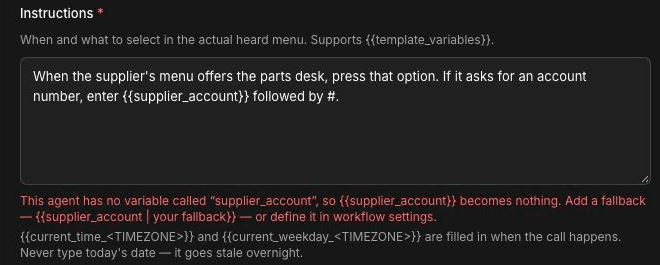
Defining a variable in the agent's settings only gives it a test value. Real calls still get an empty value unless the variable comes from pre-call data or extraction. For anything that might be missing on a real call, add a fallback.
Test values
Test values let you try prompts that use variables before real data flows in.
Open the agent's settings
On the Voice agents page, open the agent's row menu and choose Settings, or click the gear button on the builder canvas.
Go to Variables
Open the Variables section: "Stand-in values for testing. Use them in any prompt with {{variable_name}}."
Add a variable
Enter a Name, such as customer_name, and a Test value, such as Jane Doe. Click Add variable for more rows.
Save
Click Save variables.
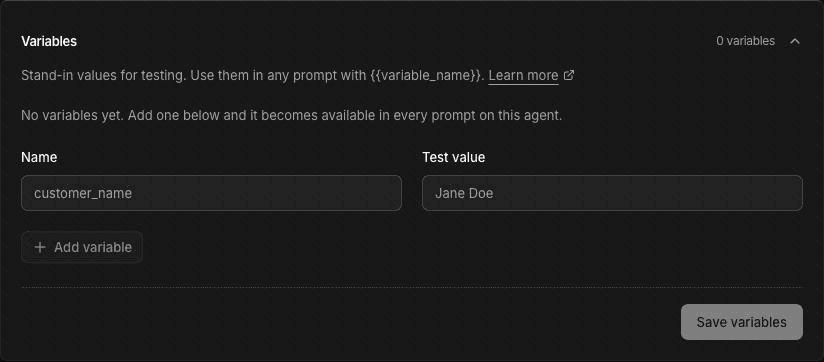
Test values are used only in test runs, such as browser tests and test phone calls. They don't apply to real calls.
Frequently asked questions
What are dynamic variables?
They're placeholders written in double curly braces that Voice replaces with real values during a call, such as a customer's name, a service address or today's date. They let one agent personalize every call without editing its prompts.
Where do variable values come from?
Values come from the call itself, such as the caller's number on inbound calls, from a pre-call data fetch on the Start Call step, from extraction during the call, from the caller's keypad input, or from built-in date and time variables. Test values in the agent's settings apply only to test runs.
How do I insert a variable in a prompt?
Type the name between double curly braces, such as customer_name inside two pairs of braces. You can use variables in step prompts, the greeting, the Global Prompt, Press Digit instructions, webhook payloads and transfer destinations.
What happens when a variable is empty?
It becomes blank text, and the call carries on without an error. Add a fallback after a vertical bar, such as first_name followed by "| there", so the agent has sensible wording when the value is missing.
Do test values work on real calls?
No. Values you add in the Variables section of the agent's settings are stand-ins for testing only. Real calls get their values from pre-call data, extraction or built-in variables, so add fallbacks for anything that might be missing.
Related articles
Set up transitions and conditions | FieldCamp
Connect steps with transitions, write the conditions that move a call forward, add transition speech, and plan a path for when a call transfer fails.
Write voice agent prompts for field service | FieldCamp
Write clear prompts for AI voice agents in field service. See HVAC and plumbing examples for greetings, qualifying questions, emergencies, and handoffs.