 FieldCamp
Tour the FieldCamp Voice app | FieldCamp
Find your way around FieldCamp Voice: what each section does, from Dashboard and Voice Agents to Phone Numbers, Business Knowledge, Calls, and Reports.
FieldCamp Voice is the web app at voice.fieldcamp.ai where you build and run your voice agents. Voice handles the agent builder, phone numbers, calls and campaigns, and it works on its own. If you also use FieldCamp, you can connect the two so your clients, jobs, requests and inbox stay in FieldCamp; see How AI voice agents work with FieldCamp.
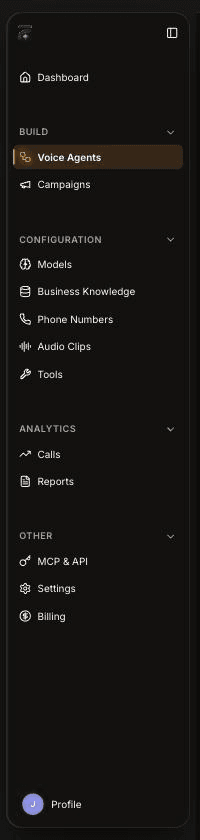
The sidebar groups every area by the job you do there:
- Dashboard
- BUILD: Voice Agents, Campaigns
- CONFIGURATION: Models, Business Knowledge, Phone Numbers, Audio Clips, Tools
- ANALYTICS: Calls, Reports
- OTHER: MCP & API, Settings, Billing
- Your Profile menu at the bottom
Open Voice from FieldCamp
If you use FieldCamp and an admin or owner has connected FieldCamp Voice, you can open Voice from FieldCamp without signing in again: click Open in Voice on an agent's card under Front Office AI → Voice Agents. To set up the connection, see Connect FieldCamp and FieldCamp Voice.
Build
Voice Agents
The Voice agents page lists "Agents that answer and place calls for your team — qualifying callers, capturing details, and booking the job." The Active agents table shows each agent's calls and created date, and the row menu lets you Edit agent, view Call history, open Settings, Move to folder or Archive agent. Archived agents appear in a separate section, where you can restore them.
Use New agent to start an agent from a description or a blank canvas, Upload agent definition to import an agent JSON file, and New Folder to organize your list. See Create an AI voice agent and Voice agent templates for field service.
Campaigns
Campaigns are for outbound calling: "Upload a list of contacts, choose the voice agent that speaks to them, and FieldCamp works through the list." Click New campaign to start one. If you've connected FieldCamp, it can also enroll contacts from segments and workflows, and it passes its opt-outs to Voice, so Voice won't dial someone who opted out.
Configure
Models
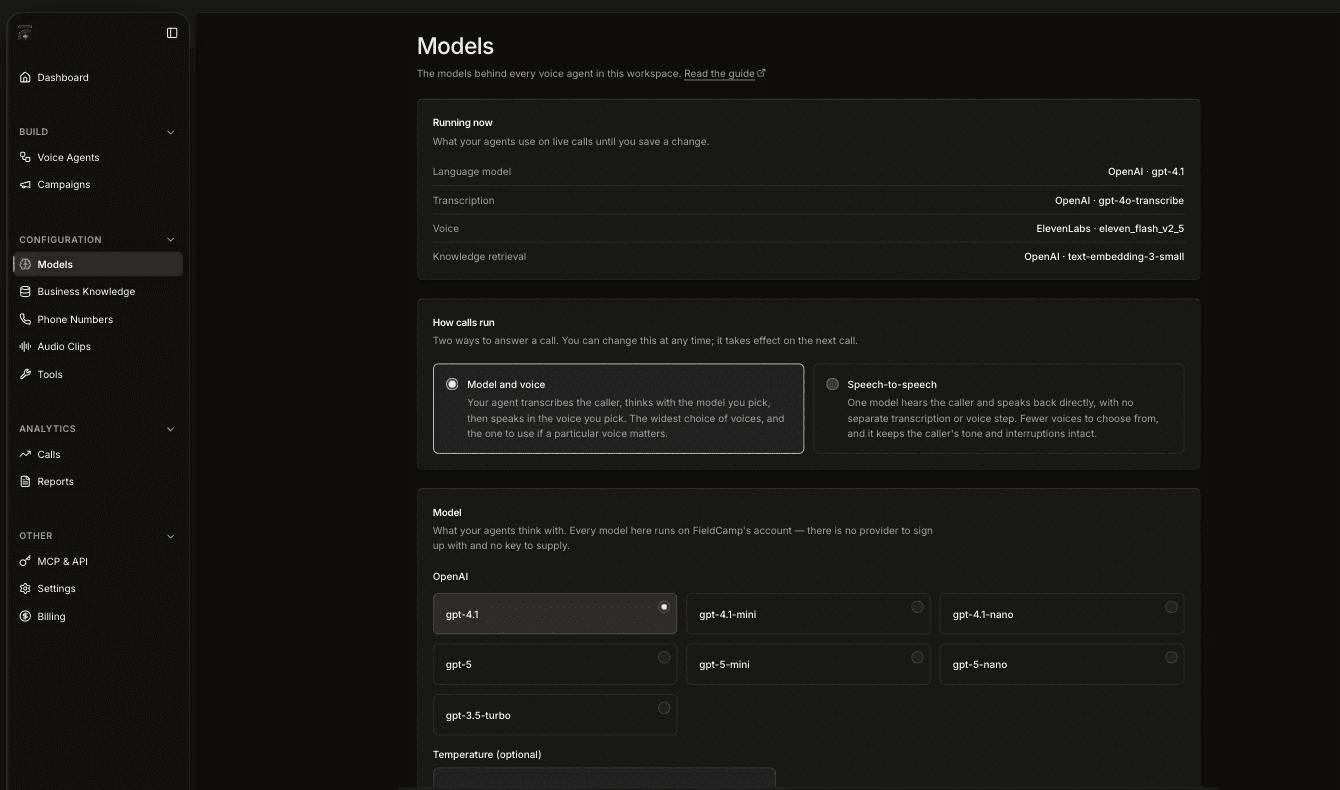
The Models page shows "The models behind every voice agent in this workspace." Running now lists the language model, transcription, voice and knowledge retrieval your agents use on live calls.
Under How calls run, choose Model and voice (the agent transcribes the caller, thinks with the model you pick, then speaks in the voice you pick, with the widest choice of voices) or Speech-to-speech (one model hears and speaks, with fewer voices, and keeps tone and interruptions). You can switch at any time, and the change takes effect on the next call. Every model runs on FieldCamp's account, so there is no provider to sign up with and no key to supply. To give one agent different models, use Model overrides in that agent's settings. See Choose a model and voice.
Business Knowledge
Business Knowledge is "What your voice agent reads from when a caller asks a question — prices, service areas, opening hours, policies." Click Add source to give your agents the information they should answer from. See Add business knowledge to a voice agent.
Phone Numbers
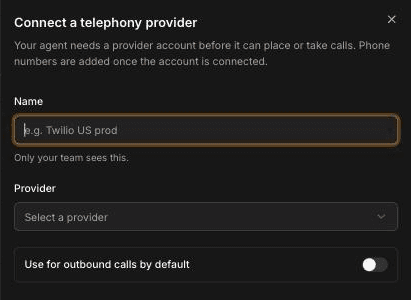
The Phone Numbers page is titled Telephony: "The provider accounts your agent uses to make and take calls." This is where you connect your own phone numbers so a voice agent can answer and place calls, with no FieldCamp account needed. Voice supports Twilio, Telnyx, Vonage, Plivo, Vobiz, Cloudonix and Asterisk (ARI).
To take calls on a number you already have:
- Click Connect provider. Give the account a Name, choose the Provider, fill in the account details it asks for, and decide whether to Use for outbound calls by default. Then connect the account.
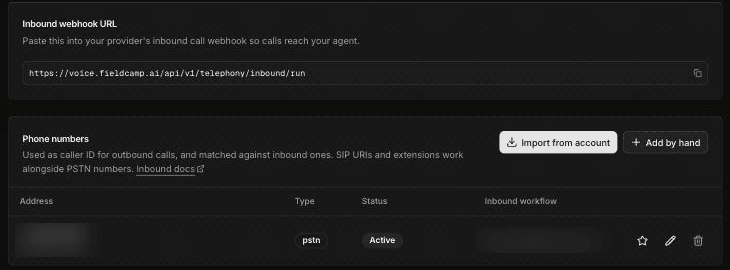
- Open the provider's Phone numbers and use Import from account to list the numbers in your provider account, or Add by hand to enter one.
- Edit the number and set Inbound workflow to your published voice agent.
- Make sure your provider sends inbound calls to the Inbound webhook URL shown on the provider's page. When you import a number and let Voice repoint it, this is done for you.
Calls to that number then reach the agent you chose. Connected providers show a Default outbound badge where it applies.
Voice can't buy phone numbers, so bring a number from your provider account. If you use FieldCamp, you can instead buy a Twilio number in FieldCamp's Calls add-on and hand calls to a voice agent from a FieldCamp call flow; see Calls setup and usage. Warm transfer to a person works with Twilio only.
Audio Clips
Audio Clips is listed under CONFIGURATION in the sidebar. See Play pre-recorded audio clips on calls.
Tools
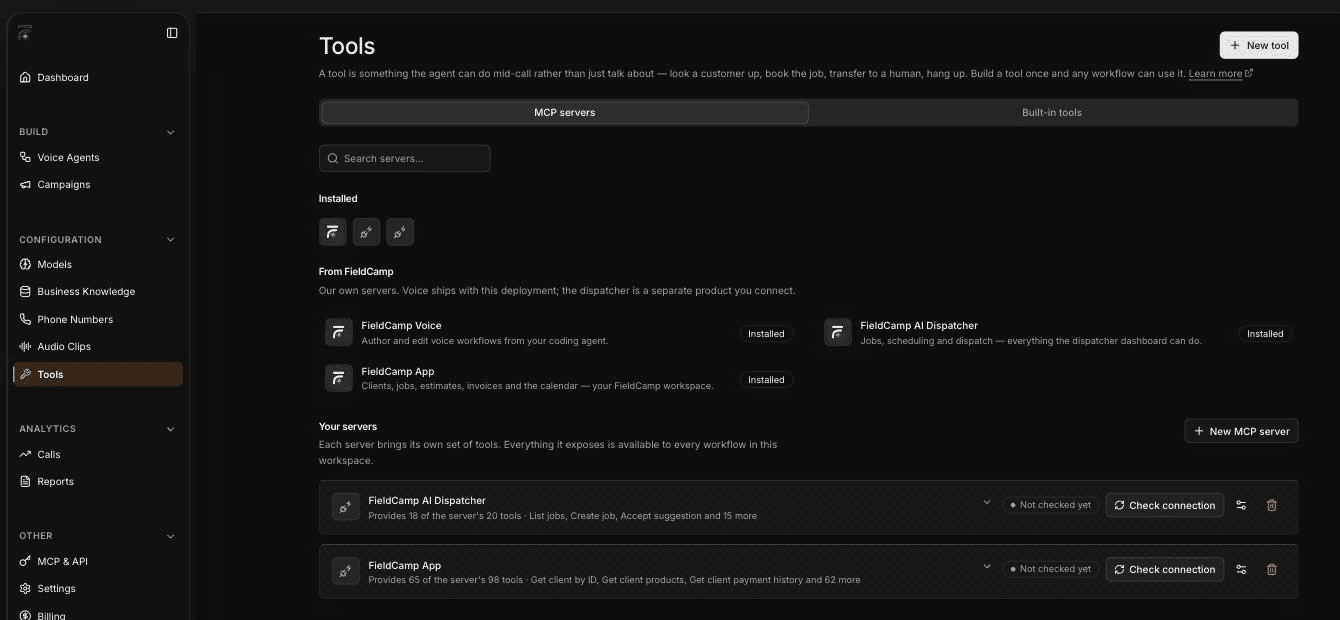
"A tool is something the agent can do mid-call rather than just talk about — look a customer up, book the job, transfer to a human, hang up." The page has two tabs, MCP servers and Built-in tools.
Under From FieldCamp you'll find three servers:
- FieldCamp Voice: "Author and edit voice workflows from your coding agent"
- FieldCamp AI Dispatcher: "Jobs, scheduling and dispatch — everything the dispatcher dashboard can do"
- FieldCamp App: "Clients, jobs, estimates, invoices and the calendar — your FieldCamp workspace"
Servers you add appear under Your servers, each with a Check connection button. Use New tool or New MCP server to add more; see Add tools to your AI voice agent and Connect a custom MCP server. To learn what AI Dispatcher does on its side, see What is AI Dispatcher?
Monitor
Dashboard
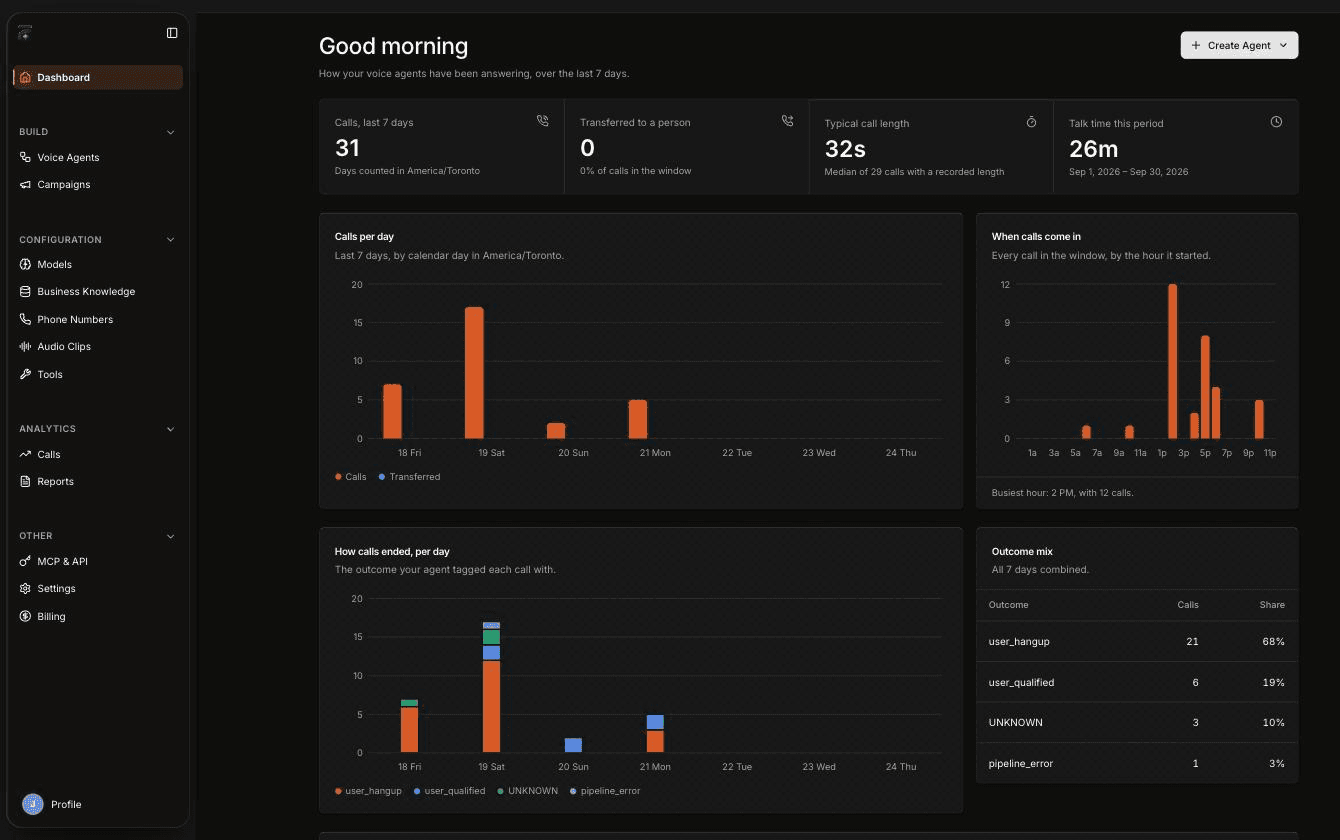
The Dashboard shows "How your voice agents have been answering, over the last 7 days." The stats are Calls, last 7 days, Transferred to a person, Typical call length and Talk time this period. Below them are charts for Calls per day, When calls come in (with your busiest hour), How calls ended, per day and Outcome mix. The Create Agent button in the top right starts a new agent.
Calls
Calls shows talk time, call length and usage, with an All calls table of every call. To see one agent's calls, choose Call history from its row menu on the Voice agents page. To send call results to your own systems, turn on Event webhooks in the agent's settings. To find a call's recording, see Set call limits and find call recordings.
If you've connected FieldCamp and a voice agent answers through a FieldCamp call flow, the result also lands in the FieldCamp Inbox on the customer's thread, with the recording and a transcript link.
Reports
Reports gives you a per-day view of your calls.
Connect
MCP & API
MCP & API offers "Two ways in from outside: a key for your own code, and the MCP endpoint an AI assistant connects to." Click New API key to create a key, and send it in the X-API-Key header from your own code.
Account
Settings
Settings holds your Preferences, including a test phone number and your timezone.
Billing
Billing shows your minutes and plan. For current plans and pricing, see fieldcamp.ai/pricing.
Profile
Your Profile menu sits at the bottom of the sidebar.
Frequently asked questions
How do I measure voice agent performance?
Open the Dashboard to see calls, transfers to a person, typical call length and talk time for the last 7 days, plus charts of how calls ended. Use Calls for talk time, call length and usage, and Reports for a per-day view.
Where do I add phone numbers for my voice agent?
In Voice, open Phone Numbers, click Connect provider, then open the provider's Phone numbers to import numbers from your account or add them by hand. Set each number's Inbound workflow to the agent that should answer it. Voice can't buy numbers; if you use FieldCamp, you can buy a Twilio number in its Calls add-on and route calls to a voice agent from a call flow.
How do I review voice agent calls?
Open Calls in Voice to see the All calls table, or choose Call history from an agent's row menu on the Voice agents page. If you've connected FieldCamp, calls that come through a FieldCamp call flow also appear in the FieldCamp Inbox with the recording and a transcript link.
How do I add business information to a voice agent?
Open Business Knowledge and click Add source. This is what your voice agent reads from when a caller asks about things like prices, service areas, opening hours and policies.
Can I connect a voice agent to my own systems through an API?
Yes. On the MCP & API page, create a key with New API key and send it in the X-API-Key header from your own code, or connect an AI assistant to the MCP endpoint. To give agents new abilities during calls, add a server with New MCP server on the Tools page.
Related articles
Voice agent templates for field service | FieldCamp
Compare the six FieldCamp voice agent templates, from Missed-call receptionist to Full front desk, and choose the right starting point for your phone calls.
Build a voice agent with the Agent Builder | FieldCamp
Build a voice agent on the Agent Builder canvas: add steps, connect them with transitions, test the conversation, then save and publish your changes.