 FieldCamp
Test your voice agent with a phone call | FieldCamp
Use Call my phone in FieldCamp Voice to get a real test call from your voice agent's saved draft and hear its voice and timing on an actual phone line.
A browser test tells you what the agent says. A phone call tells you what your customers will hear. Call my phone… in FieldCamp Voice rings a phone number you choose and connects it to your voice agent, so you can hear the voice, the pauses and the call quality on a real line.
The test call runs the agent's saved draft, not the published version, so you can try changes before you publish them.
Before you start
- Connect a telephony provider. The test call is placed through a telephony provider connected in Voice. If none is connected, connect one first under Phone Numbers with Connect provider. You can also start from Configure Telephony in the dialog.
- Save your changes. Check that the builder header shows All changes saved, so the call uses your latest draft.
- Use test data. Tools act during the call. If a step can create a request in FieldCamp (when connected) or book a job, use a test customer and delete what the call creates.
- Set test values if you use variables. Stand-in values under Settings → Variables are used on test calls but not on real ones. See Use dynamic variables in voice agents.
- Expect it in call history and usage. The test call appears in the agent's call history alongside real calls, with no test label, and it's billed like a live call.
If you haven't tried the agent yet, start with Test Chat or Test Audio. See Test your voice agent in the browser.
Place the test call
Open Call my phone
Open the agent in the builder, click the ⋯ menu and choose Call my phone…. The Phone Call dialog opens.
Choose the telephony configuration
In Telephony configuration, pick the provider connection to call from.
Choose the caller ID
In Caller ID (from), pick the number the call will come from.
Enter your phone number
Pick the country code, then enter the number you want the agent to call. The country picker starts on India (+91), so change it if your number is somewhere else. To call a SIP endpoint instead of a phone number, click Use SIP endpoint instead.
Start the call
Click Start Call and answer your phone.
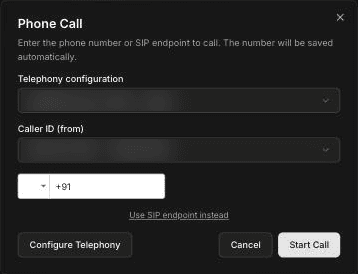
The number you enter is saved automatically as the workspace's test phone number. It replaces any test phone number already set in Voice Settings under Preferences.
What to listen for
Talk to the agent the way a customer would. For example, call as a homeowner with a burst pipe, then again as a restaurant manager asking when the next used cooking oil pickup is.
- The greeting. It uses your business name, not a placeholder such as "[Business Name]".
- The voice. It's clear on a phone speaker, and speed and tone suit your business. To change the voice, see Choose a model and voice.
- Timing. The agent doesn't leave long silences or cut you off. Try interrupting it mid-sentence and pausing before you answer.
- Addresses and numbers. It reads back street names, phone numbers and dates correctly.
- Background noise. Call once from somewhere noisy, such as a truck or a job site, if your callers often do.
- The ending. It confirms the details and ends the call cleanly.
After the call
- Open the call in the agent's call history: in the builder, open the ⋯ menu and choose View call history.
- Listen to the recording and read the transcript. Every call, including a test call, is recorded automatically. See Set call limits and find call recordings.
- Fix what you heard in the builder, then call again.
- Delete any test requests or jobs the call created.
When the agent sounds right, publish it. To send real calls to it, connect a number in Voice under Phone Numbers and set the number's Inbound workflow to the agent; the quickstart walks through it. If you've connected FieldCamp, you can instead point a call flow on your FieldCamp number at the agent; see Calls setup and usage in the FieldCamp docs.
Frequently asked questions
How do I make a test call?
Open the agent in the builder, choose Call my phone… from the ⋯ menu, pick the telephony configuration and caller ID, enter your number and click Start Call. You need a telephony provider connected in Voice.
Which numbers can receive the test call?
The agent calls the phone number you enter, with the country code you pick, or a SIP endpoint if you choose Use SIP endpoint instead. The country picker starts on India, so check it before you call.
Does it use the published version or the draft?
The test call runs the agent's saved draft. The published version keeps answering real calls until you publish the draft.
Does the test call show up in call history?
Yes. It appears in the agent's call history alongside real calls, with a recording, and it's billed like a live call.
Do I need a telephony provider for a test call?
Yes. Call my phone… places the call through a telephony provider connected in Voice. If none is connected, use Configure Telephony in the dialog or Connect provider under Phone Numbers.