 FieldCamp
Set the greeting with the Start Call step | FieldCamp
Set up the Start Call step in FieldCamp Voice: write the greeting, play a recorded greeting, delay the start, and load caller data before the call begins.
The Start Call step is where every call begins. It plays the greeting, then runs the opening turn of the conversation, usually finding out why the person is calling. Everything else in your voice agent follows from it.
This page covers what you can set on the step. For how steps fit together on the canvas, see the Agent Builder overview.
What it does
In the Add a step panel, Start Call is described as the "Entry point of the workflow — plays a greeting and opens the conversation." A few rules apply:
- Every agent has exactly one Start Call step. A new blank-canvas agent already has one, named "start call". Once it exists, the Add a step panel shows "This workflow already has one."
- Nothing can connect into Start Call. You connect it onward to the next step, such as an Agent step.
- The step runs one conversational turn. Its Prompt tells the agent what to do in that turn, and a connection's condition decides when the call moves on.
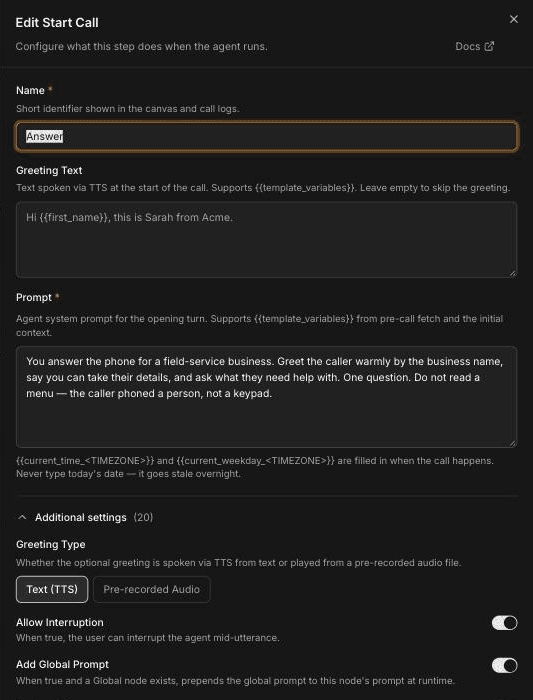
To open the step's settings, double-click it on the canvas, or select it and click the pencil icon. The panel is titled Edit Start Call.
Write the greeting
The greeting is the first thing the caller hears.
Name the step
In Name, enter a short label, such as "Answer". It's shown on the canvas and in call logs.
Enter the greeting text
In Greeting Text, type the words the agent says when it picks up. The field supports {{variables}}, for example Thanks for calling {{company_name}}. Leave it empty to skip the greeting and go straight to the prompt.
Write the opening prompt
In Prompt (required), tell the agent what to do in the first turn. Keep it to one job, such as: "Greet the caller by the business name, say you can take their details, and ask what they need help with. Ask one question."
Save
Click Save. If you close the panel with unsaved edits, Voice asks whether to Keep Editing or Discard.
Under the prompt, Voice reminds you that {{current_time_<TIMEZONE>}} and {{current_weekday_<TIMEZONE>}} are filled in when the call happens, and not to type today's date, because it goes stale overnight. Use those variables if the greeting depends on the time, for example to mention that the office is closed.
If the voice mispronounces your business or street names in the greeting, add them to the pronunciation dictionary. If your callers don't all speak English, see Set your voice agent's language.
A variable that has no value on the call becomes empty, so Hi {{first_name}}, can come out as "Hi ,". Add a fallback, such as {{first_name | there}}. See Use dynamic variables for where values come from.
Play a recorded greeting
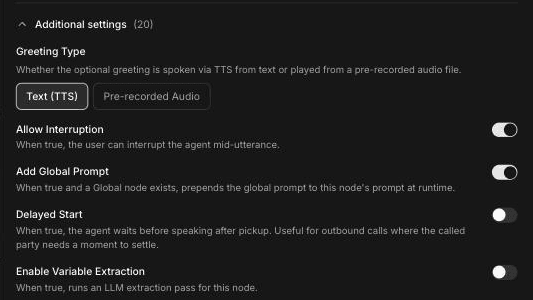
Open Additional settings and set Greeting Type to Pre-recorded Audio if you want the greeting to sound the same on every call, for example a recorded message in the owner's voice. You then pick a clip instead of typing text. Upload the clip first on the Audio Clips page; see Play pre-recorded audio clips.
Other opening settings
Additional settings also holds these options:
- Allow Interruption: "When true, the user can interrupt the agent mid-utterance." Turn it on if callers should be able to cut in during the greeting. For the agent-wide interruption settings, see Tune turn-taking and interruptions.
- Add Global Prompt: when on, and your agent has a Global step, the shared persona is added to this step's prompt. See Use the Global step and global routing.
- Enable Variable Extraction: captures details from the opening turn into variables.
- Tools: "Tools the agent can invoke during the opening turn." Only the tools you select here are available in this step.
Delay the start
Delayed Start makes the agent wait before it speaks after the call is picked up. The help text says it's "Useful for outbound calls where the called party needs a moment to settle."
- Open Additional settings.
- Turn on Delayed Start.
- Set the delay duration in seconds. It's 2 seconds by default and can be between 0.1 and 10 seconds.
For inbound calls, the caller expects to hear something right away, so leave this off unless you have a reason to wait.
Fetch data before the call
Pre-call data fetch lets the agent know something about the caller before it says a word. It's further down in Additional settings.
When a call starts, Voice sends a POST request to the endpoint URL you enter. The request includes the caller's number and the number they called. Your system looks the caller up and replies with JSON, and each value in the response becomes a variable you can use in the greeting and prompts. For example, if your endpoint returns first_name and open_job_status, the greeting can say Hi {{first_name | there}}.
- Endpoint URL: the address of your lookup service, such as
https://api.example.com/customer-lookup. - Authentication: an optional credential, if your endpoint requires one.
If the endpoint doesn't respond within 10 seconds, or returns an error, the call carries on without the data. That's why every fetched variable should have a fallback.
Test values you add in the agent's Settings → Variables are for testing only. They don't apply to real calls. Use them to check how the greeting reads before your lookup endpoint is ready.
Example: HVAC after-hours greeting
A heating and cooling company wants its agent to answer after hours, recognize returning customers and find out the problem quickly.
Greeting Text
Thanks for calling Northside Heating and Air. Hi {{first_name | there}}, the office is closed right now, but I can take your details and get the right person on it.Prompt
Ask what's going on with their heating or cooling. Ask one question only.
If they describe something that matches our emergency rules, say you're
getting a person on it. Don't promise an arrival time.
Here first_name comes from a pre-call data fetch, with "there" as the fallback for new callers. The emergency rules belong to the company. Write them once in the Global step, not in each prompt, so every step uses the same rules. For more prompt examples, see Write voice agent prompts for field service.
Frequently asked questions
How do I delay the greeting?
Open the Start Call step, expand Additional settings and turn on Delayed Start. The delay is 2 seconds by default and can be set between 0.1 and 10 seconds. It's most useful on outbound calls, where the person answering needs a moment.
Can I load customer data before the call starts?
Yes. Enter an endpoint URL in the step's pre-call data fetch settings. Voice sends a POST request when the call starts, and the JSON your endpoint returns becomes variables for the greeting and prompts. If the request fails or takes longer than 10 seconds, the call continues without the data.
Can I play a recorded greeting?
Yes. Set Greeting Type to Pre-recorded Audio and choose a clip you've uploaded on the Audio Clips page. The clip plays word for word on every call.
What makes a good phone greeting for an HVAC business?
Say the business name, set expectations in one sentence (for example, that the office is closed but you can take details), and ask one open question about the problem. Keep emergency rules in the Global step so they apply to the whole call.
Can an agent have more than one Start Call step?
No. Each agent has exactly one Start Call step, and it's always where the call begins. Use Agent steps for the rest of the conversation.
Related articles
Build a voice agent with the Agent Builder | FieldCamp
Build a voice agent on the Agent Builder canvas: add steps, connect them with transitions, test the conversation, then save and publish your changes.
Configure an Agent step in your voice agent | FieldCamp
Configure an Agent step: write its prompt, override the model, voice, or interruption settings, attach tools and knowledge, and extract caller details.