 FieldCamp
Capture keypad input and handle call screening | FieldCamp
Let callers enter account numbers on their keypad (DTMF), and set how your voice agent states its identity and purpose when a call screening service answers.
Two sections in a voice agent's settings deal with what happens on the phone line besides speech:
- Caller keypad collects digits the caller presses, such as an account or work-order number, and saves them as a variable.
- Call screening sets how the agent says who it is and why it's calling when a person or a call-screening assistant asks.
To open them, go to Voice Agents in Voice, click ⋯ on the agent's row and choose Settings. Each section saves on its own.
Capture keypad input
Keypad tones, also called DTMF, are the sounds a phone sends when someone presses a key. Some callers find it easier to type a long number than to read it out, and digits typed on a keypad don't get misheard.
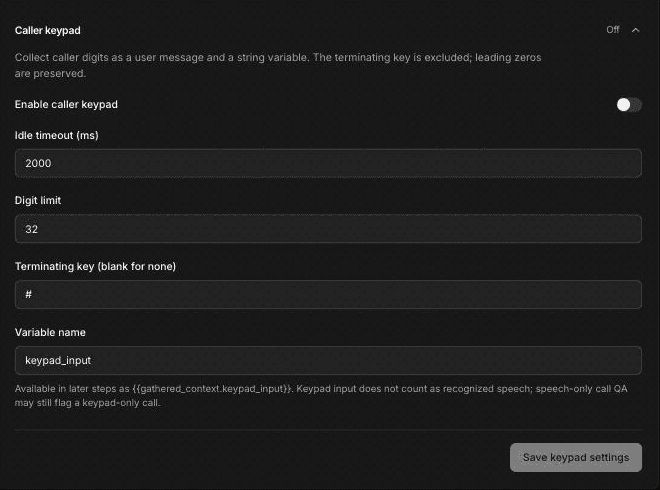
Turn on the keypad
Turn on Enable caller keypad.
Set how input ends
Input ends when the first of these happens:
- Terminating key (blank for none): the caller presses this key. The default is #. The key itself isn't saved.
- Idle timeout (ms): the caller stops pressing keys for this long. The default is 2000 (2 seconds). You can set 100 to 30000.
- Digit limit: the caller has pressed this many keys. The default is 32. You can set 1 to 64.
Name the variable
Variable name is where the digits are stored. The default is keypad_input.
Save
Click Save keypad settings.
Turning on the keypad doesn't make the agent ask for digits. Tell it when to ask in the prompt of the step that needs them, and say which key ends the number.
Where the digits go
The digits reach the agent in two ways:
- As a message. The agent sees the digits as if the caller had said them, so it can respond straight away, for example by reading the number back.
- As a variable. Later steps can use
{{gathered_context.keypad_input}}(or your own variable name) in prompts, tool inputs and Logic Split rules. See Use dynamic variables in voice agents.
The value is always text, and leading zeros are kept, so 004512 stays 004512.
Example: a grease trap route account number
A grease trap and used cooking oil route company gives each restaurant site a six-digit account number. Its inbound agent asks for it early in the call:
Ask the caller to enter their six-digit account number on the keypad, followed by the pound key. If they'd rather say it, that's fine. Read the number back one digit at a time before you continue.
If the caller says the number instead of typing it, the keypad variable stays empty, so capture the spoken number with variable extraction as well. A later step can then use {{gathered_context.keypad_input}} to look up the site's next pickup, or to fill in a service request with the FieldCamp App tools.
You can also branch on keypad input with a Logic Split step. For example, to send callers who press 0 to a person, add a rule where gathered_context.keypad_input == "0". Put the value in double quotes, because keypad input is text, not a number. The step that rule leads to can use a Transfer call tool to put the caller through.
Keypad input doesn't count as recognized speech. If you review calls with speech-only quality checks, a call where the caller only pressed keys may still be flagged.
Keypad input vs Press Digit
The caller keypad collects digits your caller presses. The Press Digit step is the opposite: it lets your agent press keys on someone else's phone menu during an outbound call.
Handle call screening
Many phones now answer unknown callers with a screening assistant that asks who's calling and why before it rings the person. Office staff at a restaurant or a property management company may ask the same thing. Call screening gives the agent a short, consistent answer.
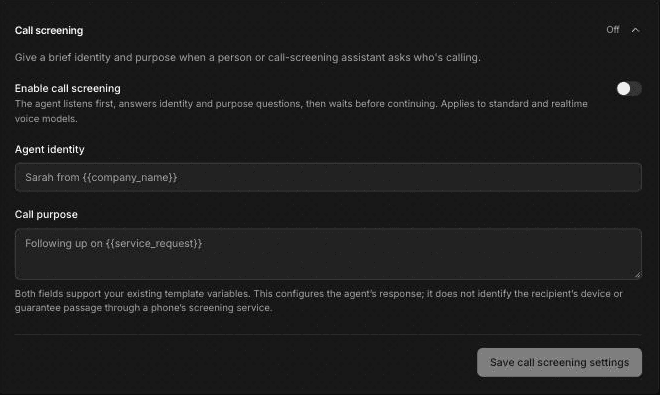
Turn on call screening
Turn on Enable call screening. With it on, the agent listens first, answers questions about who it is and why it's calling, then waits before it continues.
The agent waits for the other side to speak first on every call, not only screened ones. That suits outbound calls, where a screener or a person answers, but an inbound caller would hear silence until they speak. Turn it on only for agents that make outbound calls to phones where screeners answer.
Fill in the identity and purpose
Fill in Agent identity and Call purpose. Both are required when call screening is on.
Save
Click Save call screening settings.
Call screening works with both standard and realtime voice models.
Write the identity and purpose lines
Keep both lines short and specific. They're what a screening assistant passes on to the person, so they should make the call worth picking up.
For an outbound route reminder from a grease trap company:
- Agent identity:
Sam from {{company_name | Northside Grease Services}} - Call purpose:
Confirming Thursday's grease trap pickup at {{site_name | your restaurant}}
For an electrical contractor following up on a request:
- Agent identity:
Alex from Brightline Electric - Call purpose:
Following up on your request for a panel inspection
Both fields support variables. A variable with no value on a real call becomes empty, so add a fallback after a vertical bar, as in the examples above.
Call screening only sets what the agent says. It doesn't detect the other person's device, and it can't guarantee that a phone's screening service lets the call through.
Test both
- Keypad: test keypad input from a real phone. Place a test call with Call my phone… from the builder's ⋯ menu. Enter a number, then check that the agent reads it back and that later steps use it.
- Call screening: call a phone that has a screening feature turned on, or ask a colleague to answer with "Who's calling, and what's it about?" Listen for the identity and purpose, and check that the agent waits and then continues.
Test calls run the saved draft, use minutes, and appear in call history alongside real calls.
Frequently asked questions
What is DTMF?
DTMF is the set of tones a phone sends when someone presses a key. FieldCamp Voice uses those tones to collect the digits your caller presses when Enable caller keypad is on.
What is call screening?
Call screening is when a phone assistant or a person answers first and asks who's calling and why before the call goes through. The Call screening settings give your agent a short identity and purpose to answer with.
Can callers type an account or work-order number?
Yes. Turn on Enable caller keypad, ask for the number in the agent's prompt, and the digits are saved to keypad_input or the variable name you choose. Leading zeros are kept.
What does my agent say to a call-screening assistant?
It answers with the text in Agent identity and Call purpose, such as "Sam from Northside Grease Services, confirming Thursday's pickup." Then it waits before continuing the call. Because the agent waits for the other side to speak first on every call, turn call screening on only for agents that place outbound calls.
Do I need the caller keypad for my agent to press keys on a phone menu?
No. The caller keypad collects your caller's digits. To have your agent press keys on another company's menu, use the Press Digit step.
Related articles
Detect voicemail and phone menus | FieldCamp
Set your voice agent to detect voicemail and automated phone menus, then hang up, leave a fixed message, or generate a message from your own instructions.
Set call limits and find call recordings | FieldCamp
Set a voice agent's max call duration and caller idle timeout, save timestamped transcripts, and find each call's recording with caller and agent tracks.