 FieldCamp
Run simulated tests for a voice agent | FieldCamp
Create simulated test cases with a caller persona, success criteria, and tool mocks, then run them in batches to catch voice agent regressions before launch.
A simulated test plays the caller for you. You describe who is calling and what a good call looks like, and FieldCamp Voice runs the conversation against your agent and marks each of your criteria as met or not. Save the calls that matter most as test cases, and rerun them every time you change a prompt.
What simulated tests do
- They run the saved draft. Simulations test the agent's latest saved draft, not the published version.
- They mock business tools. Instead of creating real requests or jobs, tools return the fixture data you give them. Calculator arithmetic runs locally.
- They grade each result. Every case gets a pass or fail, with a verdict and an explanation for each success criterion. The results are simulated evaluations, so still listen to a real call before launch.
- They don't use call minutes. Simulations don't appear in call history and aren't billed as minutes, but they still call the language model.
Simulations need an OpenAI text model. To choose your model, see Choose a model and voice.
Open simulations
Open the agent in the builder, click Test and choose the Simulation tab. The Simulated option on the Test Chat tab opens the same screen.
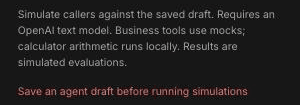
If the agent has no saved draft, you'll see "Save an agent draft before running simulations". Make a change to the agent, wait for All changes saved, and open the tab again.
Create a test case
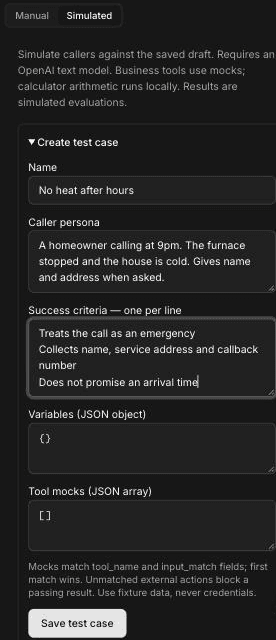
Open Create test case
Expand Create test case.
Name the case
In Name, describe the scenario, for example "No heat after hours".
Write the caller persona
In Caller persona, describe who is calling and how they behave. See Write a caller persona.
Add success criteria
In Success criteria — one per line, write each thing the agent must do, one per line. See Success criteria.
Add variables and tool mocks if needed
Use Variables (JSON object) for values the agent would normally get before the call (see Use dynamic variables in voice agents), and Tool mocks (JSON array) for the answers tools should return. Leave them as {} and [] if the agent doesn't need them.
Save the case
Click Save test case. The button stays unavailable until Name, Caller persona and Success criteria are filled in.
You can't edit or delete a saved test case in the app today. Name each case carefully, and to change one, create a new case with a clear name, such as "No heat after hours v2".
Write a caller persona
The persona is the simulated caller's brief. Say who they are, when and why they're calling, and how cooperative they are. The example above uses:
A homeowner calling at 9pm. The furnace stopped and the house is cold. Gives name and address when asked.
Write personas for the calls you worry about, not only the easy ones:
- A plumbing customer with water coming through the ceiling who talks fast and interrupts.
- An electrical customer asking for a quote who won't give an address until they hear a price.
- A restaurant manager asking to move their grease trap pickup to next week.
Success criteria
Write one criterion per line. Each should describe something you can see in the conversation, so the result is clear. A case can have up to 30.
Good criteria:
- Treats the call as an emergency
- Collects name, service address and callback number
- Does not promise an arrival time
Avoid vague criteria such as "Is helpful". Emergency rules are yours, so phrase criteria to match what your business considers urgent.
Tool mocks
Tool mocks let the agent use its tools without touching your real data, in FieldCamp or your own systems. Mocks match on tool_name and input_match fields, and the first match wins. Use fixture data, never real credentials.
If the agent tries an external action that no mock matches, the case can't pass. That includes transfers: a simulated transfer needs a mock too.
Run and read results
Select cases
Tick the checkbox next to each saved case you want to run. You can run up to 20 cases at once.
Run them
Click Run selected tests.
Read the batch
Results appear as a batch, such as "Batch 18 · completed", with the time it ran. Each case shows its name and pass or fail, then each criterion with ✓ or ✕ and an explanation. A case passes only if every criterion passes.
Each case also has three sections you can expand:
- Conversation: the full simulated call.
- Node transitions, tools and analysis: which steps ran, which tools were called, and the grading.
- Pinned draft and test cases: the exact draft and cases the batch used, so you can compare runs after you change the agent.
A real failed result
Here is a real run of the "No heat after hours" case against the Missed-call receptionist template.
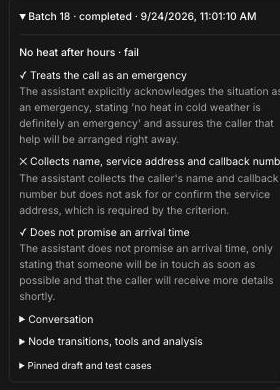
The case failed on one criterion:
- ✓ Treats the call as an emergency. The agent said no heat in cold weather is an emergency.
- ✕ Collects name, service address and callback number. The agent took the caller's name and callback number but never asked for the service address.
- ✓ Does not promise an arrival time. The agent only said someone would be in touch.
A missing service address means a technician can't be sent, so this is worth fixing before launch.
Fix the agent and rerun
- Open Node transitions, tools and analysis to see which step was running when the agent collected details, such as the Take the details step.
- Click that step and make the service address explicit in its prompt. For example: "Ask for the caller's name, then the service address, then the best callback number. Ask for each one separately, and don't move on until you have all three." See Configure an Agent step.
- Check the transition that leaves the step, Details captured. Its condition should require all three details, so the agent can't move on early. See Set up transitions and conditions.
- Wait for All changes saved, select the same case and click Run selected tests again. You don't need a new case, because the case itself hasn't changed.
- Rerun your other saved cases too, to check the change didn't break anything else.
Limits
- Simulations need an OpenAI text model and a saved draft.
- Each run can include up to 20 cases, and each case needs 1 to 30 success criteria.
- Each case uses the default limits shown in the panel: 20 caller turns, 4 minutes and 120 model requests. You can't change them in the app.
- Saved test cases can't be edited or deleted. Create a new case to change one.
- Results are simulated. Before you publish, still test the agent with a phone call.
Frequently asked questions
What is a caller persona?
A caller persona is a short description of the simulated caller: who they are, why they're calling and how they behave. Voice uses it to play the caller in the simulated conversation.
How do I write success criteria?
Write one criterion per line, each describing something you can check in the conversation, such as "Collects name, service address and callback number". Each case needs between 1 and 30 criteria.
Why mock tools instead of calling real ones?
Mocks let you run the same test many times without creating real requests, jobs or records in the systems your tools reach. If the agent calls an external action with no matching mock, the case can't pass.
How do I rerun tests after changing a prompt?
Save your change, select the cases you want and click Run selected tests. Each batch keeps the exact draft and test cases it used, so you can compare results before and after the change.
Why does it say to save a draft first?
Simulations always run against the agent's saved draft. If there's no saved draft, Voice shows "Save an agent draft before running simulations" until you save one.
Related articles
Test your voice agent in the browser | FieldCamp
Talk to your voice agent from the builder with Test Audio, or type to it with Test Chat, to check prompts, transitions, and tools before you publish.
Test your voice agent with a phone call | FieldCamp
Use Call my phone in FieldCamp Voice to get a real test call from your voice agent's saved draft and hear its voice and timing on an actual phone line.