 FieldCamp
Detect voicemail and phone menus | FieldCamp
Set your voice agent to detect voicemail and automated phone menus, then hang up, leave a fixed message, or generate a message from your own instructions.
When your voice agent places a call, a person doesn't always pick up. Sometimes a voicemail greeting answers, and sometimes an automated phone menu does. Voicemail detection in the agent's settings decides what the agent does in each case: carry on the conversation, hang up, or leave a message.
This matters most for outbound agents, such as one that calls HVAC customers about their seasonal maintenance visit. Both detection options are off by default.
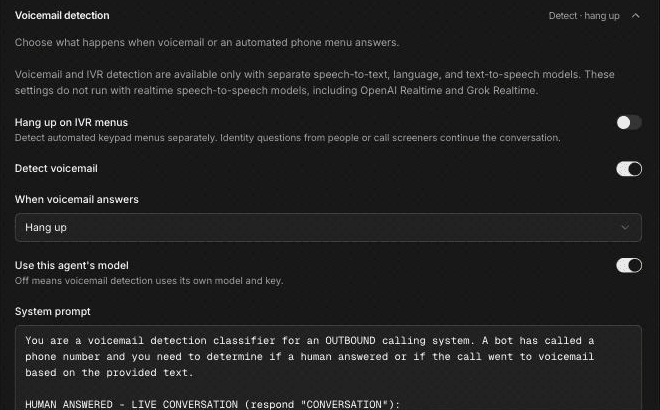
Voicemail and phone-menu detection only work when the agent uses separate transcription, language and voice models. They don't run with speech-to-speech (realtime) models, including OpenAI Realtime and Grok Realtime. Check which mode your workspace or agent uses in Choose a model and voice.
How detection works
When Detect voicemail or Hang up on IVR menus is on, the agent listens to the first thing the other end says and sorts the call into one of three kinds:
- Conversation: a person answered. The call continues as normal.
- Voicemail: a voicemail greeting answered. The agent does what you chose in When voicemail answers.
- Phone menu (IVR): an automated keypad menu answered. If Hang up on IVR menus is on, the agent hangs up.
A person or a call-screening assistant who asks "Who's calling?" counts as a conversation, so the call carries on. To choose what the agent says to a screener, see Capture keypad input and handle call screening.
Turn on voicemail detection
Open the agent's settings
In Voice, open Voice Agents, click ⋯ on the agent's row and choose Settings. Scroll to Voicemail detection.
Turn on Detect voicemail
Turn on Detect voicemail. More options appear below it.
Choose what happens when voicemail answers
In When voicemail answers, choose one of these:
- Hang up (the default): end the call without leaving a message.
- Leave a fixed message: the agent speaks the same message on every voicemail.
- Generate a message from instructions: the agent writes the message for each call from the instructions you give it.
Decide which model classifies the call
Use this agent's model is on by default, so detection uses the same language model as the agent. If you turn it off, voicemail detection uses its own model and key.
Review the system prompt and speech cutoff
The System prompt holds the instructions the classifier follows. The default prompt is written for outbound calling. When you choose a message action or turn on phone-menu detection, Voice adds strict rules for the conversation, voicemail and phone-menu answers to this prompt. Change it only if you have a specific reason.
Speech cutoff (seconds) makes the agent decide early if the first thing the other end says runs longer than this. Leave it blank to decide only when the greeting ends.
Save
Click Save voicemail settings. Each section on the settings page saves on its own.
Leave a voicemail message
Choose Leave a fixed message when every call has the same reason, and Generate a message from instructions when the message should change with the customer, the site or the visit.
A good voicemail from a field service business is short, says who is calling and why, and gives one clear next step. Leave out anything you wouldn't want someone else in the household or office to hear, such as balances owed.
Write a good voicemail
Here's an example for an HVAC company calling about seasonal maintenance. Replace the company name, number and wording with your own.
As a fixed message:
Hi, this is the scheduling team at Northside Heating and Air. We're calling because your fall furnace maintenance is due. Please call us back at 555-0142 to book a visit that suits you. Thanks, and have a good day.
As instructions for a generated message:
Leave a voicemail under 20 seconds. Say you're calling from Northside Heating and Air about the customer's seasonal maintenance visit. Use the customer's first name if you have it. Ask them to call back at 555-0142 to book. Don't mention prices, account balances or equipment problems.
If your instructions use variables, such as {{first_name}}, add a fallback like {{first_name | there}}. A variable with no value on a real call becomes empty. See Use dynamic variables in voice agents.
Hang up on phone menus
Turn on Hang up on IVR menus to end calls that reach an automated keypad menu, such as "Press 1 for sales." This detection runs separately from voicemail detection. Questions from a person or a call screener, such as "Who's calling?", don't trigger it.
Use it for campaigns that should only talk to people, for example reminder calls to homeowners, where a phone menu usually means you've reached the wrong number or a business switchboard.
When to use Press Digit instead
If the agent needs to get through a phone menu rather than hang up on it, use the Press Digit step. Press Digit listens to the menu and presses the right keys, for example to reach a supplier's parts desk or a disposal site's scheduling line.
Leave Hang up on IVR menus off for agents that are meant to navigate menus, because it ends those calls instead.
Limits
- Detection doesn't run with speech-to-speech (realtime) models.
- The default System prompt is written for outbound calls. On inbound calls your callers are people, so most inbound agents don't need voicemail detection.
- Detection decides from what it hears at the start of the call. Test it by calling a voicemail box you control and a line with a phone menu before you start a campaign. Test calls are recorded, so you can listen back to what happened; see Set call limits and find call recordings.
Frequently asked questions
What is answering machine detection?
Answering machine detection is how an outbound calling system tells whether a person, a voicemail greeting or an automated menu answered. In FieldCamp Voice, you turn it on with Detect voicemail and Hang up on IVR menus in the agent's settings.
What is an IVR?
An IVR is an automated phone menu that routes calls, such as "Press 1 for service, press 2 for billing." Your agent can hang up on one with Hang up on IVR menus, or navigate it with the Press Digit step.
What should an automated voicemail say?
Keep it short: who is calling, why, and how to call back. Leave out private details such as balances, and replace the example wording on this page with your own.
What if a person answers?
The call continues as a normal conversation. A person or call-screening assistant asking who's calling also counts as a conversation, so the agent doesn't hang up on them.
Should the agent hang up on a phone menu or navigate it?
Hang up when the agent should only talk to people, such as homeowner reminder calls. Navigate the menu with the Press Digit step when the agent needs to reach a department, such as a supplier's parts desk.
Related articles
Improve pronunciation and call audio | FieldCamp
Teach your voice agent to say brand and street names correctly, speak numbers and dates naturally, reduce background noise, and boost key words.
Capture keypad input and handle call screening | FieldCamp
Let callers enter account numbers on their keypad (DTMF), and set how your voice agent states its identity and purpose when a call screening service answers.