 FieldCamp
Build a voice agent with the Agent Builder | FieldCamp
Build a voice agent on the Agent Builder canvas: add steps, connect them with transitions, test the conversation, then save and publish your changes.
The builder is where you shape what a voice agent says and does on a call. Each step on the canvas is one part of the call, such as the greeting, a question about the problem, or the goodbye. Connections between steps decide when the call moves on.
You reach the builder when you create an agent, pick a template, or choose Edit agent from an agent's row menu on the Voice agents page. If you haven't made an agent yet, start with Create an AI voice agent.
What the Agent Builder is
A voice agent is a conversation drawn as steps and connections. The call starts at the Start Call step, moves from step to step as the conditions on each connection are met, and finishes at an End Call step, or earlier if a step has the End call tool and uses it.
Keep each step focused on one job. The Missed-call receptionist template is a good model. It uses five steps:
- A Global Node called "Persona and rules" sets the tone for every step.
- Start Call ("Answer") picks up the phone.
- An Agent Node ("Is it urgent?") decides whether the call is an emergency, using the triggers you give it.
- A second Agent Node ("Take the details") collects the caller's name, service address and callback number.
- End Call ("Confirm and close") reads the details back and hangs up.
Labelled connections link the steps: "Caller described the problem", "Urgency established" and "Details captured".
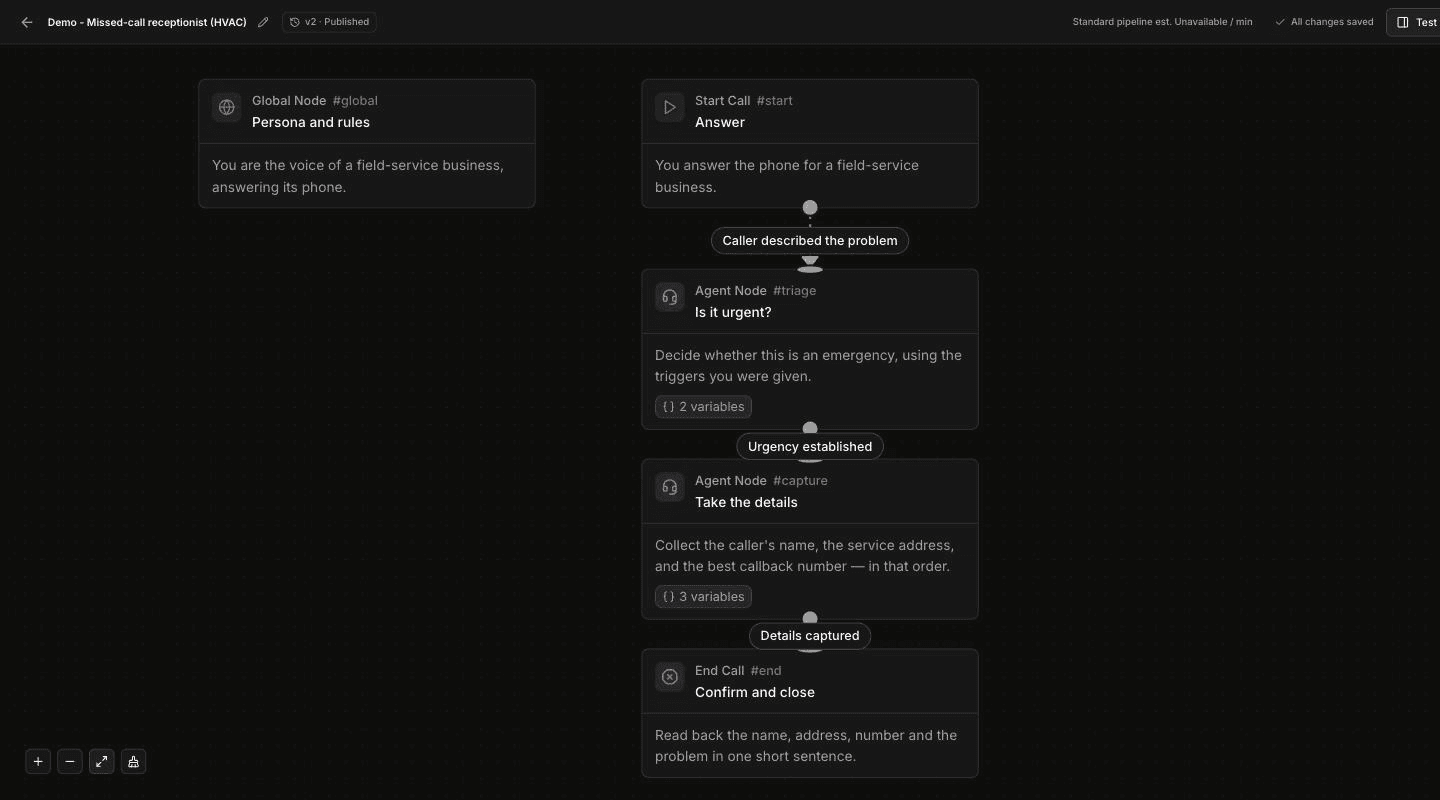
Parts of the canvas
Header
- The back arrow returns you to your agents.
- The agent name has a pencil icon for renaming.
- The version badge shows which version you're looking at, for example v1 · Published or v2 · Draft.
- A cost estimate line and the save status ("All changes saved") come next.
- Save changes appears while you have unsaved edits.
- A red error badge, such as 1 error, appears when something must be fixed.
- Publish appears when the open version is a draft.
- Test opens the test panel.
- The ⋯ menu offers Call my phone…, View call history, Duplicate agent, Download as JSON and Copy agent UUID.
Canvas
- The + button at the top right opens Add a step.
- The gear button opens the agent's settings page, where you set options such as turn-taking and interruptions, call limits and voicemail detection.
- The buttons at the bottom left zoom in, zoom out, fit the whole flow on screen, and tidy the layout.
Step types at a glance
| Step | What it does | Learn more |
|---|---|---|
| Start Call | Entry point of the call. Plays the greeting and opens the conversation. Every agent has exactly one. | Start Call step |
| Agent Node | One focused part of the conversation, such as qualifying the job or taking an address. | Agent step |
| Global Node | Persona and tone added to every step's prompt. One per agent. | Global step and global routing |
| Logic Split | Silently follows the first rule that matches, or the required else path. | Logic Split step |
| Extract Variables | Silently pulls typed values, such as an address, out of the conversation before continuing. | Extract Variables step |
| Press Digit | Silently presses keypad digits to get through another company's phone menu. | Press Digit step |
| End Call | Closes the conversation and hangs up. | End Call step |
| API Trigger, Webhook, QA Analysis | Start calls from your own systems, send call data out after the call, and review call quality. | API trigger, webhook and QA steps |
The Add a step panel also lists Paygent (cost tracking and billing) and Tuner (exports completed calls to Tuner). Both connect to outside services.
Add and connect steps
Add a step
- Click + at the top right of the canvas. The Add a step panel opens: "Every step is one part of the call. Pick one to drop it on the canvas."
- Choose a step. The panel groups steps under TRIGGERS, AGENT NODES, GLOBAL NODES and INTEGRATIONS.
Some steps are limited to one per agent. When an agent already has one, the panel says "This workflow already has one." A new blank agent already has its Start Call step, so you'll see that message on Start Call.
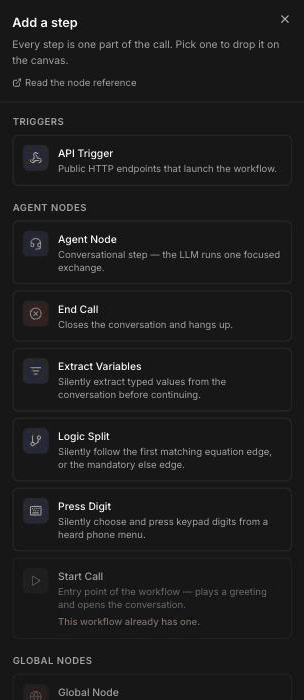
A new step that still needs information shows a Needs setup badge on its card. Open the step and fill in its required fields to clear it.
Open a step's settings
- Double-click the step, or
- Select the step and click the pencil icon beside it.
The trash icon beside the pencil deletes the step.
Each step opens a panel titled "Edit" plus the step type, for example Edit Agent Node. Less-used fields sit under Additional settings, which you can expand. Click Save to keep your changes or Cancel to close the panel. If you close it with unsaved edits, Voice asks "Discard changes?" Choose Keep Editing to go back or Discard to lose the edits.
Connect two steps
Drag from the dot at the bottom of one step to the dot at the top of the next. The connection is how the call moves forward, so give it a label and a condition. Select a connection to see its CONDITION pill with edit and delete icons, or double-click its label to edit it.
Conditions, transition speech and failed-transfer paths are covered in Set up transitions and conditions. To reuse caller details across steps, see Use dynamic variables.
Save, test, and publish
Save changes
Edits on the canvas aren't kept until you save. While there are unsaved edits, Save changes appears in the header. When everything is saved, the header shows "All changes saved". Save before you test so the test runs the version you're looking at.
Fix validation errors
If the flow can't run as drawn, a red badge such as 1 error appears in the header. Click it to open Validation errors: Fix these before testing or publishing. For example, "Value error, logic split 2 requires exactly one else edge" means a Logic Split step needs its else path. Publish stays disabled until every error is fixed.
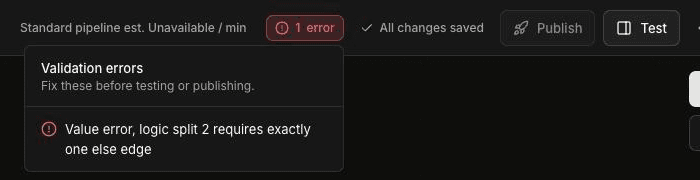
Other common problems are a step with no connection leading into it, a connection going into Start Call, or a connection leaving End Call.
Drafts and publishing
New agents, whether blank or from a template, start as v1 · Published. Your first edit to a published agent creates a draft, shown as v2 · Draft. The published version keeps taking calls while you work. Callers only hear your changes after you click Publish. If you use a FieldCamp call flow, it can follow the latest published version or stay pinned to an older one, so check which version your call flow uses.
A published agent takes real calls in one of two ways: set it as the Inbound workflow on a phone number in Voice (Phone Numbers), or, if you use FieldCamp, pick it in a FieldCamp call flow. The quickstart walks through both.
To test before you publish, click Test and use Test Audio, Test Chat or Simulation, or choose Call my phone… from the ⋯ menu. Browser Test Audio doesn't place real call transfers. To compare the options, including simulated tests, see test a voice agent before going live. Testing, publishing and version history are covered step by step in Create an AI voice agent.
Frequently asked questions
How do I build an AI voice agent?
Create an agent in FieldCamp Voice, then open it in the builder. Add steps with the + button, connect them in the order the call should go, and give each connection a condition. Save, test the conversation, and click Publish when it's ready.
What is a call flow?
A call flow is FieldCamp's routing for calls on a FieldCamp number. To answer real calls, a voice agent needs either a phone number connected in Voice (Phone Numbers, then Connect provider, then set the number's Inbound workflow to the agent) or, if you use FieldCamp, a call flow on a Calls add-on number that hands calls to the agent. The quickstart covers both. Either way, the builder's steps and connections decide what happens once the agent has the call.
What's the difference between saving and publishing?
Saving keeps your edits in the draft version. Publishing makes that draft the latest published version. Until you publish, callers keep hearing the previous one. If you use FieldCamp, a call flow that's pinned to an older version keeps using that version.
Which step types can I add?
Start Call, Agent Node, Global Node, Logic Split, Extract Variables, Press Digit and End Call shape the conversation. API Trigger, Webhook and QA Analysis connect the agent to your systems and review call quality. Paygent and Tuner connect to outside services.
How do I test changes before callers hear them?
Save your draft, fix any validation errors, then click Test to talk to the agent in your browser or by chat, or choose Call my phone… from the ⋯ menu. The published version keeps answering real calls until you publish the draft.
Related articles
Tour the FieldCamp Voice app | FieldCamp
Find your way around FieldCamp Voice: what each section does, from Dashboard and Voice Agents to Phone Numbers, Business Knowledge, Calls, and Reports.
Set the greeting with the Start Call step | FieldCamp
Set up the Start Call step in FieldCamp Voice: write the greeting, play a recorded greeting, delay the start, and load caller data before the call begins.