 FieldCamp
Book and dispatch jobs during a call | FieldCamp
Let your voice agent create a job during the call, then have AI Dispatcher suggest the technician and time window the agent can accept or reject.
A voice agent can book work while the caller is still on the line. It adds a job for dispatch with Create job, reads back the technician and time window AI Dispatcher suggests, and uses Accept suggestion to assign that technician and book the visit.
AI Dispatcher is a separate FieldCamp product that matches jobs to technicians. It works with or without a FieldCamp account: you connect it to Voice on the Voice Tools page. To learn how it works, see What is AI Dispatcher? in the AI Dispatcher docs.
How it works
The booking flow uses four tools from the FieldCamp AI Dispatcher server:
| Tool | What it does |
|---|---|
| Create job | Adds the job for dispatch. At this point there's no technician or time yet, so the job isn't booked. |
| List jobs | Reads back the technician and time window AI Dispatcher suggested. |
| Accept suggestion | Accepts the suggestion, which assigns the technician and books the visit. |
| Reject suggestion | Declines the suggestion, so a different window can be tried. |
Accepting a suggestion is what books the visit. Until then, the agent shouldn't tell the caller they're booked or give them a time.
Requirements
- AI Dispatcher. You need an AI Dispatcher workspace with your technicians set up. You don't need FieldCamp. See Setting up your team in the AI Dispatcher docs.
- The AI Dispatcher server connected in Voice. On the Voice Tools page, FieldCamp AI Dispatcher must appear under Your servers. If it isn't there, use Connect on the FieldCamp AI Dispatcher card under From FieldCamp. The page's hint explains the setup: create a token in AI Dispatcher under Settings → API Access (see API Access in the AI Dispatcher docs), save it in Voice as a bearer-token credential, and point the server at your AI Dispatcher deployment's MCP address.
- The Book the job template (optional). The Book the job template is built for this flow: "Answers, qualifies the work, and books a real visit with the technician your dispatcher picks." It needs the AI Dispatcher connection; until then, its card shows Connect instead of opening. See Voice agent templates.
Tools that are held back
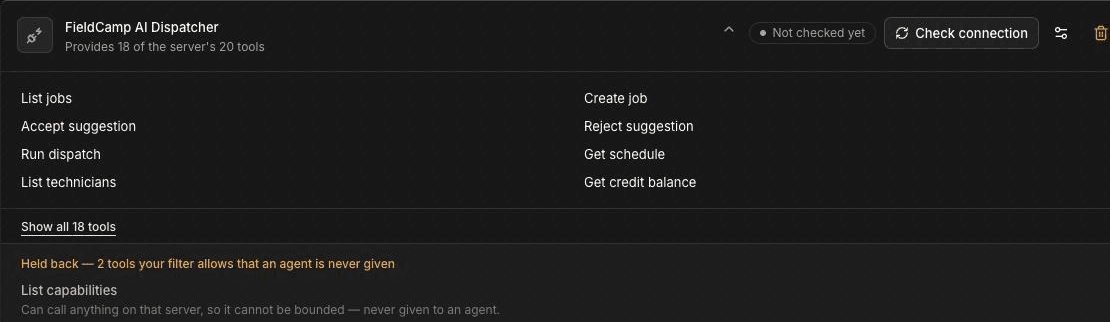
The server offers more tools than the booking flow needs. Two of them, List capabilities and Call API, are held back and never given to an agent, because each "can call anything on that server, so it cannot be bounded". Voice applies the same rule to any server you connect; see Connect a custom MCP server.
Select only the four booking tools on your call steps. The server offers others, such as Run dispatch, Get schedule and List technicians, but they reach beyond the caller's own job. Get schedule returns other customers' visits, which a caller should never hear, and Run dispatch re-plans dispatch for your whole workspace. FieldCamp's own templates leave these tools out for the same reasons.
Set it up
The quickest way is to start from the Book the job template once AI Dispatcher is connected. To add booking to an agent you've built yourself:
Open the booking step
In the builder, double-click the step where the agent should book the job, or select it and click the pencil icon.
Select the four booking tools
Open Additional settings, go to the Tools field, and open the MCP tab. Select Create job, List jobs, Accept suggestion and Reject suggestion. The agent can use only the tools selected on this step.
Write the booking rules in the prompt
Tell the agent the order: collect the details, create the job, read back the suggestion, and accept it only when the caller agrees. See the example below.
Save, test and publish
Click Save, test the agent with a test job in AI Dispatcher, then publish.
Example step prompt for an HVAC company:
When you have the caller's name, service address, callback number and
the problem, create the job. Creating the job does not book it: do not
say "booked" and do not give a time yet.
Then check the job for the suggested technician and window. If there is
one, offer the window to the caller. If they agree, accept the
suggestion, then confirm the day and window. If they say no, reject the
suggestion and ask what time suits them better.
If there is no suggestion, tell the caller the office will call to
confirm a time.
For more on writing booking prompts, see Write voice agent prompts for field service.
What the caller hears
A well-written booking prompt keeps the caller informed without promising more than the tools confirmed:
- While the job is created: "Let me get that set up for you." The agent doesn't say the visit is booked.
- When there's a suggestion: "I can have a technician out Tuesday between 8 and 12. Does that work?"
- After the caller agrees and the suggestion is accepted: the agent confirms the day and window.
- When there's no suggestion to offer: the agent says the office will call to confirm a time, and your team takes it from there.
The agent should only confirm a visit time after it has accepted a suggestion.
When no suggestion fits
- The caller doesn't want the window. The agent rejects the suggestion and asks what suits them better.
- There's no suggestion to read back. AI Dispatcher may not have found a technician to suggest. The agent tells the caller your team will confirm a time. See When the AI Dispatcher can't find a technician in the AI Dispatcher docs.
- The caller wants a person. Transfer the call using your own rules. See Transfer a call to a person.
Your team can also review and act on suggestions in AI Dispatcher; see Reviewing AI dispatch suggestions in the AI Dispatcher docs.
Frequently asked questions
Can an AI receptionist book appointments?
Yes. With the AI Dispatcher tools, a voice agent can add a job for dispatch, read back the technician and window AI Dispatcher suggests, and accept the suggestion to assign it and book the visit. The Book the job template is set up for this and needs the AI Dispatcher connection.
How does the AI Dispatcher choose a technician?
AI Dispatcher makes the suggestion, based on how your AI Dispatcher workspace and team are set up. The voice agent doesn't choose the technician; it reads back AI Dispatcher's suggestion and accepts or rejects it.
What if no technician is available?
If there's no suggestion to offer, the agent should tell the caller your team will confirm a time instead of giving one. Your team can then follow up in AI Dispatcher.
What does the caller hear?
The caller hears the suggested day and window and is asked whether it works. The agent confirms the visit only after the caller agrees and the suggestion is accepted.
Related articles
- What is AI Dispatcher? (AI Dispatcher docs)
- Reviewing AI dispatch suggestions (AI Dispatcher docs)
- Voice agent templates
- Add tools to your AI voice agent
- Look up clients and jobs during a call
Look up clients and jobs during a call | FieldCamp
Let your voice agent look up clients and jobs in FieldCamp and create new requests during a call, so your team sees each caller's details right away.
Transfer a call to a person (warm or cold) | FieldCamp
Set up warm and cold call transfers so your voice agent can hand callers to a person, pass context to your team, and handle transfers that fail.