 FieldCamp
Connect a custom MCP server | FieldCamp
Connect your own MCP server to FieldCamp Voice, choose which of its tools your voice agents may use, and check the connection before a real call.
If your business already runs a system that offers an MCP server, you can connect it to FieldCamp Voice and let your voice agents use its tools during a call. You pick which of the server's tools an agent may use.
For FieldCamp's own servers, follow Look up clients and jobs during a call or Book and dispatch jobs during a call instead. This page covers servers you run or that another vendor provides.
What an MCP server is
MCP (Model Context Protocol) is a standard way for an AI to use another system's actions. An MCP server publishes a list of tools, such as "look up a customer" or "check stock", and describes what each one needs.
For a voice agent, that means one connection can bring several related tools. Compare that with an External HTTP API tool, which calls a single endpoint you set up field by field.
Before you start
You need:
- The server's address. It must start with
http://orhttps://, for examplehttps://your-mcp-server.example.com/mcp. - A server that supports the Streamable HTTP transport. It's the only transport Voice offers.
- Credentials, if the server needs them, such as a bearer token or API key.
- The names of the tools you want agents to use, such as
searchorcreate_request.
Connect the server
Open Tools
In Voice, click Tools in the sidebar and stay on the MCP servers tab.
Click New MCP server
Under Your servers, click New MCP server. You can also click New tool and choose MCP server under What should it do?.
Name the connection
Give it a Name your team will recognize, such as "Parts inventory", and an optional Description.
Enter the server details
Enter the MCP server URL. Transport is set to Streamable HTTP. Under Credential (optional), pick or add a credential, or leave it empty for no authentication.
Name the tools to allow
In Tools to allow, type at least one tool name, separated by commas, for example search, create_request. A connection with no tools is refused.
Create the connection
Click Create tool. The server appears under Your servers.
Choose tools
Only the tools you tick are given to an agent on a call. Leaving all of them off means the connection does nothing.
Check the connection
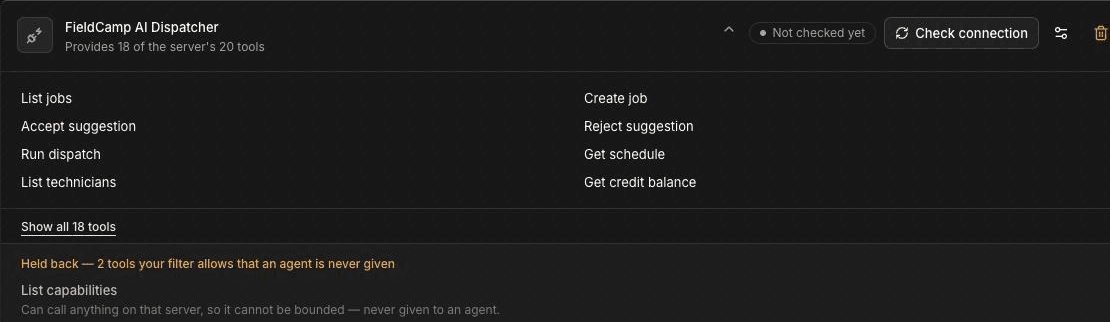
On the server's row under Your servers, click Check connection. Voice asks the server for its current tool list. The status changes from "Not checked yet" to show whether it worked, and the row shows how many tools it provides, such as "Provides 18 of the server's 20 tools".
Tick the tools to allow
Open the server's settings (the settings icon on its row). With the tool list loaded, Tools to allow shows the server's tools to tick instead of a text box. Allow only what your agents need, then save.
Give each step only the tools it needs
Open the step that should use the tools. In Tools, go to the MCP tab, click Refresh tools if the list is out of date, and tick the tools that step may use. Only the tools a step has selected are available to that step.
Tools that are held back
Some tools are never given to an agent, even if you allow them:
- Tools that delete or destroy data, such as a tool whose name starts with "delete" or "remove". The reason shown is "Deletes or destroys data, so it is never given to an agent on a call."
- Tools that can call anything on the server, such as a general "call API" or "list capabilities" tool. The reason shown is "Can call anything on that server, so it cannot be bounded — never given to an agent."
Open a server's row to see them listed under Held back.
Test and troubleshoot
- The check fails: confirm the URL is the server's MCP address, that the server supports Streamable HTTP, and that the credential is correct. Then click Try again.
- The tool list says "Tool list not fetched yet": click Check connection.
- A tool you allowed isn't available: check whether it's listed under Held back. If it isn't, make sure the step has that tool ticked on its MCP tab.
- The agent uses a tool at the wrong moment: tell the agent in the step prompt when to use it and when not to.
Then test the agent with a call. For example, a plumbing company that connects its parts inventory server might ask the agent, "Do you have a water heater in stock for Thursday?" and check the answer against the inventory system. If a tool changes records, use a test account or safe records.
Frequently asked questions
What is an MCP server?
An MCP server is a system that publishes a list of tools an AI can use, following the Model Context Protocol. When you connect one to Voice, your voice agents can use the tools you allow.
What does an MCP server do for a voice agent?
It lets the agent act in another system during the call, such as looking up a record or creating one. The agent uses only the tools you allow on the server and tick on the step.
Which transports and authentication are supported?
Voice connects over Streamable HTTP only. Authentication is optional; you can pick a credential such as a bearer token or API key, or leave it empty for no authentication.
How do I limit which tools the agent can use?
Tick only the tools you need under Tools to allow on the server, then tick the tools each step may use on that step's MCP tab. Tools that delete data or can call anything on the server are never given to an agent.
Why is a tool listed under Held back?
Voice holds back tools that delete or destroy data, and tools that can call anything on the server. They are never given to an agent on a call, even if your filter allows them.
Related articles
Call an external API during a call | FieldCamp
Create a custom HTTP tool so your voice agent can call any API during a call, send caller details, and use the response in the conversation.
Add business knowledge to a voice agent | FieldCamp
Add business knowledge to FieldCamp Voice from documents, web pages, or text so your voice agent can answer questions about services and service areas.