 FieldCamp
Add tools to your AI voice agent | FieldCamp
Learn what tools let a voice agent do during a call, how built-in tools differ from MCP servers, and where to add and manage tools in FieldCamp Voice.
A tool is something a voice agent can do during a call rather than just talk about: look a customer up, book the job, transfer the caller to a person, or hang up. You build a tool once in FieldCamp Voice, and any agent in your workspace can use it.
What tools do
Without tools, a voice agent can only talk and take notes. With tools, it can act while the caller is still on the line. For example:
- A plumbing agent looks up the caller in FieldCamp (if you've connected it) and creates a request with the address and the problem.
- An HVAC agent adds a job for dispatch in AI Dispatcher, then accepts the technician and window AI Dispatcher suggests.
- An electrical agent puts a caller reporting sparking through to your on-call person.
- Any agent hangs up once the call is finished.
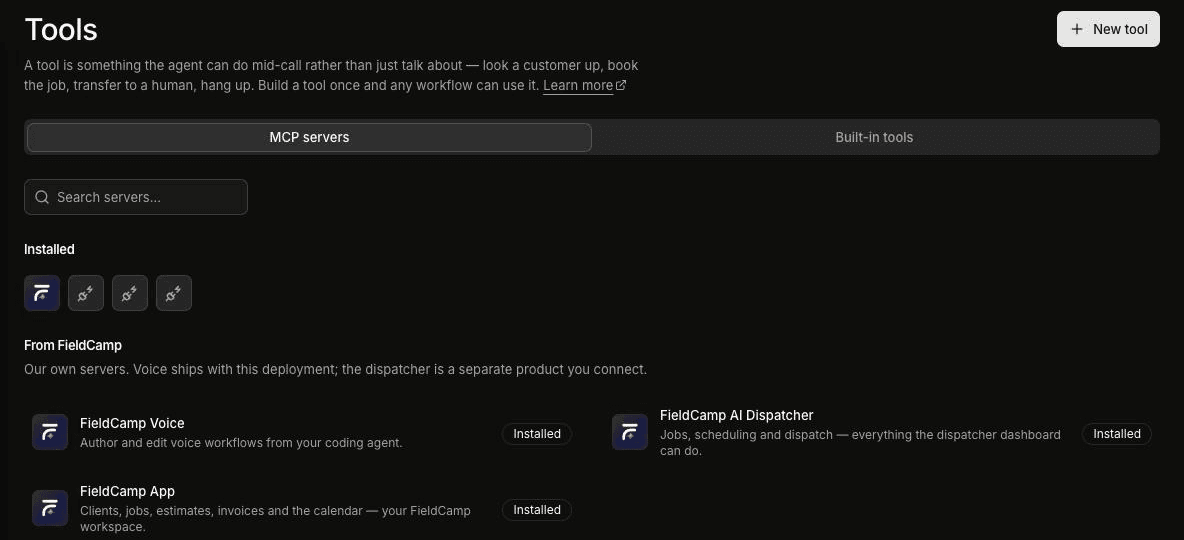
You manage tools on the Tools page in Voice. It has two tabs: MCP servers and Built-in tools. The New tool button at the top right creates a tool.
Built-in tools
Built-in tools are single actions you set up yourself. Create one with New tool, then choose what it does under What should it do?:
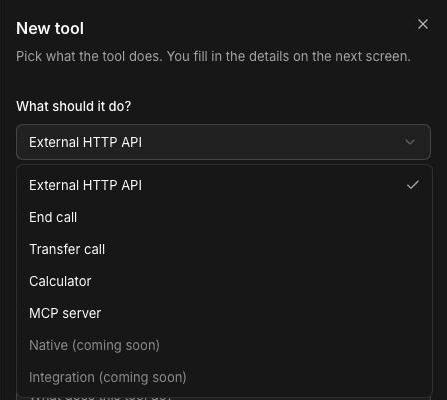
- External HTTP API: calls one of your own systems while the caller is still on the line, to look someone up, check what's free, or book the job. See Call an external API during a call.
- End call: hangs up once the conversation is finished. See Let your voice agent end the call.
- Transfer call: puts the caller through to a person, at a phone number or a desk extension, after an optional holding line. See Transfer a call to a person.
- Calculator: works out sums for the agent, such as parts and labor totals.
- MCP server: connects a server whose tools become available to your agents (see the next section).
Native and Integration are shown as coming soon and can't be selected yet.
Create a tool
Click New tool
On the Tools page, click New tool. The New tool panel opens.
Choose what it does
Pick an option under What should it do?.
Name it after the action
In Name, describe the action, not the system. "Book appointment" reads better to the agent than "Scheduler API".
Describe when to use it
In Description, say when the agent should use the tool. It's optional, but the agent uses this to decide when to reach for the tool.
Create and finish the setup
Click Create tool. The tool's page opens, where you fill in the rest of its settings.
MCP servers
An MCP server is a service that offers a set of tools in a standard format. Instead of building each tool yourself, you connect the server once and its tools become available to your agents. Everything a server exposes is available to every agent in the workspace, but each step still uses only the tools you select for it.
The MCP servers tab shows two lists:
- From FieldCamp: FieldCamp's own servers. Each is optional. FieldCamp App gives agents your FieldCamp clients, jobs and requests, and needs a FieldCamp account connected to Voice; see Look up clients and jobs during a call. FieldCamp AI Dispatcher lets agents add a job for dispatch and accept the technician AI Dispatcher suggests, with or without FieldCamp; see Book and dispatch jobs during a call. FieldCamp Voice is for authoring and editing voice agents from a coding agent, not for use on calls.
- Your servers: the servers connected in your workspace. Each row shows how many tools it provides, a Check connection button, a settings icon, a delete icon, and an arrow that lists its tools. Add your own with New MCP server; see Connect a custom MCP server.
Held-back tools
Some tools are never given to a voice agent, even when a server offers them. A server's row lists these under Held back, with the reason. For example, the AI Dispatcher server holds back List capabilities and Call API, because each "can call anything on that server, so it cannot be bounded". Tools that delete or destroy data are also held back.
An agent never receives a held-back tool, whatever you select on a step. A template that depends on one can't be used yet: its card shows a warning and Review tools instead of opening.
Choose the right tool
| You want the agent to… | Use |
|---|---|
| Find a caller's client record or job in FieldCamp, or create a request | FieldCamp App server |
| Add a job for dispatch and accept the technician AI Dispatcher suggests | FieldCamp AI Dispatcher server |
| Put the caller through to your team | Transfer call |
| Hang up at the right moment | End call |
| Add up parts and labor | Calculator |
| Look something up or book in a system of your own | External HTTP API |
| Use a set of tools another service already offers | MCP server (New MCP server) |
Add a tool to a step
An agent can only use the tools selected on the step it's in. A step with no tools selected can talk but can't act. This lets you keep each step to the tools it needs: the step that takes the details might have Create request, while the step that handles an emergency has only your transfer tool.
Open the step
In the builder, double-click the step, or select it and click the pencil icon.
Find the Tools field
Open Additional settings. The Tools field reads "Tools the agent can invoke during this step." on an Agent Node, and "during the opening turn" on Start Call.
Select tools
Use the HTTP & Tools tab for built-in tools and the MCP tab for tools from MCP servers. Select only the tools this step needs. To create or change a tool, click Manage Tools.
Save and test
Click Save, then save your changes and test the agent before you publish.
The browser Test Audio panel doesn't place real transfers. Test a Transfer call tool with a real phone call. Warm transfer works only with Twilio.
In simulated tests, tools don't act on your data. They return the mock answers you set on each test case.
In each step's prompt, tell the agent when to use each tool. For example: "When you have the name, address and problem, create a request. Don't tell the caller a time." See Write voice agent prompts for field service.
Frequently asked questions
What is an MCP server?
An MCP server is a service that offers a set of tools in a standard format. When you connect one in FieldCamp Voice, its tools become available to your agents, and you choose on each step which of them that step can use.
What can a voice agent do during a call?
With tools, a voice agent can look up clients and jobs and create a request in FieldCamp (if you've connected it), add a job for dispatch and accept the technician AI Dispatcher suggests, call your own systems, work out sums, transfer the caller to a person, and end the call.
Which tool type should I use?
Use the FieldCamp App server for FieldCamp data if you use FieldCamp, and the AI Dispatcher server for dispatch. Use Transfer call, End call or Calculator for those single actions, External HTTP API for a system of your own, and an MCP server when a service already offers its tools that way.
How do I give a step only some tools?
Open the step, go to Additional settings, and select only the tools that step needs in the Tools field, using the HTTP & Tools and MCP tabs. A step can only use the tools selected on it.
Related articles
Write voice agent prompts for field service | FieldCamp
Write clear prompts for AI voice agents in field service. See HVAC and plumbing examples for greetings, qualifying questions, emergencies, and handoffs.
Look up clients and jobs during a call | FieldCamp
Let your voice agent look up clients and jobs in FieldCamp and create new requests during a call, so your team sees each caller's details right away.