 FieldCamp
Capture caller details with Extract Variables | FieldCamp
Capture caller details such as name, address, and service issue with the Extract Variables step, then reuse those values in prompts, tools, and routing.
The Extract Variables step reads the conversation so far and saves the details you ask for, such as the service address or whether the caller says it's urgent. It doesn't speak to the caller. Once it has run, the values are available to every later step as variables.
What the step does
In Add a step, the step is described as "Silently extract typed values from the conversation before continuing." When the call reaches it:
- It reads the conversation and fills in each variable you declared.
- If the caller didn't give a value, or the value doesn't fit the type, that variable is set to null.
- The call moves on to the next step without pausing.
An Extract Variables step has exactly one connection going out. When you connect it, the builder creates that connection for you, labelled "Continue", and it's silent. It also needs at least one connection coming in.
You can also capture values inside an Agent step by turning on Enable Variable Extraction in its settings. It uses the same variable fields. Use a separate Extract Variables step when you want to capture details once, after several steps, or right before a Logic Split that routes on them.
Add the step
Add it to the canvas
In the builder, click + at the top right of the canvas and choose Extract Variables under AGENT NODES.
Connect it
Drag from the bottom dot of the step before it, usually the Agent step that asks the questions, to the top dot of the Extract Variables step. Then drag from its bottom dot to the step that comes next.
Open the settings
Double-click the step, or select it and click the pencil icon. The Edit Extract Variables panel opens.
Name it and write the Extraction Prompt
Give it a Name, such as "Capture job details". In Extraction Prompt, write overall instructions for what to pull from the conversation.
Add your variables
Under Variables to Extract, add at least one variable. See Add a variable.
Save
Click Save. While a step still needs setup, its card shows a Needs setup badge.
Add a variable
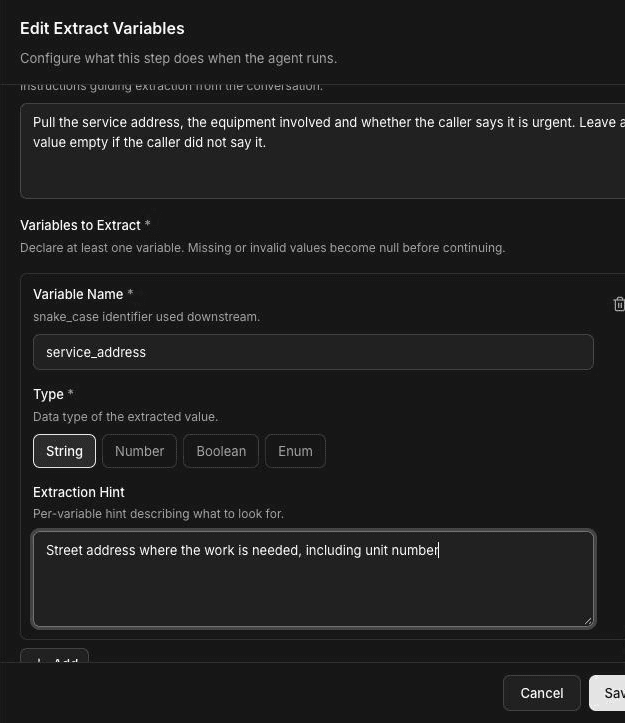
Each variable has three fields:
- Variable Name: a snake_case name, such as
service_addressoris_emergency. This is the name you use in later steps. The namesnodes_visitedandlogic_split_traceare reserved. - Type: the kind of value to capture.
- Extraction Hint: what to look for in the conversation for this one variable.
Variable types
| Type | Use it for | Example |
|---|---|---|
| String | Free text | service_address, callback_number, problem_description |
| Number | Counts and amounts | unit_count for the number of rooftop units |
| Boolean | Yes or no | is_emergency, is_existing_customer |
| Enum | One of a fixed list of choices | service_type with the choices no_heat, no_cooling, maintenance |
For an Enum, list the allowed choices. They're matched exactly, including capital letters, so keep them simple and consistent.
Capture phone numbers and ZIP codes as String, not Number, so leading zeros and formatting survive.
Write good hints
- Say exactly what counts. "Street address where the work is needed, including unit number" works better than "address".
- Say what to do when it's missing. An Extraction Prompt such as "Leave a value empty if the caller did not say it" stops the step from guessing.
- Use your own rules for judgement calls. For
is_emergency, write down what your company treats as an emergency, for example "true only if the caller reports no heat with someone vulnerable in the home, or a gas smell". These are examples; replace them with your rules. - Keep one fact per variable. Split "address and access notes" into
service_addressandaccess_notes.
Use extracted values
Captured values are stored under gathered_context. Use them anywhere variables work:
- In prompts of later steps:
{{gathered_context.service_address}}, or the short form{{service_address}}. A captured value overrides a starting value with the same name. - In a Logic Split rule:
gathered_context.is_emergency==true. - In a Webhook payload:
"address": "{{gathered_context.service_address}}". - In tool settings that accept variables.
If a value is null or was never captured, the variable becomes empty text. Add a fallback so the prompt still reads well, for example {{gathered_context.service_address | the address you gave}}. See Variables for the full syntax.
Example: new service request
A plumbing company wants to capture the job, then route emergencies differently.
- An Agent step named "Ask about the job" asks what's wrong, where the property is, and the best callback number.
- An Extract Variables step named "Capture job details" has this Extraction Prompt: "Pull the service address, the problem, and whether the caller says water is leaking right now. Leave a value empty if the caller did not say it." Its variables:
| Variable Name | Type | Extraction Hint |
|---|---|---|
service_address | String | Street address where the work is needed, including unit number |
callback_number | String | Best number to reach the caller, if different from the number they called from |
problem_description | String | The problem in the caller's words, in one sentence |
is_emergency | Boolean | True only if the caller says water is leaking right now (replace with your own rule) |
- A Logic Split sends
is_emergency == trueto your emergency process and everything else to an End Call step that reads back{{gathered_context.service_address}}and{{gathered_context.callback_number | the number you called from}}.
If you've connected FieldCamp, you can save these details there during the call: give a later Agent step the FieldCamp App Create request tool; see Look up clients and jobs during a call. Your team then works the request as described in Requests & Pipeline Overview.
Frequently asked questions
What caller details should I capture?
Capture what your team needs to act on the call, usually the caller's name, service address, callback number, a short description of the problem, and anything you route on, such as urgency or service type. Keep each detail in its own variable.
Which variable types are supported?
Extract Variables supports String, Number, Boolean and Enum. Enum values must match one of the choices you list exactly, including capital letters.
What if the caller doesn't give a value?
The variable is set to null and the call carries on. In prompts it becomes empty text, so add a fallback such as {{service_address | the address you gave}}, and in a Logic Split the Else branch catches it.
How do I use an extracted value later in the call?
Write it as {{gathered_context.variable_name}} in a later prompt, Webhook payload or tool setting, or use the path gathered_context.variable_name in a Logic Split rule.
Is Extract Variables the same as post-call extraction?
No. Extract Variables runs during the call, so later steps can use the values. Post-call extraction, in the agent's Settings, runs after the call to produce a summary, outcome and other fields.
Related articles
Branch a call with the Logic Split step | FieldCamp
Route calls with the Logic Split step: rule-based branches that check caller details such as urgency, service type or ZIP code, with one required Else path.
Navigate phone menus with the Press Digit step | FieldCamp
Use the Press Digit step so outbound voice agents can navigate another company's phone menu (IVR) by sending keypad tones to reach the right department.