 FieldCamp
Create a Document Package in Package Studio
Create a FieldCamp document package from a starter or from scratch. Choose the record type, add and order pages, set a condition, and preview the file.
Package Studio is where you design a document package. You choose what the package is for, add pages in the order your customer should read them, and preview the result against a real record.
Before you start
- Your workspace needs a plan that includes document packages (Pro, or a free trial). See What are document packages?.
- Your role needs access to Document Templates in system settings. Administrators have it by default. See roles and permissions.
- If you plan to print estimates, invoices or forms, create those document templates and forms first so they are available as designs.
Open the Packages tab
- Go to Settings → Document Templates.
- Select the Packages tab.
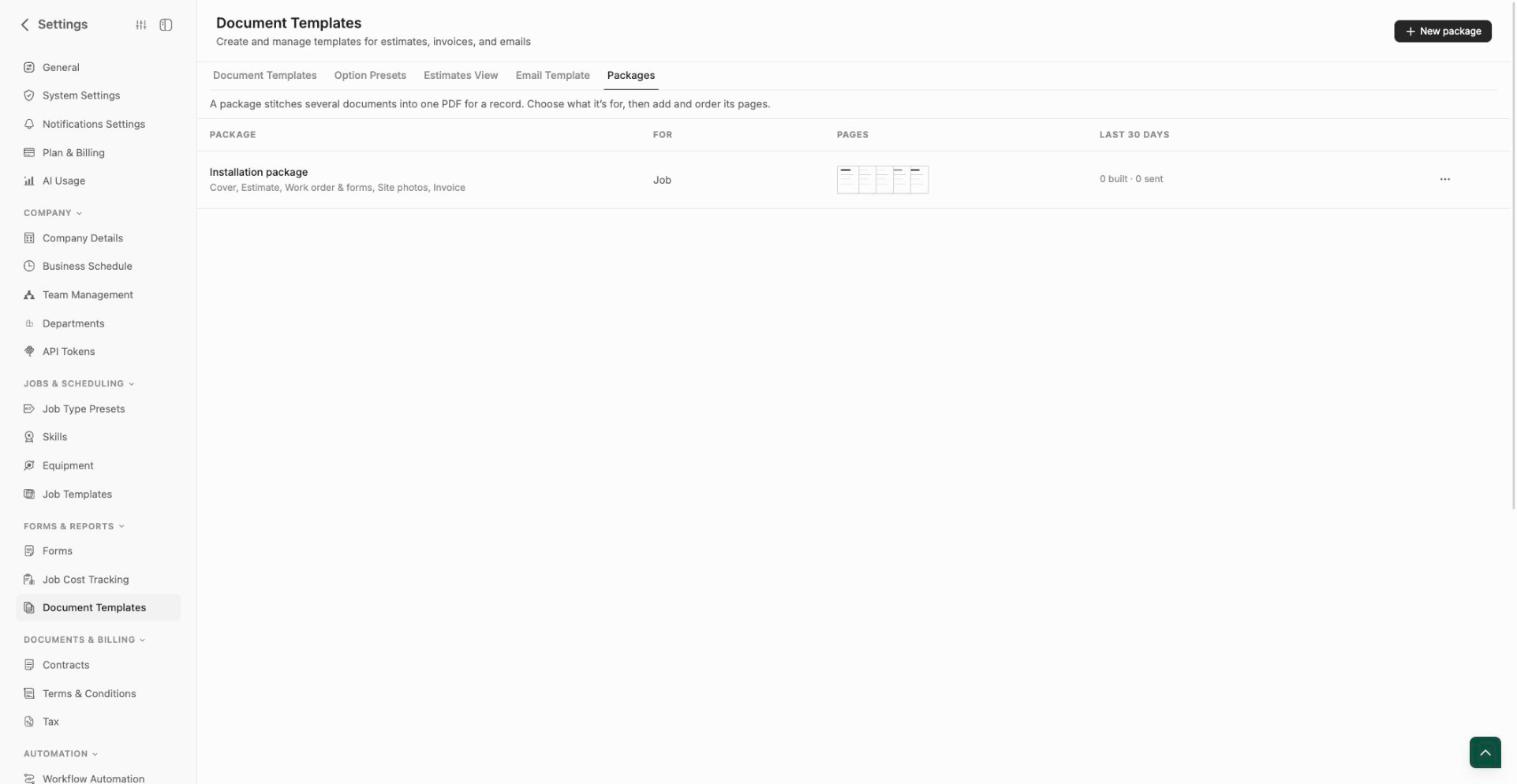
The list shows each package, the record type it is For, its pages, and how many files were built and sent in the last 30 days. The ⋯ menu on a row lets you manage the package.
Start a new package
Select New package. On a workspace with no packages yet, choose one of two starting points instead:
- Installation package: a job package with a cover, estimate, work order and forms, site photos and invoice.
- Build your own: an empty package where you choose every page yourself.
Package Studio first asks What is this package for? Choose the object from the list: Job, Visit, Client, Estimate, Invoice, Request, Location and any of your custom objects.
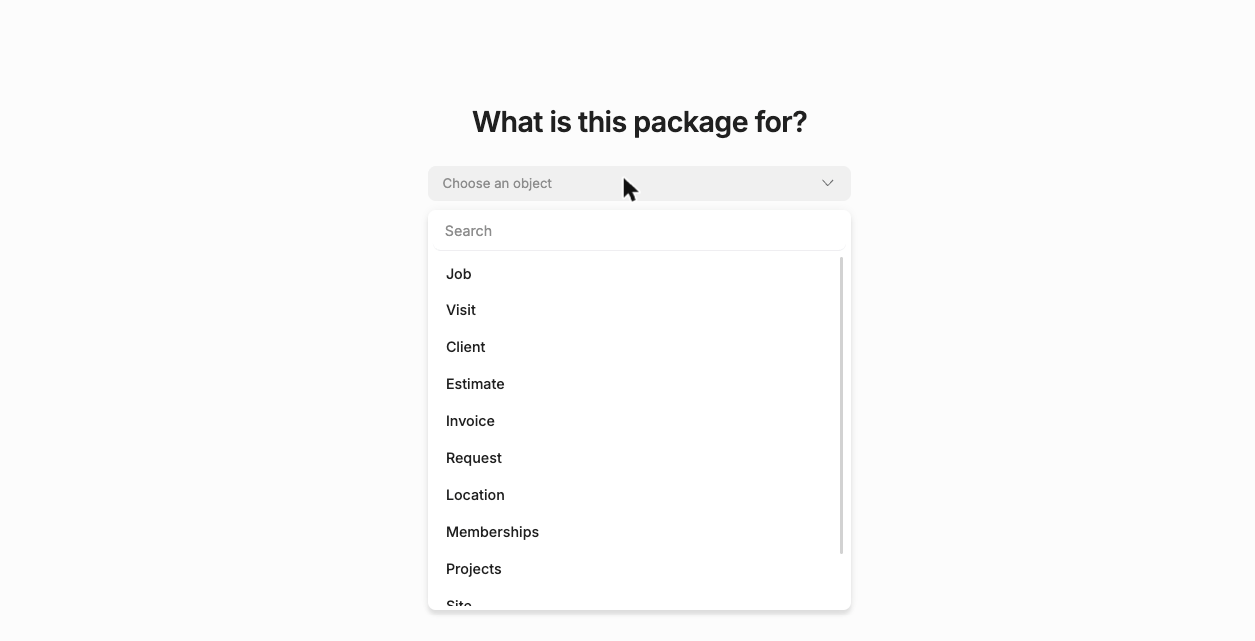
Package Studio saves the package as soon as you choose, and keeps saving as you edit. The top bar shows Saved when your changes are stored.
The For object cannot be changed after the package has built its first version. Pick the record you will usually start from, for example Job for a closeout file.
Add, order and remove pages
The Studio has three areas:
- Library on the left: the pages you can add.
- Pages in the middle: the file, in reading order.
- Settings on the right: options for the selected page, or for the whole package when no page is selected.
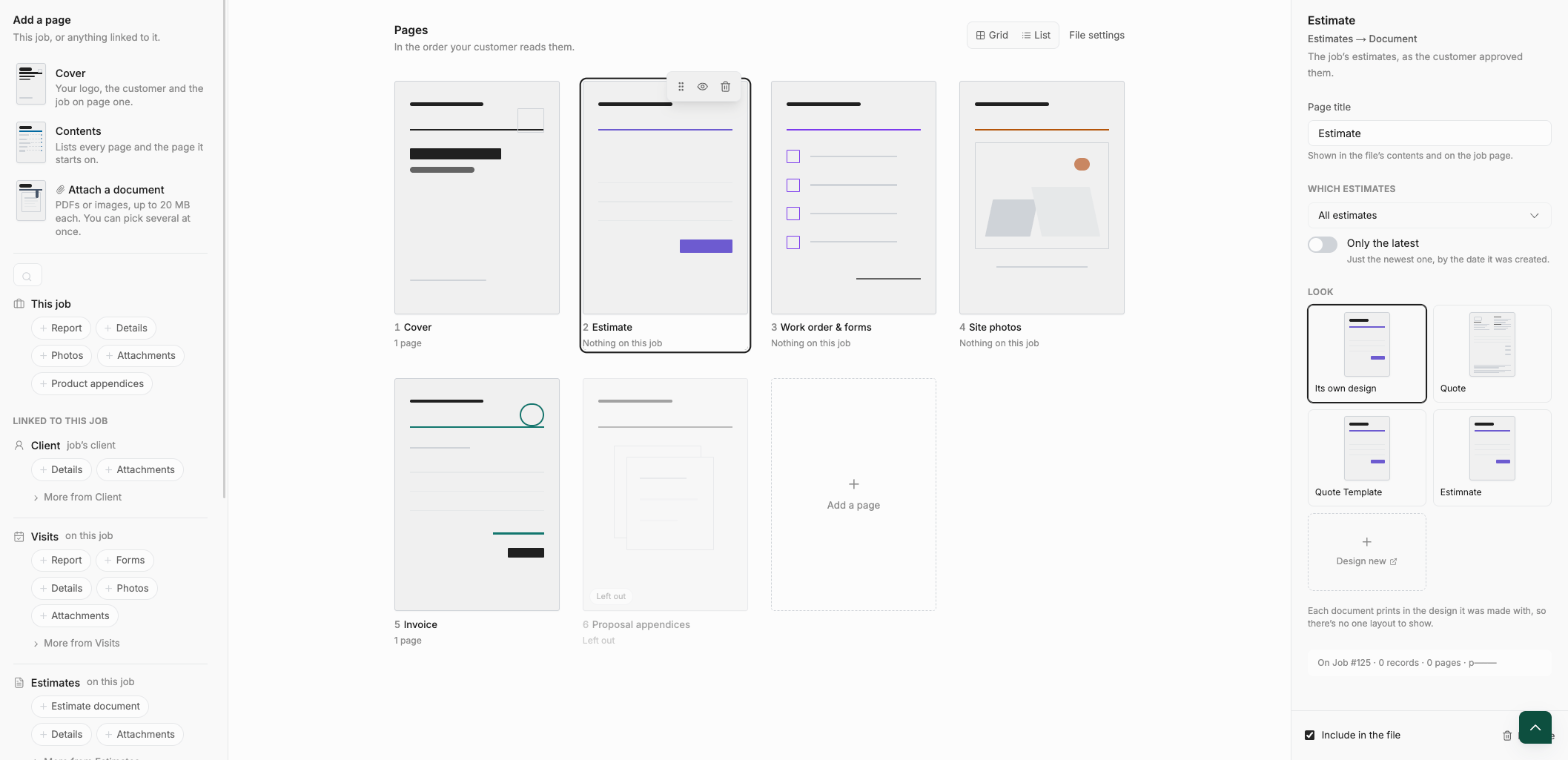
To add a page, click it in the library to add it at the end, or drag it into place. The top of the library holds Cover, Contents and Attach a document. Below that, each source the record can reach appears as a group, such as This job, Client, Visits, Estimates and Invoices, with a button for each part you can print. See Pages and sources.
To rearrange, drag a page by its handle, or switch between Grid and List to see the order more clearly. Hover a page to see its handle, the eye icon (leave the page out or include it again) and the bin icon (remove it). You can also clear Include in the file in the page's settings. A page that is left out stays in the package, does not print, and shows a Left out label.
Set the package details
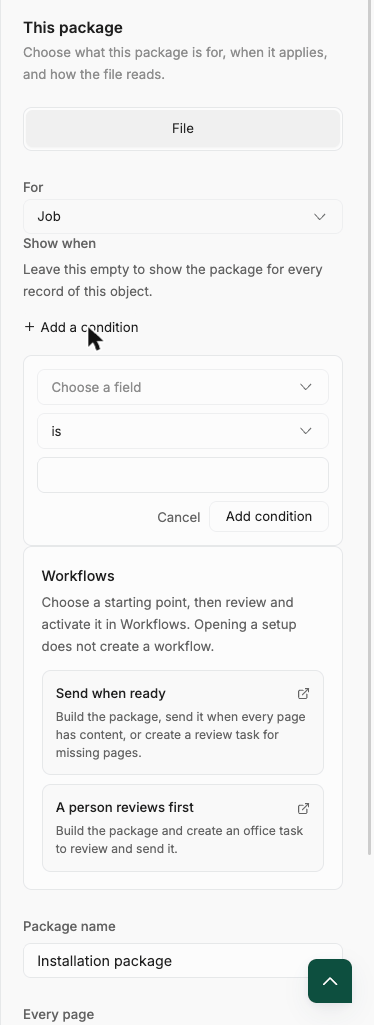
Select File settings above the pages to open This package.
| Setting | What it does |
|---|---|
| For | The record type the package builds from. |
| Show when | A condition that decides which records get this package. Leave it empty to show the package for every record of the type. Select Add a condition, choose a field, an operator and a value, then Add condition. |
| Package name | The name people see on the record and in the file list. |
| Number the pages | Prints "Page 3 of 5" at the bottom of each page. On by default. |
| Title at the top | Adds a short line above every page. You build it from the package name, job number, customer and date. |
| Where it shows up | A reminder of where the package appears on records. |
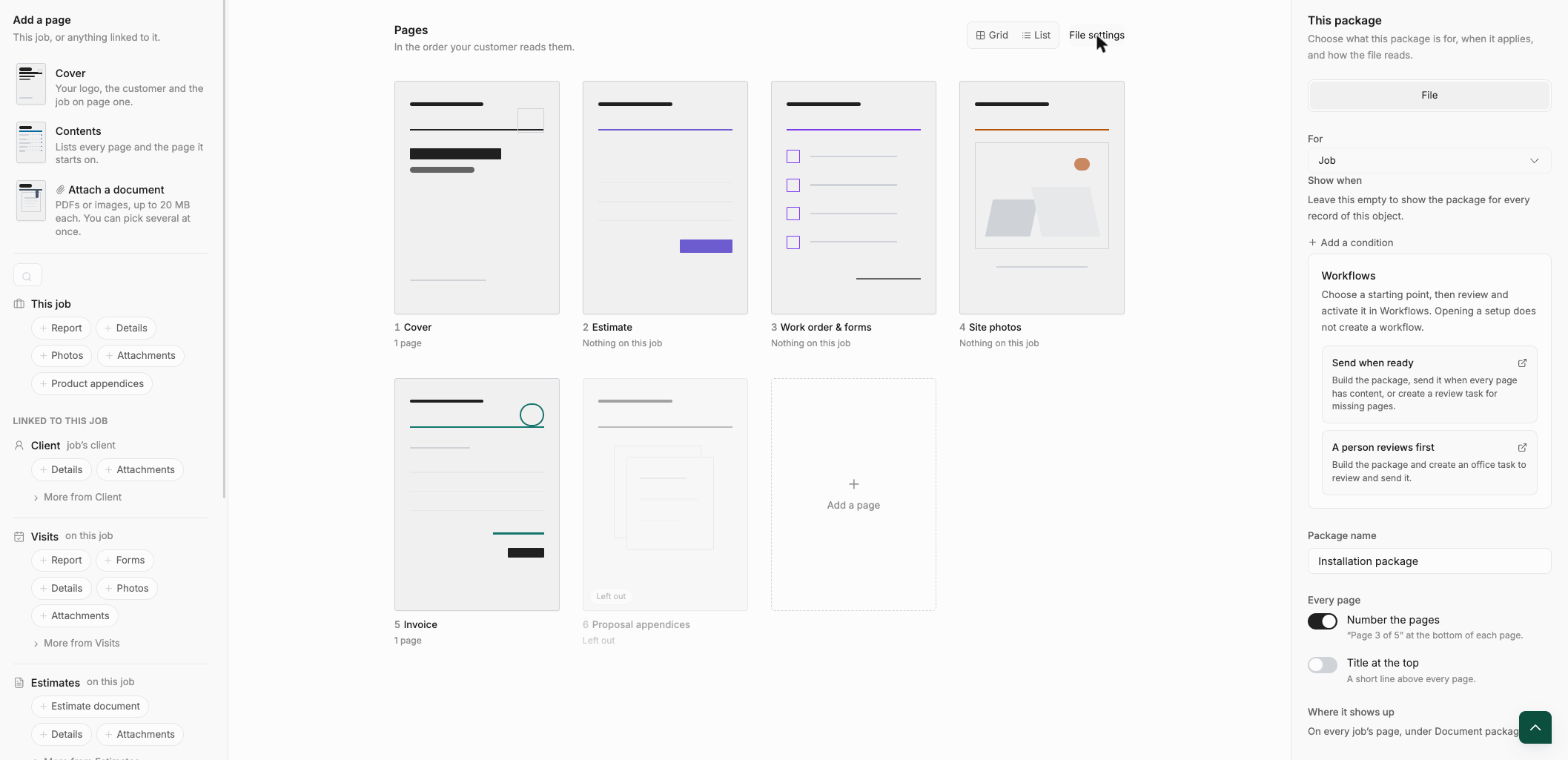
To limit the package to certain records, select Add a condition under Show when, then choose a field, an operator and a value and select Add condition.
Preview the package
Package Studio lets you try the package on a real record without saving or sending anything.
- Select the record picker at the top, labeled Preview with Job (or Preview with a record for other objects). Search by job number or customer, or pick a recent record.
- Select Preview to build a preview file.
- Review the result. The top bar shows the page count and size (for example "2 pages · 76 KB"), and each page shows how many pages it will print or Nothing on this job when it has no data for that record.
Previewing never saves or sends anything. Pages with nothing to print for that record are left out of the preview, so try more than one record.
Duplicate or delete a package
Open the ⋯ menu in the top bar of the Studio, or on a row in the Packages list.
- Duplicate package creates a copy with "copy" added to the name.
- Delete package stops the package from matching new records. Files already built stay downloadable.