 FieldCamp
Automate Document Packages With Workflows
Build and send FieldCamp document packages automatically with the Generate Package and Send Package workflow actions, or start from a ready-made setup.
Workflows can build a package when something happens, for example when a job is completed, and send it to the customer or hand it to your office for review. You set this up with the Generate Package and Send Package actions in the workflow builder.
Start from a ready-made setup
Open a package in Package Studio and look at the Workflows section of the package settings. It offers two starting points:
| Setup | What it does |
|---|---|
| Send when ready | Builds the package and sends it when every page has content. If a page is missing, it creates a review task for your office instead. |
| A person reviews first | Builds the package and creates an office task to review and send it. |
Select a setup to open the workflow builder with the steps filled in. Opening a setup does not create a workflow. Review the steps, then save and activate the workflow yourself.
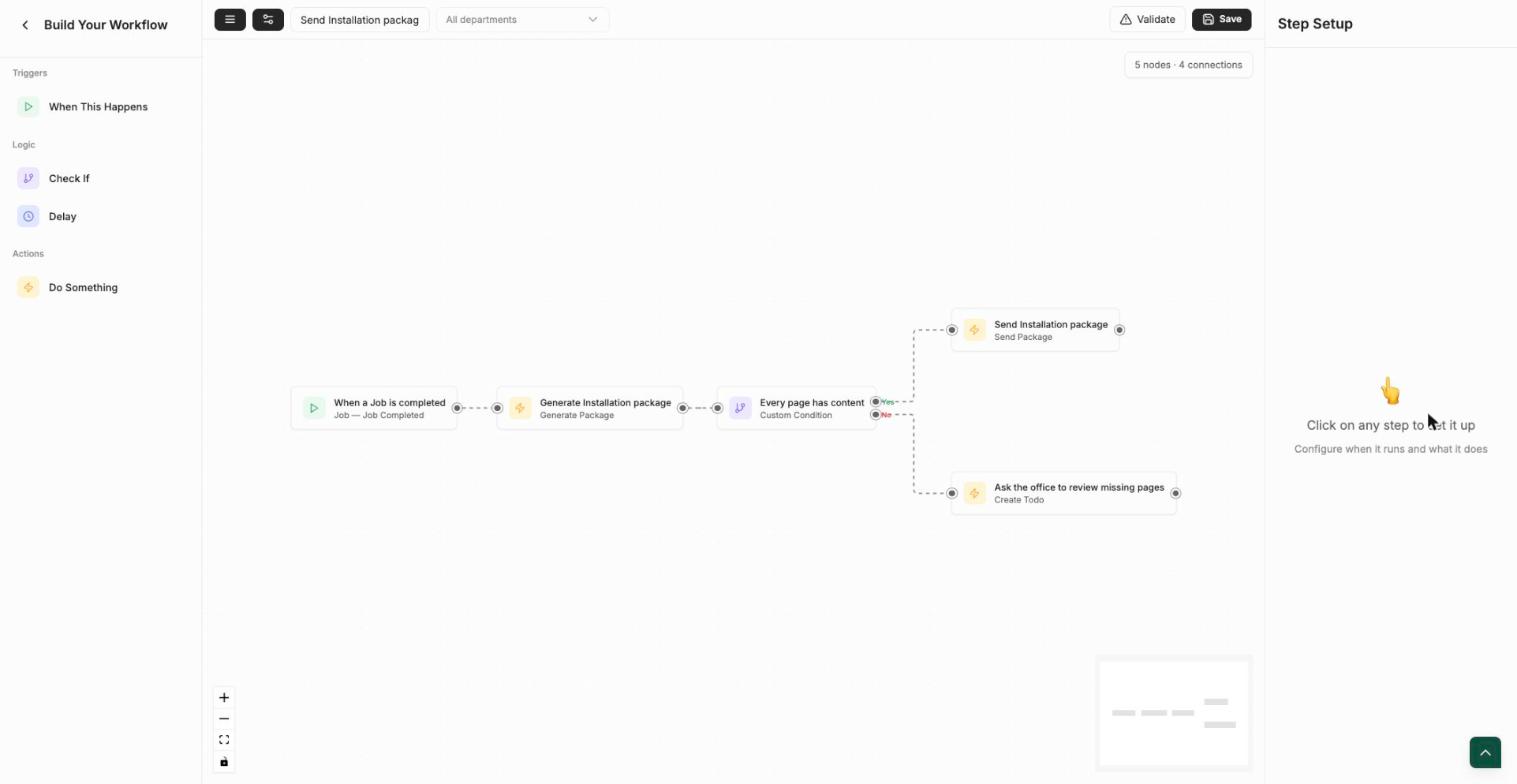
The default trigger depends on the record: When a Job is completed for a job package, a stage-change trigger such as When a Request reaches Won for other records with a pipeline (the record type and stage come from your pipeline), and an updated trigger for custom objects. You can change the trigger like any other workflow.
You need the permission to create workflows to open a setup. Without it, Package Studio shows "You need workflow-create permission to open a setup."
Add the actions yourself
The actions are available when the trigger starts from a record, such as a job, visit, client, estimate, invoice, request or custom object. Triggers without a record, such as an incoming message, don't offer them.
Generate Package
| Setting | What it does |
|---|---|
| Package | Choose the package. The list shows only packages whose For object the trigger can reach. Select Open in Package Studio to edit it. |
| Build it for | Shows which record the package builds from, for example the job that started the workflow, or the job for the visit or estimate that started it. |
| If a page has no data for this record | Build it anyway and flag it (default), Leave that page out quietly, or Stop the workflow. |
| Versions | Make a new version every time (default), or Reuse the current one unless something changed. |
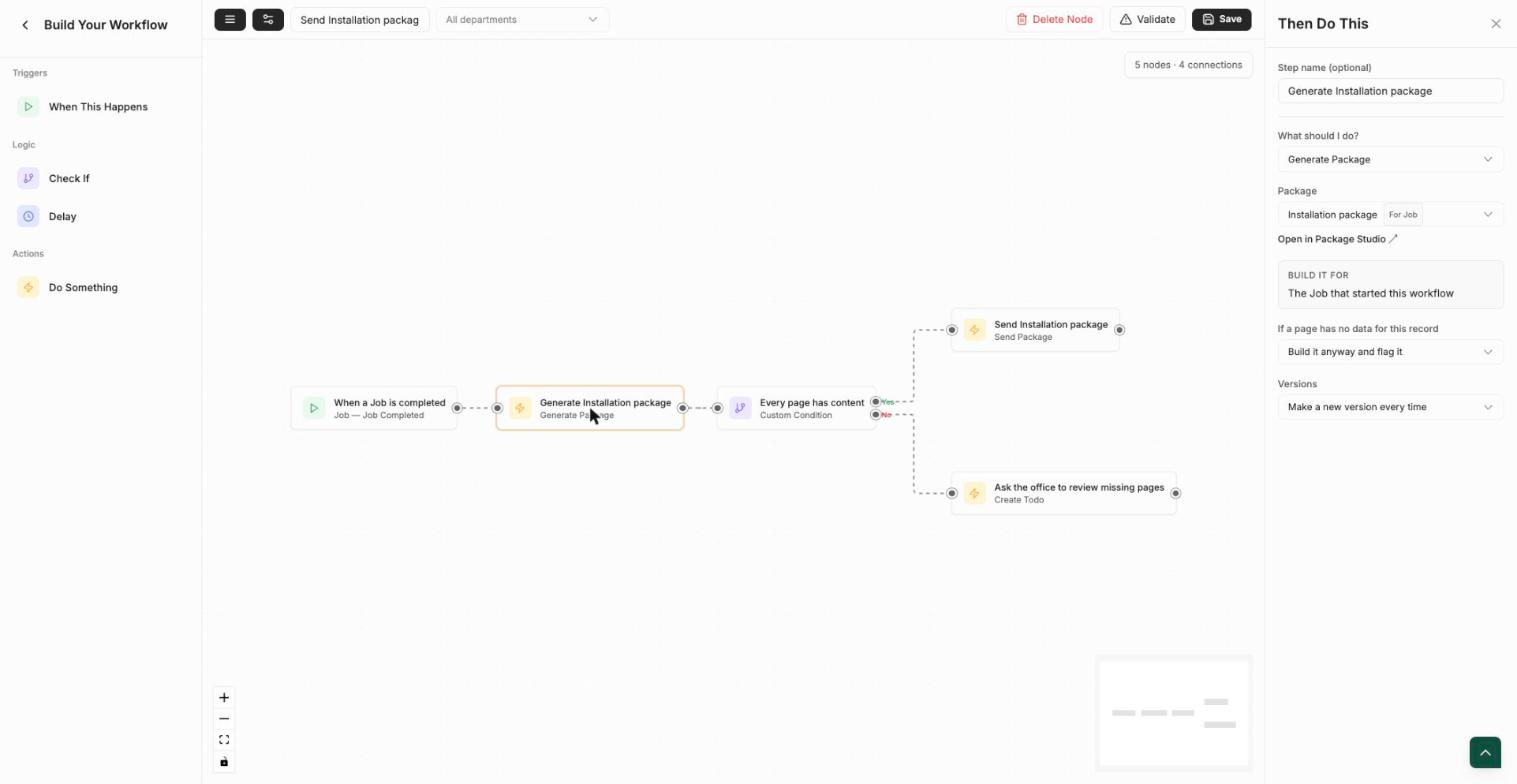
The action waits for the build, up to 60 seconds inside a workflow. If the package's Show when condition doesn't match the record, the step ends quietly without failing the workflow.
Send Package
| Setting | What it does |
|---|---|
| Which version | The one this run produced, or the latest version for the record. |
| To | The customer, The account owner, or Someone else (type up to 10 email addresses, separated by commas). |
| Deliver as | A secure link (recommended) or PDF attached. |
| The standard wording, or Write your own with a subject and message. |
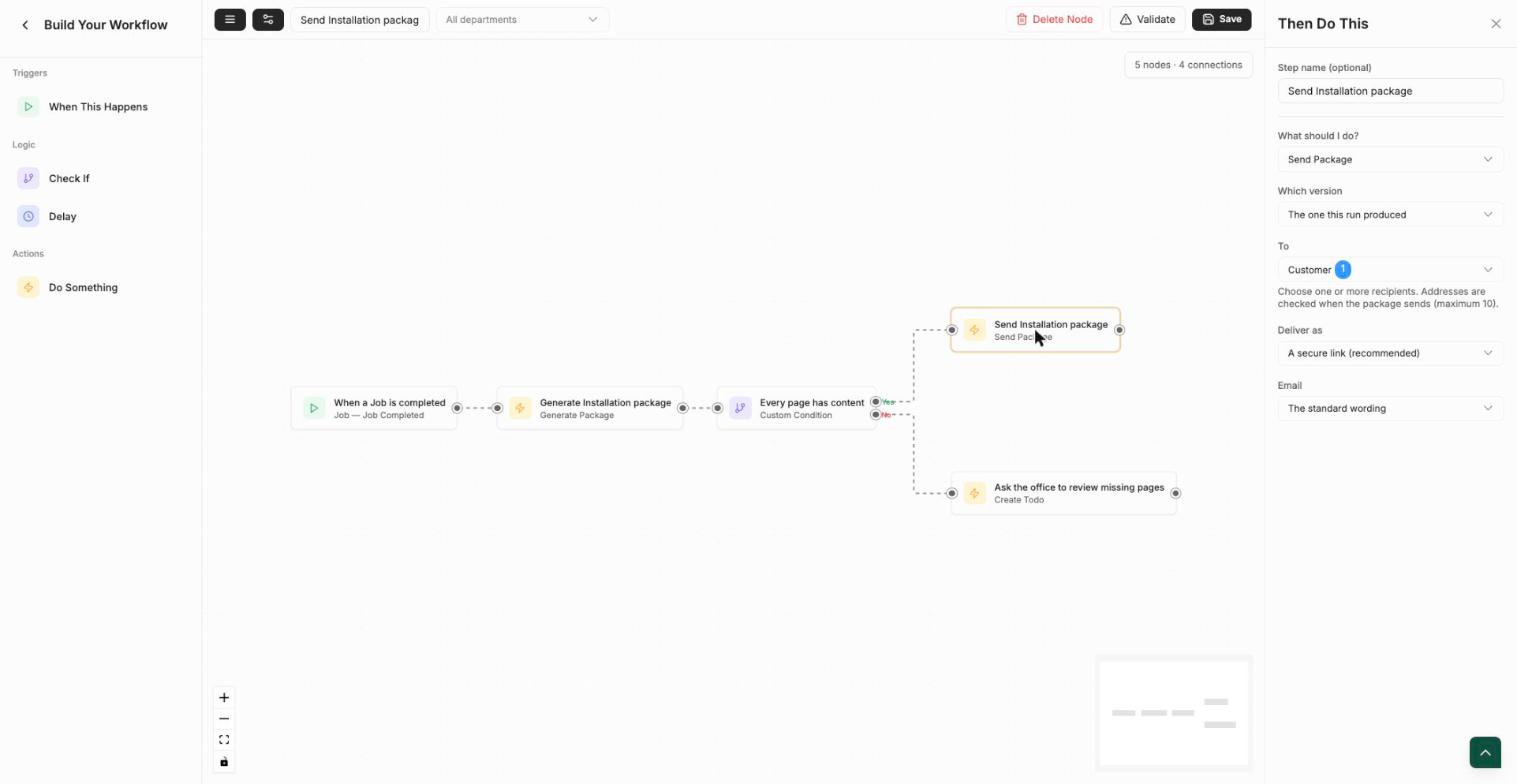
If the customer is the recipient and no client email can be found, the step fails and says so. Point the package at a record that links to a client, or send to a custom address. Attachments over 20 MB are sent as a secure link, and links expire after 7 days.
Use package details in later steps
After Generate Package runs, later steps can use these values:
| Variable | Value |
|---|---|
{{package.name}} | The package name |
{{package.link}} or {{package.fileUrl}} | A link to the file |
{{package.version}} | The version number |
{{package.pageCount}} | The number of pages |
{{package.missing}} | The pages that were left out |
Add a Check If step on package.missing to send complete packages automatically and create a task for incomplete ones. In a custom email you can also use {{customer_name}}, {{customer_first_name}} and {{business_name}}.
Review tasks
The review-task step creates an office to-do linked to the exact package version, so the person who picks it up can open the file, rebuild it if needed, and send it.
Stop a package from sending for one record
If a workflow sends a package automatically, a row on the record's card gets a ⋯ menu with Don't auto-send for this record. Choose Resume auto-send for this record to turn it back on. The row also shows an Automated by link to the workflow.