 FieldCamp
Build, Preview and Send a Document Package
Build a FieldCamp document package for a record, check what is missing, preview or download the PDF, and send it to a customer as a secure link or attachment.
Once a package is set up in Package Studio, you build it on a record, check the result, and send it. Everything happens from the Document packages card on the record.
Where the Document packages card appears
The card appears on the record page for any package whose For object matches, for example on a job's Details tab. It is also available from the Actions area of jobs, clients, requests, visits and custom records, and from the Document packages item in the menu of an estimate or invoice.
The card is hidden when no package applies to the record (see Show when in Create a document package), or when you don't have permission to view the record's files.
If your page layout was customized and saved, it is not updated automatically. An administrator sees a banner at the top of the record reading "1 relation isn't shown on this page yet" with an Add to layout button. Select Add to layout to add the Document packages card (and the Apply a package and Resend package… actions) to the layout. This changes the layout for everyone in the workspace.
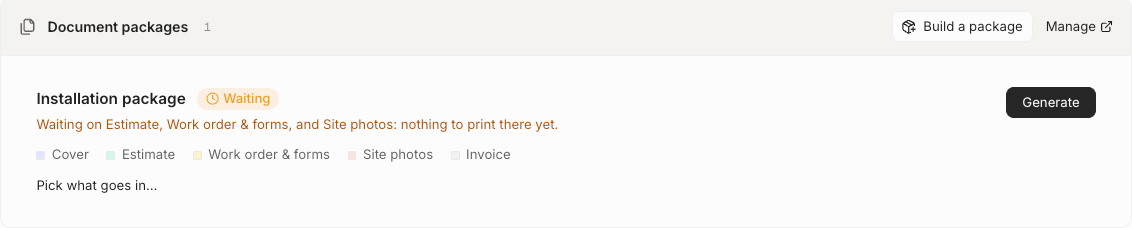
Read the status of a package
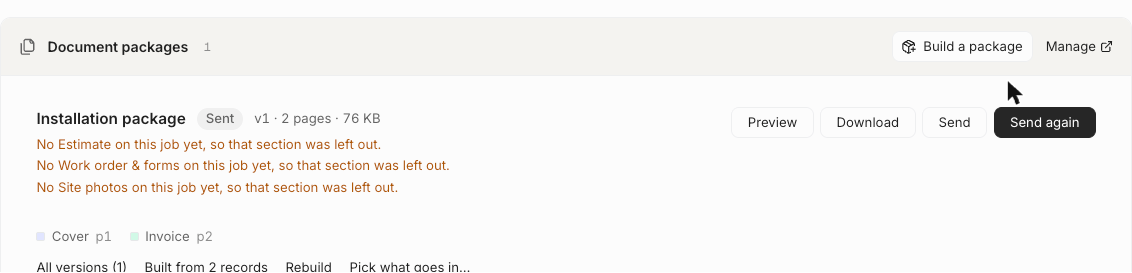
Each row on the card shows the package name, a status chip, and once a file exists, its version, page count and size (for example "v1 · 2 pages · 76 KB"). A colored strip under the row shows each page and the page it starts on.
| Status | What it means |
|---|---|
| Not built yet | No file exists for this record yet. |
| Waiting | Not built yet, and a page would currently have nothing to print. The row says what it is waiting on. |
| Ready to build | Not built yet, and nothing is missing. |
| Building | A build is running. The card updates on its own. |
| Ready | A file was built and is current. |
| Sent | The latest version was sent. |
| Out of date | The record changed after the build. The row says what changed. |
| Missing a section | The file was built without one or more pages. The row lists them. |
| Couldn't build | The build failed or did not finish. The last good version, if any, is unchanged. |
Below each row you can show All versions, with a Download link for each, and Built from to see the records the file used.
Build a package
- Open the record, for example a completed job.
- On the Document packages card, find the package.
- Select Generate. For a package that was built before, select Rebuild. After a failure, select Try again.
FieldCamp builds the PDF in the background and creates a new version. The row shows Building with how long ago it started, then updates on its own.

In this example the job has no estimate, forms or photos yet, so the file contains only the cover and the invoice. Each missing page is listed, for example "No Estimate on this job yet, so that section was left out." You can also start a build from the Actions menu at the top of the record with Apply a package. A rebuild reuses the choices of the previous version. If a package has no pages yet, the row shows Add pages instead of Generate.
When a package page can reach several records, a plain Generate prints only the newest one. To choose others, use Pick what goes in.
Pick what goes in
Use Pick what goes in (or Build a package on the card header) to shape one file without changing the package.
- Choose a package under Start from, or start from nothing and add pages yourself.
- Reorder or remove pages, and use Add from this record to add more.
- For pages that reach several records, select Change to tick the estimates, visits or other records that should print. Use Latest, All or None for quick choices.
- To add something only for this file, select Attach a document for this file only. You can add PDFs and images up to 20 MB each. They are kept with this record only.
- Select Preview to see an unsaved version of the PDF, or build it.
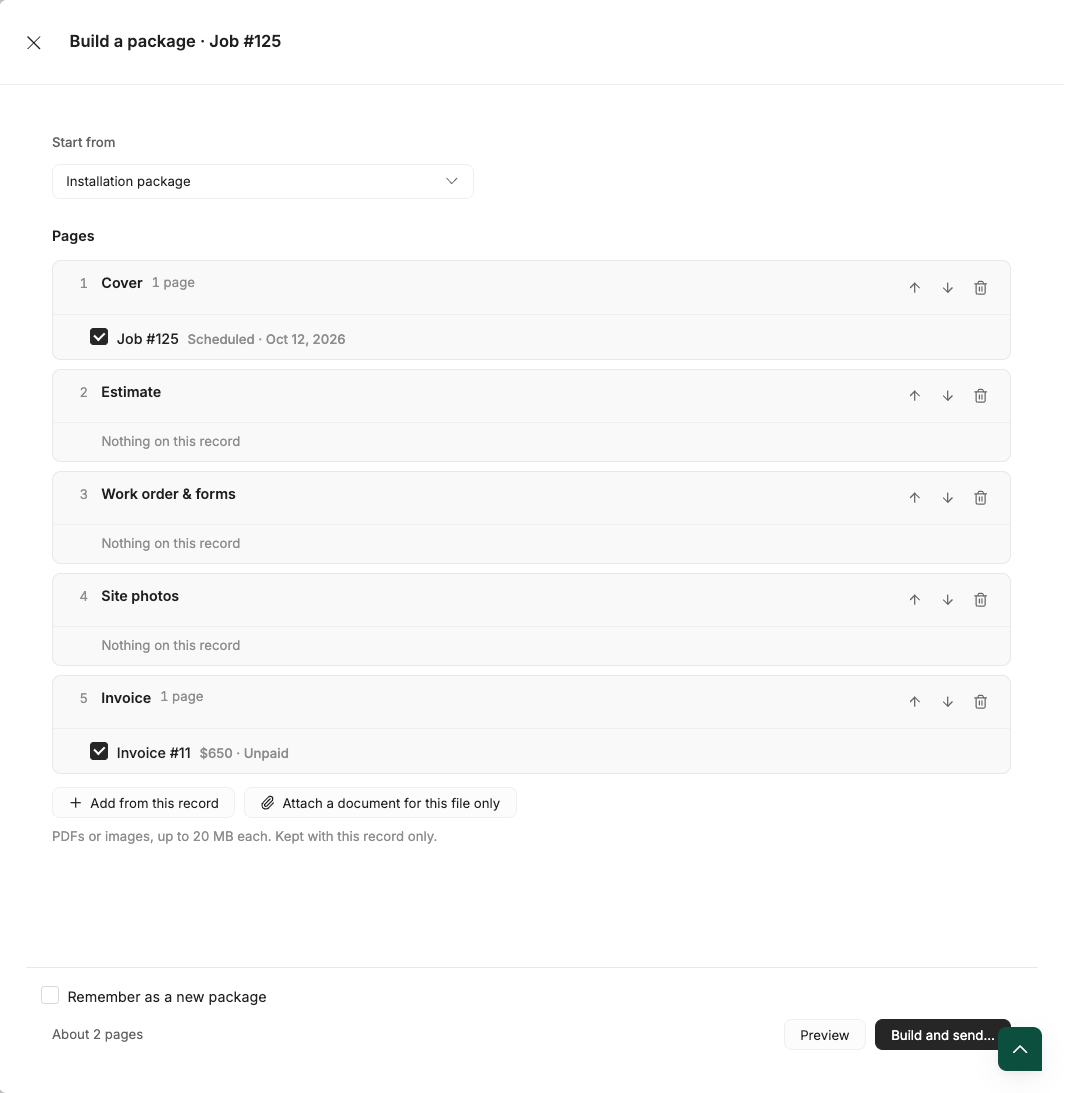
To reuse the page list later, turn on Remember as a new package and give it a name. Documents attached for this file only are not saved in the new package.
Preview and download
Select Preview to open the file in a side drawer with a list of its sections. Select a segment of the page strip on the card to jump to that part of the file. Use Download to save the PDF.
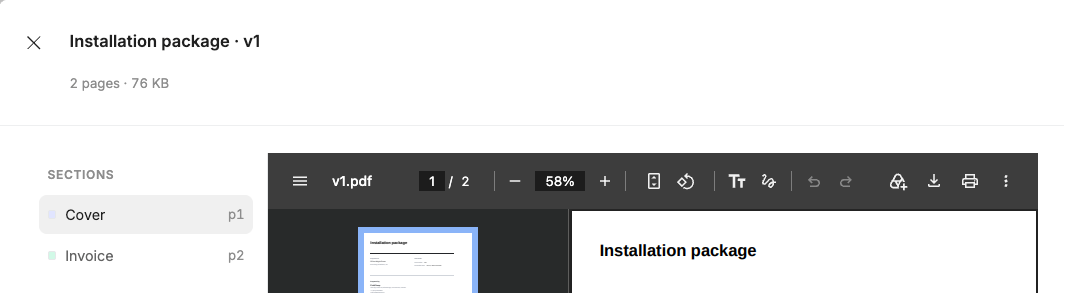
Preview and download links are private and expire shortly after they are created, so open the file again when you need it.
Send a package
- On the package row, select Send. After the first send the button reads Send again.
- In the Send dialog, check who it goes to under To. The client's email is selected by default. Remove it with the ×, search team members and contacts, or add another address with Add email address and Add.
- Optionally edit the Subject and Message. Leave them blank to use the standard wording. You can insert the package name, secure link, version and page count.
- Choose Attach the PDF or Send a secure link. Files over 20 MB are always sent as a secure link. Secure links stay open for 7 days.
- Select Send.
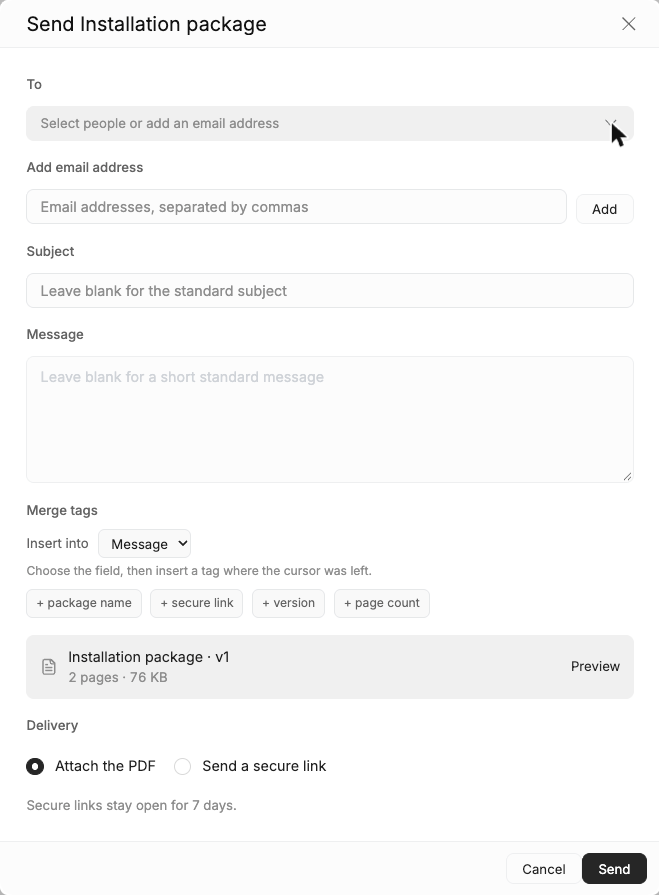
A package can go to at most 10 addresses at once. After sending, FieldCamp shows "Installation package sent" (with your package's name), and the row changes to Sent with a Send again button.
Send an out-of-date or incomplete package
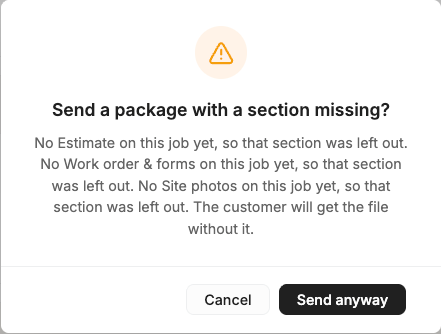
If a version is Out of date or Missing a section, FieldCamp asks you to confirm before sending. The message explains what changed or which page is missing. Select Send anyway to continue to the Send dialog with the file as it was built, or Cancel and rebuild it first. The confirmation appears again if you send a file that left sections out a second time.
Use Command Centre to prepare a package
The Command Centre can find a package for a record, build it and show you a review card with the file, page count, size, recipient and anything missing. It never sends a package on its own. A package leaves FieldCamp only when you select Send on the review card. Customer-facing assistants can only re-send the latest sent version to the email already on the client record.