 FieldCamp
Document Package Pages, Sources and Looks
Every page type you can add to a FieldCamp document package, how linked records are reached, how to choose a Look, and how to attach your own PDFs.
A document package is a list of pages. Each page pulls one kind of content from the record the package is For, from anything linked to that record, or from a file you attach. This article explains the page types, how to choose which records print, and how to control the design.
Where pages come from
In Package Studio, the library lists sources. A source is a record the package can reach from its For object:
- This job (or whichever object the package is for).
- Linked to this job: records connected to it, such as the job's Client, its Visits, Estimates, Invoices, Requests converted to the job, and Memberships. Each group shows how it relates, for example "on this job" or "job's client".
Each source offers buttons for the parts you can print from it, such as Report, Details, Photos, Attachments, Forms, Estimate document, Invoice document and Product appendices. Select More from… under a group to see every part. Use the search box to find a source by name.
Page types
The pages you can add depend on what the record can reach. These are the pages available on a job package:
| Page | What it prints | Options |
|---|---|---|
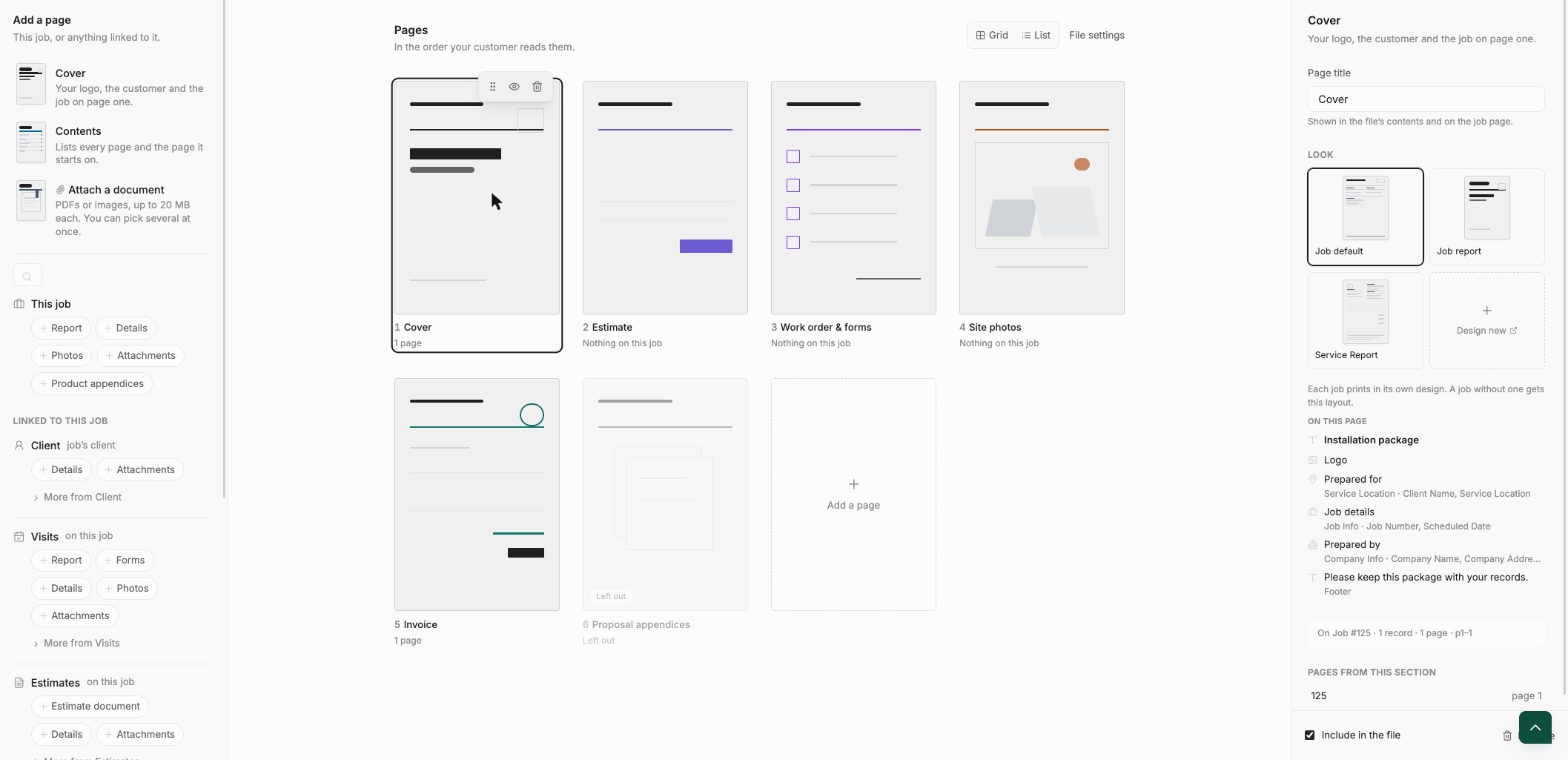
| Cover | Your logo, the customer and the job on page one. | Look |
| Contents | A list of every page and the page it starts on. Empty pages are left out. A package can have one. | None |
| Job summary | The job on one page, without a visit. | Look |
| Estimate | The job's estimates, as the customer approved them. | Which estimates, Only the latest, Look |
| Invoice | The job's invoices. | Which invoices, Look |
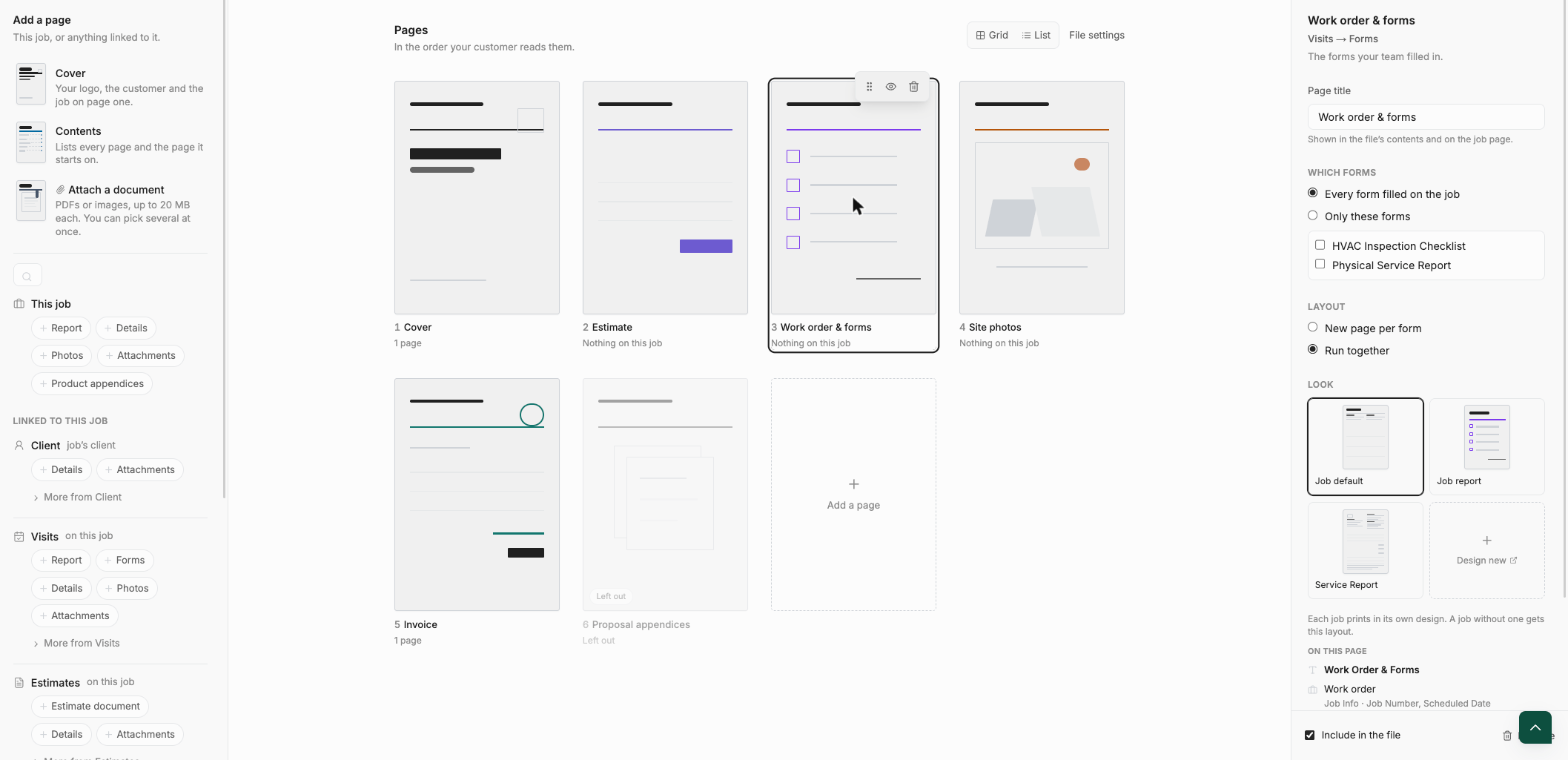
| Work order & forms | The forms your team filled in on the job's visits. | Which forms, Layout, Look |
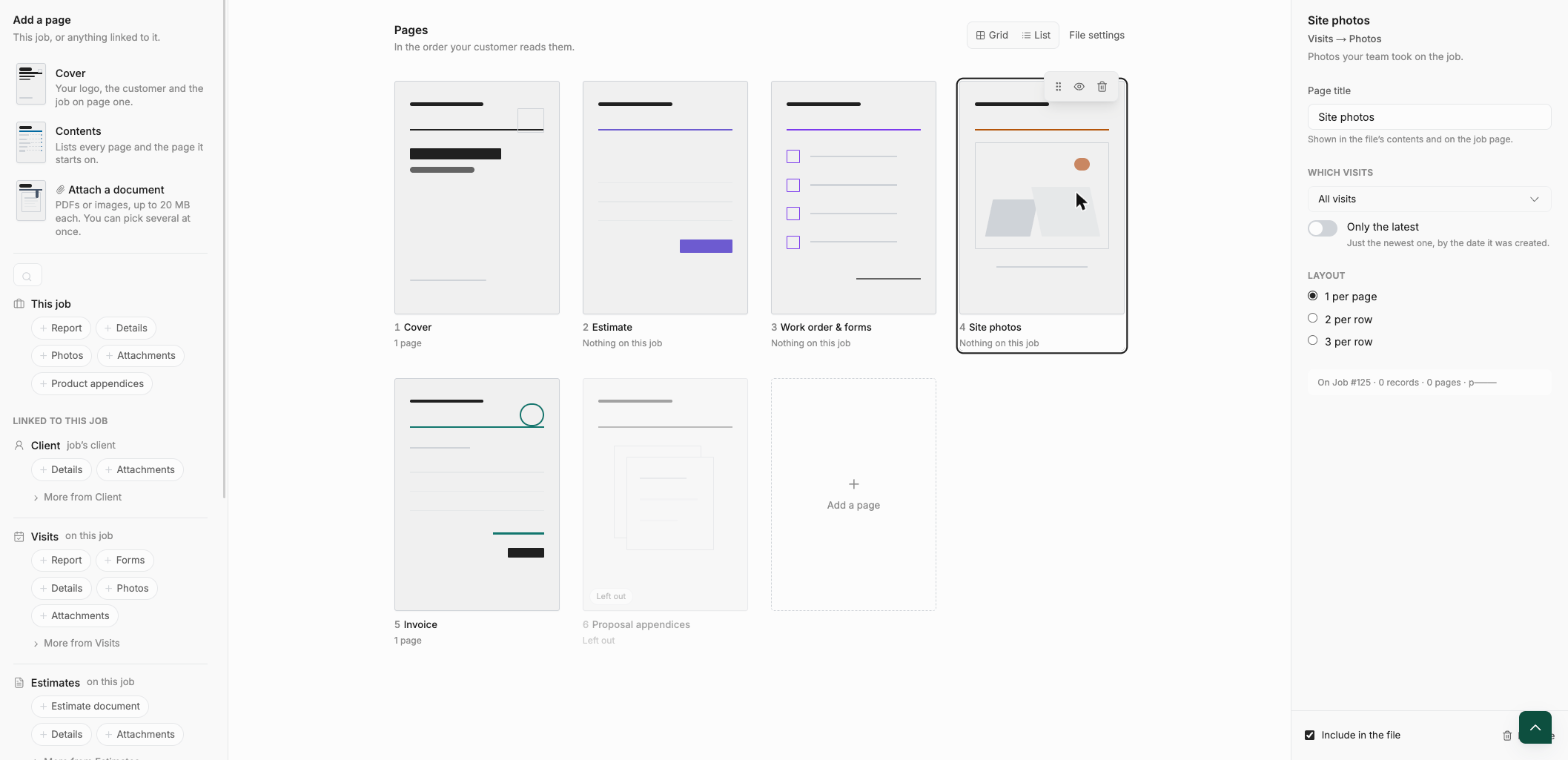
| Site photos | Photos your team took on the job. | Which visits, Only the latest, Layout |
| Proposal appendices | The appendix PDF for each product on the job. | Each file appears once |
| Attached document | PDFs or images you upload to the package. | Up to 20 MB each |
| Record summary and Record files | A record's filled-in fields, or its PDF files as an appendix. | Available on packages for other records |
Cover page
The Cover page prints your logo, the customer and the job details. The settings list what is on the page, such as the package title, logo, "Prepared for", job details, "Prepared by" and a footer line.
Choose which records print
Pages that can reach more than one record (several estimates, several visits) let you decide which ones print. The options for these pages are:
- All of them, such as All estimates.
- Only the latest: just the newest one, by the date it was created.
- Choose when building: whoever builds the file picks the records. Until they do, only the newest one prints. This is the default for pages that reach many jobs.
For forms, choose Every form filled on the job or Only these forms and tick the forms you want. Set the Layout to New page per form or Run together.
Photo layout
On Site photos, set the layout to 1 per page, 2 per row or 3 per row. Choose photos from All visits, or turn on Only the latest to use just the newest visit.
Page titles
Each page has a Page title. It appears in the file's contents and on the record's package card, so use a name your team and customers will recognize.
Customize the Look
The Look picker sets the design a page prints in. Hover or select a design to see what it holds; Package Studio draws the blocks on the page and lists "On this page" what each design contains.
- Cover, job summary and forms pages offer your job designs, for example Job default, Job report or Service Report. Each job prints in its own design; a job without one gets the layout you pick here.
- Estimate and invoice pages default to Its own design: each document prints in the design it was made with, so there is no single layout to show. You can instead choose one of your saved estimate or invoice designs, such as Quote.
- Select Design new to open the template builder in a new tab and create a design for that page. Select Edit design to change an existing one. Your page in the package stays unchanged until you pick the new design.
See Document templates for how designs are built and managed.
Attach your own documents
Use Attach a document to add a fixed PDF or image to every file, such as terms, a warranty or a licence.
- Save the package first.
- In the library, select Attach a document.
- Choose one or more files. PDFs print page for page, and each image prints on its own page.
Each file must be a PDF or an image, up to 20 MB. You can also attach documents to a single built file instead of the whole package. See Build, preview and send a document package.
Show a package only when it applies
Use Show when in the package settings to limit a package to matching records, for example only jobs of one type or stage. Leave it empty to show the package on every record of the object. The condition builder offers operators such as is, is not, contains, is one of, is empty, is greater than, is between and date comparisons like is before and is after.